24
DVQX2553 (ENG)
Switching this unit between Motion Picture Recording
Mode and Still Picture Recording Mode
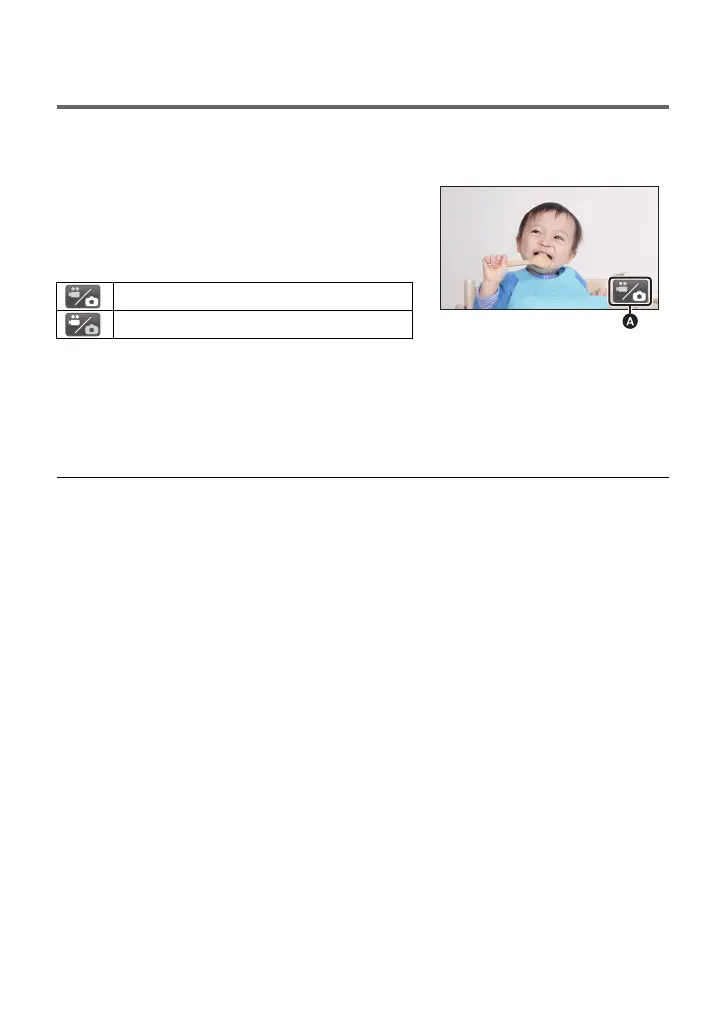
Touch the recording mode switching icon displayed on the LCD monitor (touch screen) to switch this
unit between Motion Picture Recording Mode and Still Picture Recording Mode.
2 Touch the recording mode switching icon.
≥ Refer to page 25 for touch screen operation.
To display the recording mode switching icon
Display of the recording mode switching icon will disappear when no touch operation is performed
for a specific period of time. To display it again, touch the screen.
≥ The recording mode switching icon is disabled when the Wireless Multi-Camera function is
enabled.
≥ If the recording start/stop button is pressed in Still Picture Recording Mode or Playback Mode,
this unit will be switched to Motion Picture Recording Mode. During motion picture/still picture
playback or in other conditions, even if the recording start/stop button is pressed, the recording
mode may not be switched.
≥ When you switch between Motion Picture Recording Mode and Still Picture Recording Mode,
settings used in the original recording mode may not be maintained. (l 27)
(Motion Picture Recording Mode)
1 Press the recording/playback button to
switch this unit to Recording Mode.
≥ The recording mode switching icon A is displayed on
the screen.
Motion Picture Recording Mode
Still Picture Recording Mode
HC-VX3_V900PP-DVQX2553_eng.book 24 ページ 2024年9月17日 火曜日 午後8時24分



 To Next Page