EasyManua.ls Logo

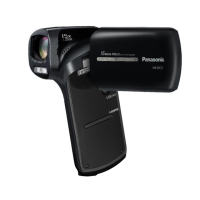
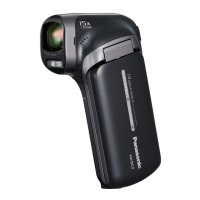
Panasonic HX-DC2 - User Manual

Panasonic HX-DC2
212 pages
Print Icon
To Next Page IconTo Next Page
Loading...
Preparation
Basic
Advanced
(Recording)
Advanced
(Playback)
Copy/
Dubbing
With a PC
Others
Operating Instructions
Dual Camera
Model No. HX-WA20
HX-WA2
HX-DC2
Before use, please read these instructions completely.
until
2012/3/2
Model number suffix “EB” denotes UK model.
VQT4F67
1AG6P1P6510--(S)
HX-WA20EB-VQT4F67_mst.book 1 ージ 2012年2月13日 月曜日 午後3時57

Table of Contents

Other manuals for Panasonic HX-DC2

Questions and Answers

  • J
    julie84Sep 23, 2025
    How to view HD Writer VE 2.0 PDF instructions for Panasonic HX-DC2 Camcorder?
    • J
      Jason VelazquezSep 23, 2025
      You need Adobe Acrobat Reader 5.0 or later, or Adobe Reader 7.0 or later to read the PDF operating instructions for HD Writer VE 2.0 or HD Writer Web Uploader.
  • F
    Frederick RiddleAug 23, 2025
    What to do if Panasonic Camcorder is on but not working?
    • B
      Blake WhitakerAug 25, 2025
      If your Panasonic Camcorder is on but not operating correctly, remove the battery or AC adapter, wait about 1 minute, and then reconnect it. If the issue persists, disconnect the power and consult the dealer from whom you purchased the unit.
  • K
    Kevin WebbAug 25, 2025
    Why is there no sound on my Panasonic Camcorder when connected to TV?
    • L
      Lucas BrownAug 26, 2025
      If you're not getting video or audio output from your Panasonic Camcorder when connected to the TV, or the images appear squeezed, ensure you've selected the correct channel on your TV that matches the input used for the connection, referring to your TV's operating instructions. Adjust the [TV ASPECT] setting on the camcorder to match the TV's aspect ratio. If using an HDMI cable, adjust the [HDMI] setting on the camcorder. Also, verify the unit's status and cable connections.
  • M
    Michael LuceroAug 27, 2025
    Why is my Panasonic HX-DC2 battery not charging?
    • J
      Joshua FrazierAug 27, 2025
      If the battery on your Panasonic Camcorder isn't charging or won't stop charging, check that the plug portion of the AC adapter is not loose or misaligned.
  • C
    Clarence HahnAug 27, 2025
    Why is my Panasonic HX-DC2 Camcorder not detected by PC?
    • D
      David WhitakerAug 27, 2025
      If your Panasonic Camcorder is not detected by the PC when connected via USB, re-insert the SD card into the unit and reconnect the supplied USB cable. Try a different USB terminal on your PC. Also, check the operating environment. After restarting the PC and turning on the unit again, reconnect the supplied USB cable.
  • A
    Alexandra AndersonSep 16, 2025
    How to fix no sound during Panasonic HX-DC2 Camcorder playback?
    • A
      Anthony CarterSep 16, 2025
      If there is no sound during playback on your Panasonic Camcorder, adjust the play volume on the unit.
  • L
    Larry AlvarezSep 13, 2025
    Why is the color balance off on my Panasonic HX-DC2?
    • S
      summerkingSep 13, 2025
      If the color balance of images from your Panasonic Camcorder is strange when recording in a place with multiple light sources like a gymnasium, set the White Balance setting to (INDOOR 2). If you still cannot record clearly, set it to (WHITE SET).
  • V
    vasquezelizabethSep 15, 2025
    Why can't I edit files on my Panasonic HX-DC2?
    • J
      Jeffery MaldonadoSep 15, 2025
      If you cannot edit files, such as rotate them, on your Panasonic Camcorder, release the protect setting.
  • D
    Dennis GonzalezSep 5, 2025
    How to fix out of focus image on Panasonic HX-DC2 Camcorder?
    • R
      Robert HillSep 5, 2025
      If the image on your Panasonic Camcorder is not in focus, try closing and reopening the LCD monitor, or turn the unit off and then on again. If [FOCUS] is set to (MANUAL), perform the above steps and then reconfigure the manual focus.
  • R
    Rachel BlanchardSep 3, 2025
    Why does my Panasonic Camcorder turn off automatically?
    • E
      Eric BlakeSep 3, 2025
      Your Panasonic Camcorder might be turning off automatically to save battery. The economy mode function puts the unit into sleep mode if no operation is performed for about 5 minutes (default). Also, if the unit turns off when you turn off the TV with the TV remote, VIERA Link is active. If you're not using VIERA Link, set [VIERA Link] to [OFF].

Summary

Preparation

Waterproof and Dustproof Performance

Details the unit's IP ratings and underwater usage limits.

Power Supply and Battery Management

Covers battery types, insertion, removal, and charging procedures.

SD Card Recording and Management

Explains compatible SD cards and their usage for recording.

Basic Unit Operations: On;Off and Settings

Covers powering on/off, standby mode, and date/time settings.

Basic Operations

Before Recording Procedures

Provides guidance on camera positioning and basic recording setup.

Recording Motion Pictures and Still Pictures

Step-by-step instructions for capturing video and still images.

Intelligent Auto Mode and Playback

Explains automatic mode and basic playback functions.

Advanced Recording Features

Zoom and Image Stabilisation

How to use zoom controls and the image stabiliser feature.

Special Recording Modes: Slow Motion and Burst

Instructions for recording in slow motion and burst shooting modes.

Underwater Recording Procedures

Specific instructions and precautions for underwater video recording.

Manual Recording Adjustments

Covers manual settings for White Balance, Shutter Speed, and Focus.

Advanced Playback Features

Playback Controls and Functions

Explains playback operations, including fast forward, rewind, and slow motion.

Editing and Manipulating Media

Guide on creating stills from video, cutting panorama sections, and zooming.

Viewing Media on TV

Explains how to connect the camera to a TV for playback.

Copying and Dubbing Files

Copying Files to SD Card

Step-by-step guide to transfer recorded files from internal memory to an SD card.

Dubbing Footage to Other Devices

Instructions for transferring footage to external video devices using an AV cable.

PC Connection and Software Usage

Connecting Camera to PC

How to establish a connection between the camera and a computer via USB.

Using the Unit as a Web Camera

Guide on setting up the camera for video conferencing.

HD Writer VE 2.0 Software Usage

Instructions for installing and using the PC software for media management.

Wireless File Transfer with Eye-Fi

Explains how to use an Eye-Fi card for wireless file transfer.

Troubleshooting and Specifications

Troubleshooting Common Issues

Addresses common problems like card errors, full memory, and power failures.

Safety Cautions and Unit Care

Important safety guidelines regarding electromagnetic interference, chemicals, and handling.

Recording Mode Capacity Information

Details on different recording modes and their approximate recordable times.

Optional Accessories and Specifications

Lists optional accessories and provides detailed technical specifications of the camera.

Panasonic HX-DC2 Specifications

General IconGeneral
Sensor typeMOS
Total megapixels14.4 MP
Optical sensor size1/2.33 \
Effective megapixels (image)11.9 MP
Digital zoom120 x
Optical zoom5 x
Image stabilizerYes
Focal length range6.8 - 34 mm
Interchangeable lensNo
Maximum aperture number3.7
Minimum aperture number3.5
Focal length (35mm film equivalent)40 - 240 mm
Maximum focal length (35mm film equiv)199.5 mm
Minimum focal length (35mm film equiv)39.9 mm
Camera file systemDCF 2.0, Exif 2.2
Camcorder media typeMemory card
Compatible memory cardsSD, SDHC, SDXC
Internal storage capacity- GB
Focus adjustmentAuto
Built-in light-
Shutter speed (photo)1/2 - 1/1500 s
Shutter speed (video)1/30 - 1/10000 s
Display diagonal3 \
Display resolution (numeric)230400 pixels
Camcorder typeHandheld camcorder
Minimum illumination4 lx
On Screen Display (OSD) languagesCZE, DEU, DUT, ENG, ESP, FRE, ITA, POL, SWE, TUR
Product colorGray
Video resolutions640 x 480, 960 x 540, 1280 x 720, 1920 x 1080 pixels
Supported video modes1080i, 480p, 720p
Video formats supportedH.264, MPEG4
Maximum video resolution1920 x 1080 pixels
Image formats supportedJPG
Maximum image resolution4352 x 3264 pixels
Still image resolution(s)640 x 480, 1920 x 1080, 2048 x 1536, 2560 x 1440, 2560 x 1920, 4352 x 2448, 4352 x 3264
Audio formats supportedAAC
USB 2.0 ports quantity1
Component video (YPbPr/YCbCr) out0
Battery voltage3.7 V
Battery capacity- mAh
Battery life (max)- h
Cables includedUSB
Bundled softwareHD Writer VE2.0
Power consumption (typical)4 W
Weight and Dimensions IconWeight and Dimensions
Depth38.1 mm
Width86.2 mm
Height120.8 mm
Weight180 g

Related product manuals