EasyManua.ls Logo

Panasonic RR-US430 - User Manual

Panasonic RR-US430
44 pages
Print Icon
To Next Page IconTo Next Page
Loading...
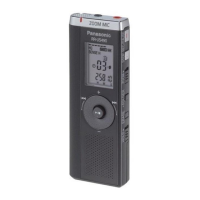
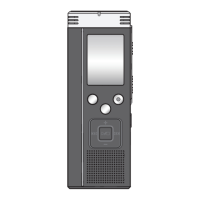
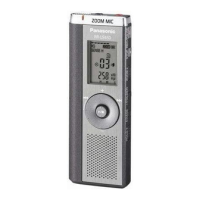
The illustration shows RR-US470.
RQT8824-P
Operating Instructions
IC Recorder
Dear customer
Thank you for purchasing this product.
For optimum performance and safety, please read these
instructions carefully.
Before connecting, operating or adjusting this product, please read
the instructions completely. Please keep this manual for future
reference.
PCP
RR-US470
RR-US450
RR-US430
Model No.
If you have any questions contact
In the U.S.A.:1-800-211-PANA(7262)
In Canada:1-800-561-5505
For U.S.A. only
The warranty can be found
on pages 40 and 41.
For Canada only
The warranty can be found
on pages 42 and 43.

Table of Contents

Questions and Answers

  • K
    Kaylee StephensSep 2, 2025
    What to do if I cannot move a file on my Panasonic RR-US430?
    • P
      parkmichelleSep 2, 2025
      If you cannot move a file on your Panasonic Voice Recorder, it could be due to several reasons: You cannot move files to folders that already contain 99 files, so free up space in the folder. You cannot move files from folder A, B, C or S to the dictation folder, so move files to a different folder. You cannot move files from folder S unless the password matches, so enter the correct password.
  • T
    timothyvargasSep 3, 2025
    Why can't I play files on my Panasonic Voice Recorder?
    • A
      alyssa32Sep 3, 2025
      If you cannot play files on your Panasonic Voice Recorder, it may be because you are trying to play secured files in folder S. Enter the password set on this unit to play files in folder S.
  • L
    Lucas McdanielSep 4, 2025
    What can cause a recording to disappear on my Panasonic RR-US430 Voice Recorder?
    • D
      David VelasquezSep 4, 2025
      Recordings can disappear from your Panasonic Voice Recorder if the unit receives a shock (e.g. it is dropped), or the batteries go out during recording. Prevent shocks and ensure batteries do not deplete.
  • A
    Amy PadillaSep 5, 2025
    Why are files created through timer recording shorter than expected on my Panasonic RR-US430?
    • M
      Michelle SmithSep 5, 2025
      If files created through timer recording are shorter than periods set with the timer on your Panasonic Voice Recorder, VAS may be “On”. Turn off VAS.
  • N
    Nicholas OwensSep 6, 2025
    Why can't I use a battery that works on other devices in my Panasonic Voice Recorder?
    • C
      Crystal RamirezSep 6, 2025
      If you cannot use a battery that can be used on other equipment in your Panasonic Voice Recorder, it is because this unit considers the battery as empty even if there is actually power left in it. Use a suitable battery.

Summary

Instruction Flow Chart

Manual Navigation Guide

Guide on which manual to refer to for specific operations.

Getting Started and Preparation

Before First Use

Steps to take before operating the device for the first time.

Device Overview and Navigation

Identification of device parts and display elements.

Accessories and Battery Installation

Battery Insertion Procedures

How to correctly insert batteries and indicators.

Initial Setup: Hold Function

Using the Hold Feature

Preventing accidental operation and battery loss.

Recording Storage and Capacity

File Storage Structure

How recordings are saved as audio files in folders.

Recording Method Selection

Meeting and Dictation Settings

Choosing recording modes and microphone sensitivity.

Device Controls and Display

Component Identification

Labeling of buttons, ports, and indicators on the device.

Operating the Quick Search Dial

Dial and Joystick Controls

How to navigate menus and control functions using the dial and joystick.

Navigating Device Menus

Accessing and Using Menus

Procedure for displaying and selecting menu options.

Time and Beep Settings

Setting Device Time and Beep

Configuring the clock and disabling operation beeps.

Performing Meeting Recordings

Recording Mode and Sensitivity Settings

Adjusting audio quality for meeting recordings.

Dictation Recording and Status Checks

Dictation Recording and Status

Simple dictation recording and checking remaining time.

Advanced Recording Techniques

Zoom Recording and External Microphones

Focusing sound and using external audio input.

Recording Control Features

VAS and Timer Recording

Automatic pausing and scheduled recordings.

Basic Playback Operations

Selecting, Playing, and Volume Control

How to select files, play audio, and adjust volume.

Advanced Playback and Search

Searching and Adjusting Playback Speed

Finding content and changing playback speed.

File Organization and Protection

File Management Operations

Deleting, moving, and locking files.

Implementing Security Functions

Folder S and Password Setup

Securing files with a password.

Accessing Password-Protected Files

Password Entry and Recovery

How to enter passwords and handle forgotten ones.

Installing Voice Editing Software

Software Installation Steps

Guide to installing the PC software.

Connecting to a Computer via USB

USB Connection and Data Transfer

How to connect the device to a PC for data transfer.

Troubleshooting Common Issues

Display, Operation, and Recording Problems

Solutions for common device errors and malfunctions.

Product Specifications

Technical Specifications Overview

Details on power, dimensions, and performance.

Maintenance and Cleaning

Unit Cleaning and Battery Cautions

Guidelines for device upkeep and battery safety.

Care and Use Guidelines

Unit Handling and Battery Safety

Proper handling and battery precautions.

Health and Safety Precautions

Allergy and Listening Safety

Precautions regarding skin contact and safe listening volumes.

U.S.A. Limited Warranty

Warranty Coverage and Mail-In Service

Details of warranty terms and service procedures in the USA.

Canada Limited Warranty

Warranty Terms and Exclusions

Details of warranty terms and exclusions in Canada.

Regulatory Compliance

FCC and IC Compliance Statements

Statements regarding radio frequency compliance.

Panasonic RR-US430 Specifications

General IconGeneral
Player media typeFlash memory
Line-inNo
Built-in microphoneYes
Voice recording time33.20 h
Headphone connectivity3.5 mm
Headphone outputs1
Connectivity technologyWireless
Output power description300mW
Dimensions (W x D x H) (imperial)1.53 x 0.56 x 4.13 \
Product colorSilver
Battery typeAAA
Battery technologyAlkaline
Number of batteries supported2
Continuous audio playback time12 h
Continuous video playback time15 h
Weight and Dimensions IconWeight and Dimensions
Weight37.13 g

Related product manuals