12
RQTV0148
ENGLISH
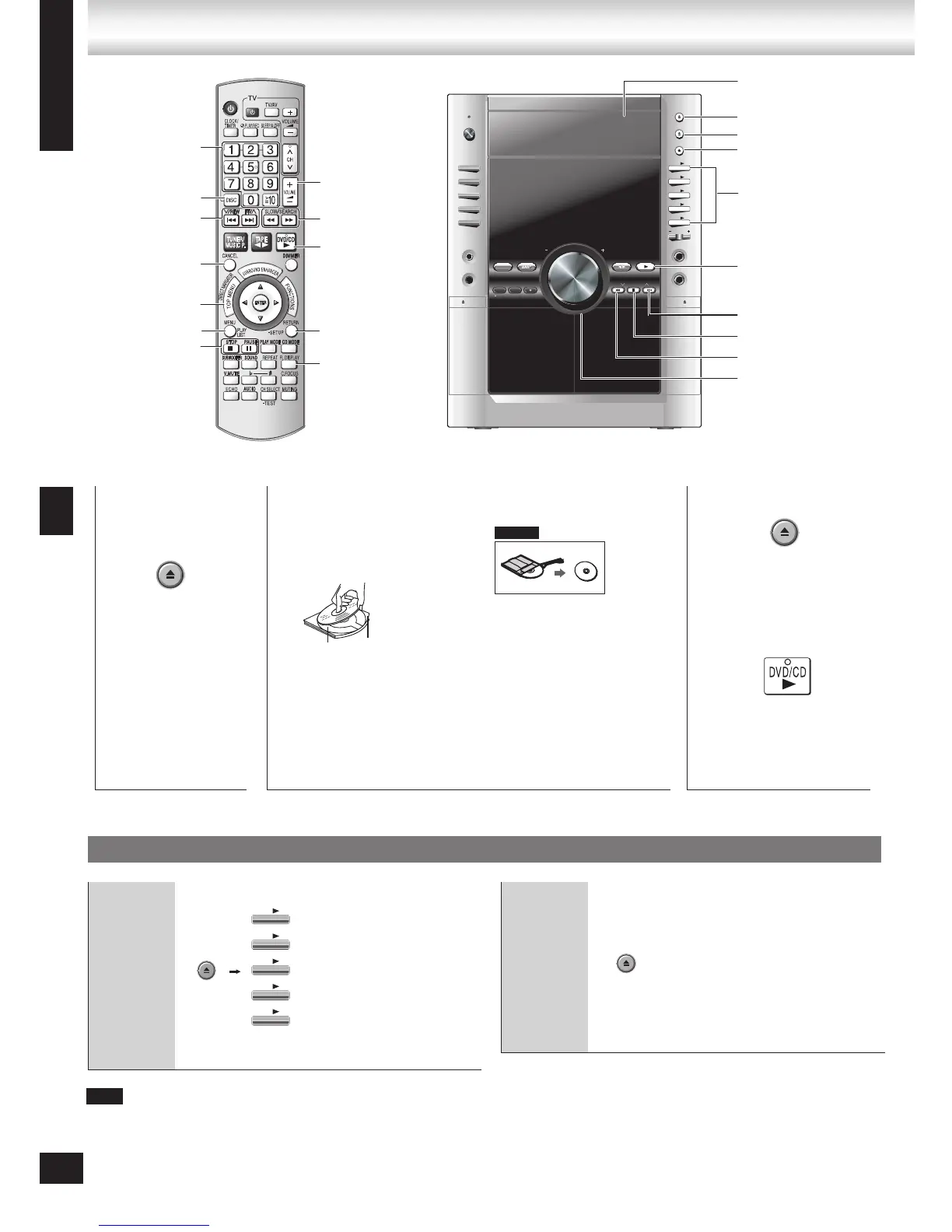
Changing a
disc in the
desired tray
Press [;, SINGLE CHANGE]
again to close the tray.
You can also remove
a disc while another is
playing.
You cannot remove a disc
in CD mode Program or
Random play, or during
recording.
•
•
3
Close the disc tray.
4
Start play.
It may take some time
for play to start but this is
normal.
•
1
Open the disc
tray.
The unit turns on
automatically and a
tray opens.
•
2
Place disc.
Load double-sided discs
so the label for the side
you want to play is facing
up. (➡ Tray/disc handling
procedure, page 4)
•
Discs — Basic play
Discs — Basic play
Label must face
upward.
Disc tray
Tray number
Remove TYPE 2 and 4
discs from their cartridges
before use.
Read the instructions
for the disc carefully.
•
1
SINGLE CHANGE
MULTI CHANGE
OPEN/CLOSE
2
3
4
5
MIC VO
L
MIC
1
MIC
2
OPEN
SUBWOOFER
SOUND EQ
SUPER SOUND EQ
SUPER SURROUND
SURROUND
ENHANCER
PHONES
MUSIC POR
T
OPEN
AC
IN
V
O
L
U
M
E
TAPE DVD/CDTUNERMUSIC PORT
DEMO
RECORDDECK 1/2DISPLAY STOPREW/ /FF
DVD-VR
Changing
multiple
discs
Press the button repeatedly to
check and change multiple discs.
The tray with a disc being
played will not open.
If the player is stopped, all trays
will open.
To close the remaining
trays simultaneously, press
[;, OPEN/CLOSE].
•
•
•
Using the main unit
Discs continue to rotate while menus are displayed. Press [g, STOP] when you finish to
preserve the unit’s motor and your television screen.
The total number of titles may not be displayed properly on +R/+RW.
•
•
Note
q, DVD/CD
;, MULTI CHANGE
g, STOP
– VOLUME +
;, OPEN/CLOSE
Disc trays
1 q to 5 q
;, SINGLE CHANGE
i, 1/FF
u, REW/2
RETURN,
-SETUP
DVD/CD q
VOLUME, +, –
Numbered
buttons
u, i,
2/REW, FF/1
DISC
g, STOP
h, PAUSE
TOP MENU
MENU
CANCEL
t, y,
SLOW/SEARCH
12
FL DISPLAY



 To Next Page