21
RQTV0148
ENGLISH
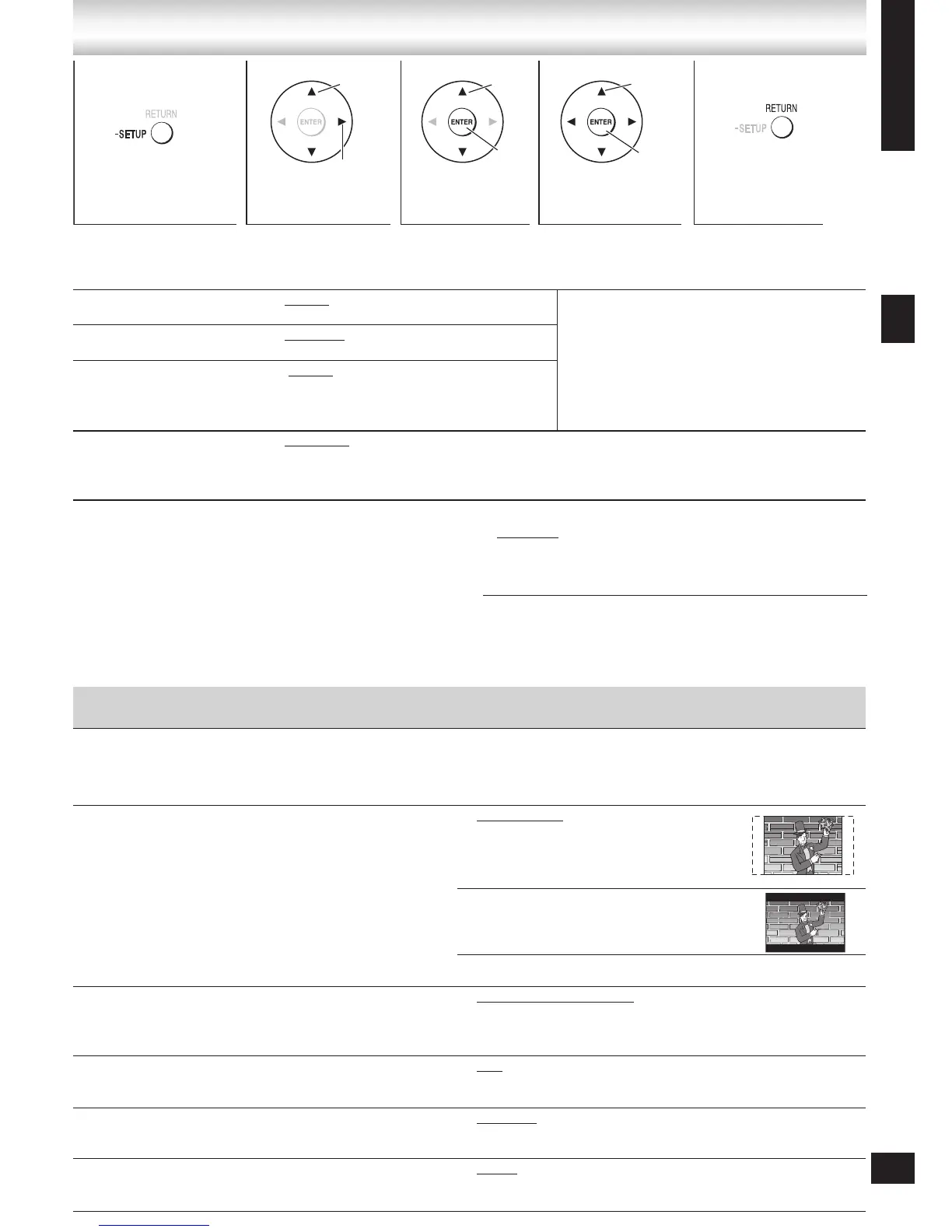
4
Make the settings.
3
Select the item.
2
Select the menu
tab.
Audio
Choose the audio language.
English
Original
#
1
•
•
(Language options)
Other★★★★
#
2
•
•
Language options
(Actual languages depend on where you bought your
system.)
French • German • Italian • Spanish
Dutch • Portuguese • Russian
•
•
Subtitle
Choose the subtitle language.
Automatic
#
3
(Language options)
•
•
English
Other★★★★
#
2
•
•
Menus
Choose the language for disc
menus.
English
Other★★★★
#
2
•
•
(Language options)•
Changing the menu language from QUICK
SETUP (➡ page 10) also changes this setting.
Advanced Disc Review
Choose the mode for
Advanced Disc Review
(➡ page 19).
Intro Mode: Plays the first few seconds of each title.
Interval mode: Plays a few seconds of the disc at ten-minute intervals.
•
•
If you insert a DVD-Video that exceeds the ratings limit you set, a message appears on the television.
Follow the on-screen instructions.
Discs — Changing the player’s settings
■ “Video” tab
TV Aspect
Choose the setting to suit your television and preference.
Changing the TV aspect from QUICK SETUP (➡ page 10)
also changes this setting.
•
4:3 Pan&Scan:
Regular aspect television (4:3)
The sides of the widescreen picture
are cut off so it fills the screen (unless
prohibited by the disc).
•
4:3 Letterbox:
Regular aspect television (4:3)
Widescr e e n s o f t w a r e is shown i n
letterbox style on a 4:3 aspect television.
•
16:9
Widescreen television (16:9)
•
TV Type
Select to suit the type of television.
Changing the TV type from QUICK SETUP (➡ page 10)
also changes this setting.
•
Standard (Direct View TV)
CRT Projector • LCD TV/Projector
Projection TV • Plasma TV
•
•
•
Time Delay
When connected with an AV amplifier and Plasma display,
adjust if you notice the audio is out of sync with the video.
0ms • 20ms • 40ms
60ms • 80ms • 100ms
•
•
Still Mode
Specify the type of picture shown when paused.
Automatic
Field: The picture is not blurred, but picture quality is lower.
Frame: Overall quality is high, but the picture may appear blurred.
•
•
•
NTSC Disc Output
Choose PAL 60 or NTSC output when playing NTSC discs (➡
Video systems, page 11).
PAL60: When connected to a PAL television.
NTSC: When connected to an NTSC television
•
•
#
1
The original language of each disc is selected.
#
2
Input a code number with the numbered buttons (➡ Language
code list, page 33).
#
3
If the language selected for “Audio” is not available, subtitles
of that language automatically appear if available on the disc.
Setting ratings (When level 8 is selected)
8 No Limit
1 to 7: Prohibits play of DVD-Video with corresponding ratings
recorded on them.
0 Lock All: To prevent play of discs without ratings levels.
Changing ratings (When level 0 – 7 is selected)
Unlock Player • Change Password
Change Level • Temporary Unlock
•
•
•
•
•
Ratings
Set a ratings level to limit DVD-Video play. The password screen
is shown when you select levels 0 to 7.
To enter a password
1. Input a 4-digit password with the numbered buttons.
• If you enter a wrong number, press [CANCEL] to erase it.
• Do not forget your password.
2. Press [ENTER].
• The lock symbol appears closed to show the rating is locked.
3. Press [ENTER] to confirm the 4 digits.
Select
Go right
Confirm
Select
Select
Confirm
➡ Page 40 for the position of the remote control buttons.
Discs — Changing the player’s settings
1
Press and hold to
show the setup menu.
5
Press to exit.
The settings remain intact even if you switch the unit to standby.
Underlined items are the factory preset.
■ “Disc” tab
•
•
21



 To Next Page