20
RQTV0148
ENGLISH
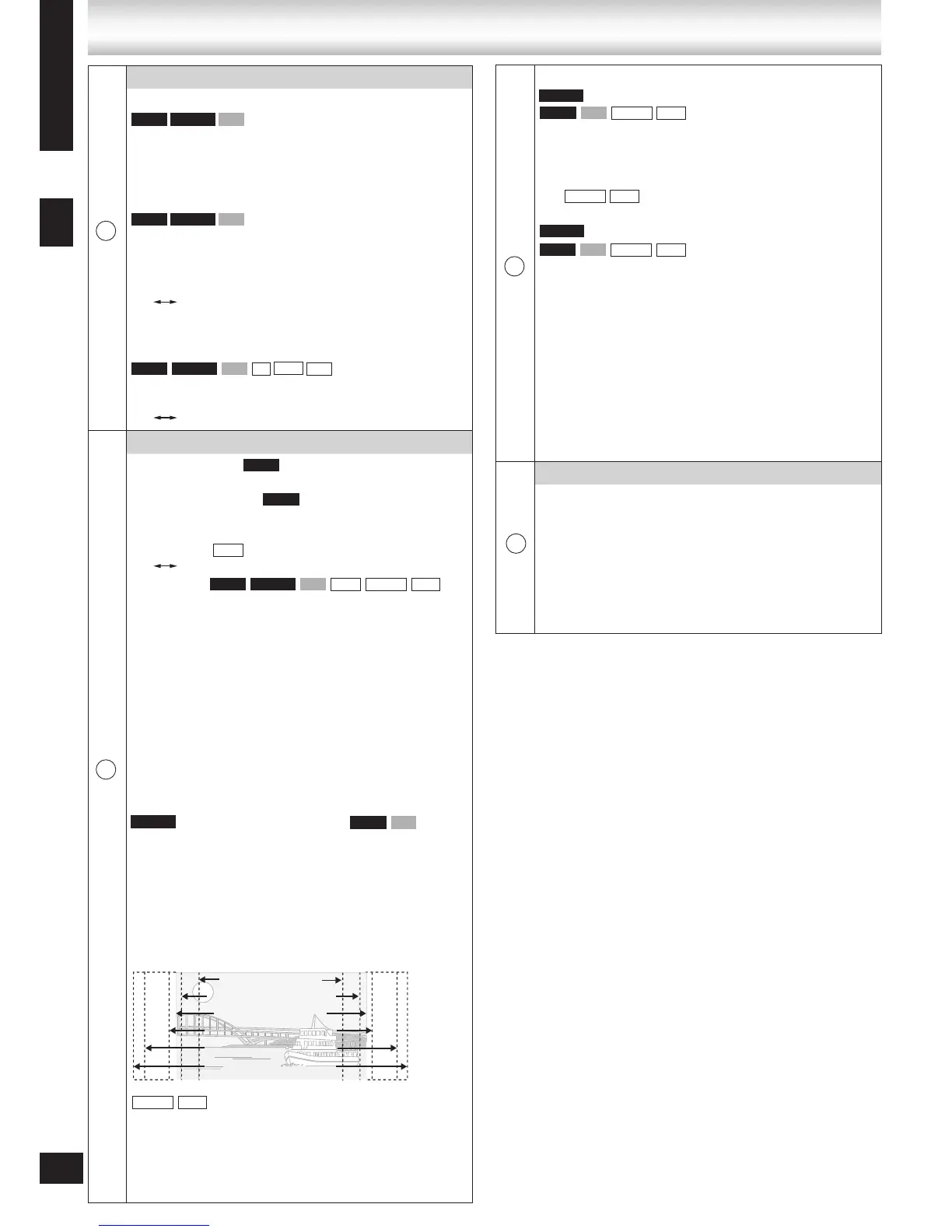
Manual Zoom
(For motion picture part)
To zoom in and out manually
Press [e, r].
–from “x1.00” to “x1.60” (in 0.01 units)
–from “x1.60” to “x2.00” (in 0.02 units)
– from “x2.00” to “x4.00” (in 0.05 units)
Bit Rate Display
(Moving picture parts only)
When you select “On”:
During play:
shows the bit rate (approximate) of the video being
played
During pause:
shows the data volume of the frame and type of
picture (➡ Glossary— I/P/B, page 32)
GUI See-through
Adjust the translucency of the on-screen menu.
Off, On, Auto
GUI Brightness (–3 to +3)
To adjust the brightness of the on-screen displays.
Other Menu
Setup
Open the Setup menu to change the player’s settings
(➡ page 21).
Play as DVD-VR, Play as HighMAT or Play as Data
Disc
Select “Play as Data Disc” to play JPEG, MP3,
MPEG4 or DivX files on DVD-RAM or to play
HighMAT disc without using the HighMAT menus.
•
Audio Menu
Dolby Pro Logic II (➡ Dolby Pro Logic II, page 28)
Movie: Movie software, recorded in Dolby Surround.
Music: Stereo sources
Off: Cancel (factory preset)
Dialogue Enhancer
(Dolby Digital, DTS, MPEG4, 3-channel or over,
where the dialogue is recorded in the center
channel)
This makes the dialogue in movies easier to hear.
On Off
This does not work or has less effect with some discs.
Sound Enhancement
Enhances audio output to produce a warm hall-like
sound.
On Off
•
Display Menu
Subtitle Position
0 to –60 in 2 unit steps.
Subtitle Brightness
“Auto” to automatically adjust the brightness against the
background, or 0 to –7.
Information
On Off
4:3 Aspect
To select how to show images made for 4:3 aspect
screens on a 16:9 aspect television.
(Go to “Video” tab in the Setup menus, and select “16:9”
for “TV Aspect” (➡ page 21).)
Normal: Laterally stretches images.
Auto: Expands 4:3 letterbox images to fill more of the
screen. Other images appear in full in the center of the
screen.
Shrink: Images appear in the center of the screen.
Zoom: Expands all images to fill the screen.
If your television has a similar feature, use it instead for
a better effect.
Just Fit Zoom
(motion picture parts only)
To select appropriate screen size to fit your television
screen.
Example:
Standard (x0.25 full-screen)
Original (actual recorded size)
Full (full-screen)
This may not work depending on the discs recording.•
DVD-V
DVD-V
JPEG
DVD-V DVD-VR VCD JPEG MPEG4 DivX



 To Next Page