8
Remote Control Television Operation
BUTTON WHAT IT DOES
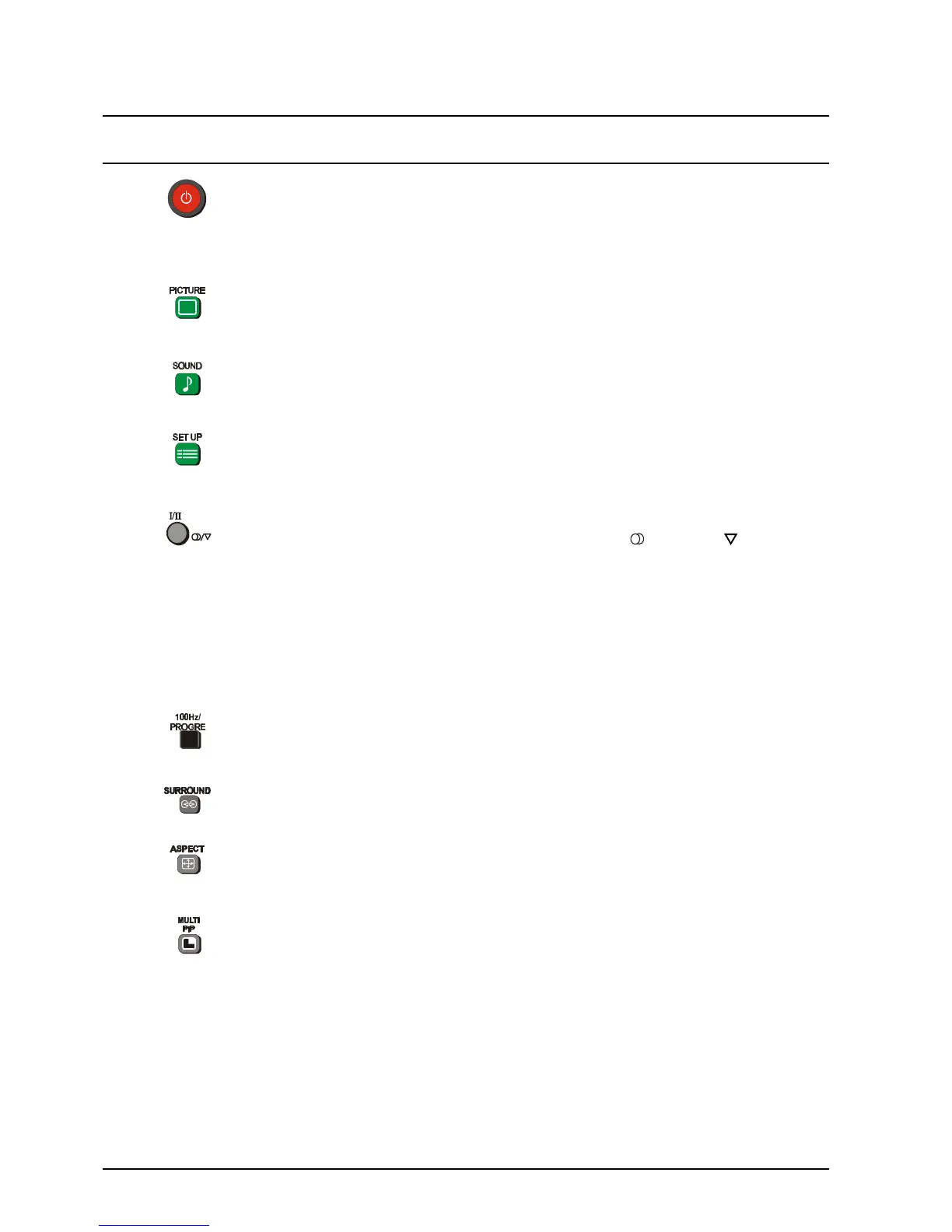
STANDBY
The remote control button is used to turn the television into Standby mode. When
the television is in Stand-By it is possible to turn it back on by pressing this remote
control Power Button, the Programme Number UP or DOWN Button (front panel
or remote control) or any of the direct Programme Number Buttons.
PICTURE
This button is used to select the picture menu. Please refer to page 13 for detailed
operating instructions.
SOUND
This button is used to select the sound menu. Please refer to page 15 for detailed
operating instructions.
SET UP
This button is used to select the set up menu. Please refer to page 21 for detailed
operating instructions.
STEREO / MONO
Pushing the button changes the mode from Stereo ( ) to Mono ( ) and back
again. Normally the television will detect whether the broadcast signal is Mono or
Stereo and will set the mode accordingly. If the Stereo signal is weak or if the
receiving conditions are not the best, it is recommended that the Mono mode be
manually selected.
BILINGUAL *
This system allows two languages to be transmitted on one signal. Switching
between the Main ( I ) and Sub ( II ) positions selects the desired language.
* Note: Bilingual sound is not currently available in Australia or New Zealand.
100Hz / PROGRE
This button allows you to change the Picture refresh setting between AUTO,
100Hz MODE and PROGRESSIVE. Please refer to SCAN MODE on page 14.
SURROUND
This button switches the SURROUND on and off.
ASPECT
This button is used to move through the different aspect options of AUTO, 4:3,
ZOOM, S-ZOOM, 16:9, 14:9 and JUST. Please refer to page 22.
MULTI PIP (TX-76PW10A only)
Pressing this button will access the Picture in Picture options. If the 4:3 aspect
ratio is selected you can choose between normal, Picture And Picture and
Picture Out Of Picture. All other aspect ratio settings let you choose between
normal, Picture And Picture and Picture In Picture.
Notes:
The MULTI PIP picture can be another television channel or an AV input.
While the On Screen Display is shown the sub-picture can be changed using the
0 ~ 9 and the “- / - -” buttons, as shown on page 11.
When the On Screen Display disappears the main picture can be changed using
the 0 ~ 9 and the “- / - -” buttons, as shown on page 11.
MULTI PIP is not available on the TX-76PW05A.
Please refer to drawing on Page 6 for location of Remote Control Buttons.




 To Next Page