Peak Atlas DCA Pro User Guide June 2019 – Rev 1.7
Page 32
Windows Vista, 7, 8 and 10 Installation
1. Make sure you have the latest Windows Updates and Service Pack.
2. Run “Setup.exe” on the supplied USB flash drive. Alternatively, you can
download and run installation file from our web site:
www.peakelec.co.uk/downloads/dcaprosetup.exe
3. During the setup process, you may be asked to install .NET Framework 4.
The installation files for that are included on the USB flash drive and don’t
need to be downloaded. If you are running the installation from a
downloaded copy of our software then you may be prompted to download
the .NET package. You need to accept the Microsoft agreement and the
process will complete in a few minutes (sometimes up to 10 minutes).
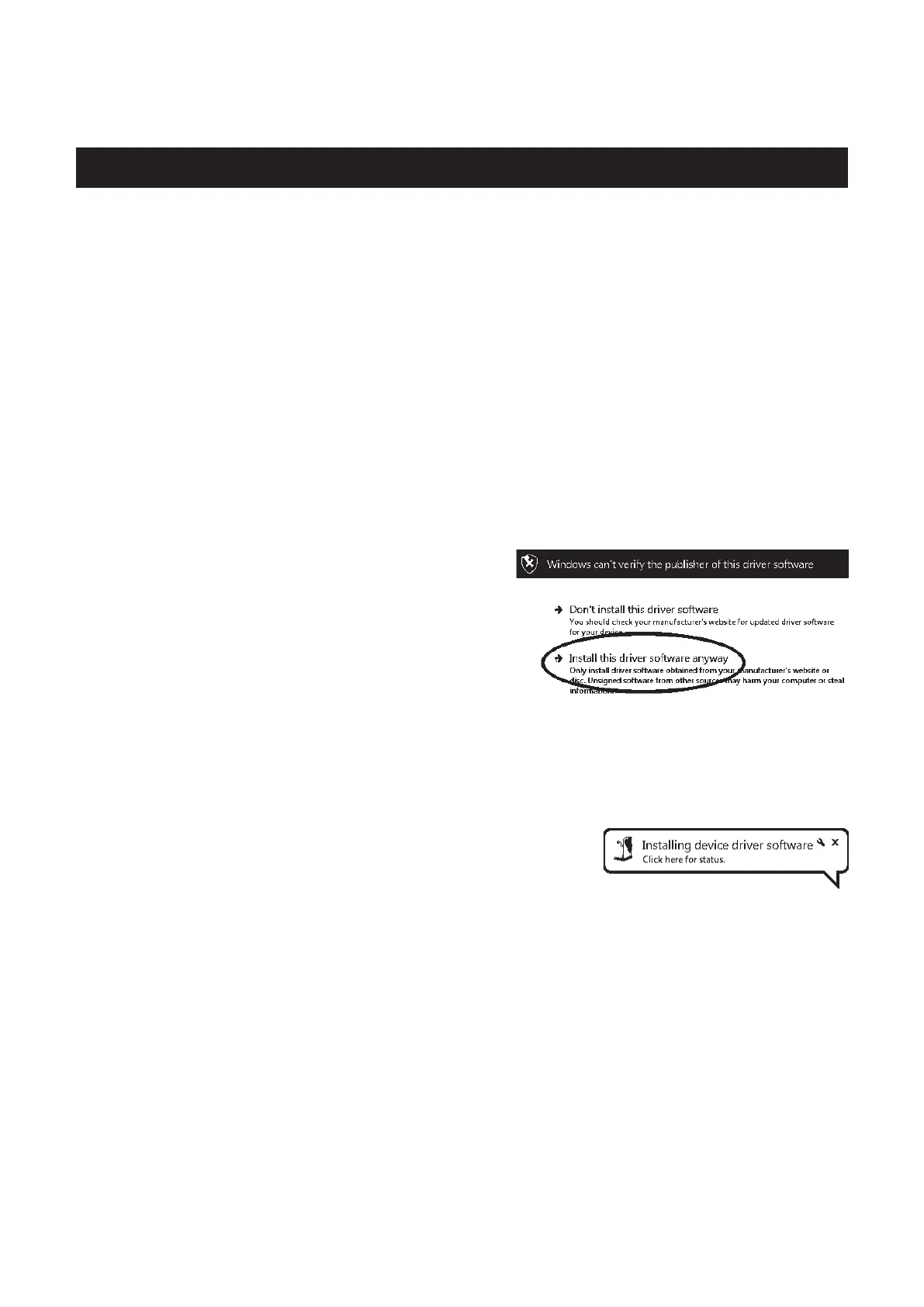
4. Some systems may warn you that the
driver is not signed. The driver is in
fact a standard Microsoft WinUSB
driver that is set to look for the
DCA Pro identifier, so it is fine to
accept the warning and proceed.
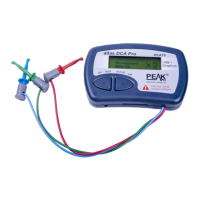
5. When the DCA Pro software installation is complete, you can plug in your
DCA Pro to a convenient USB socket. It’s best to choose a socket directly
on your computer rather than a hub. Windows should install the drivers
automatically although it can take a minute or
two. You should see the driver installation
activity in the bottom right of your screen.
6. If prompted, let Windows download the latest WinUSB drivers. Don’t
worry if it takes a few minutes.
7. Your DCA Pro should chime when your software is ready to use.


 To Next Page