Chapter 4 Driver Software Functions
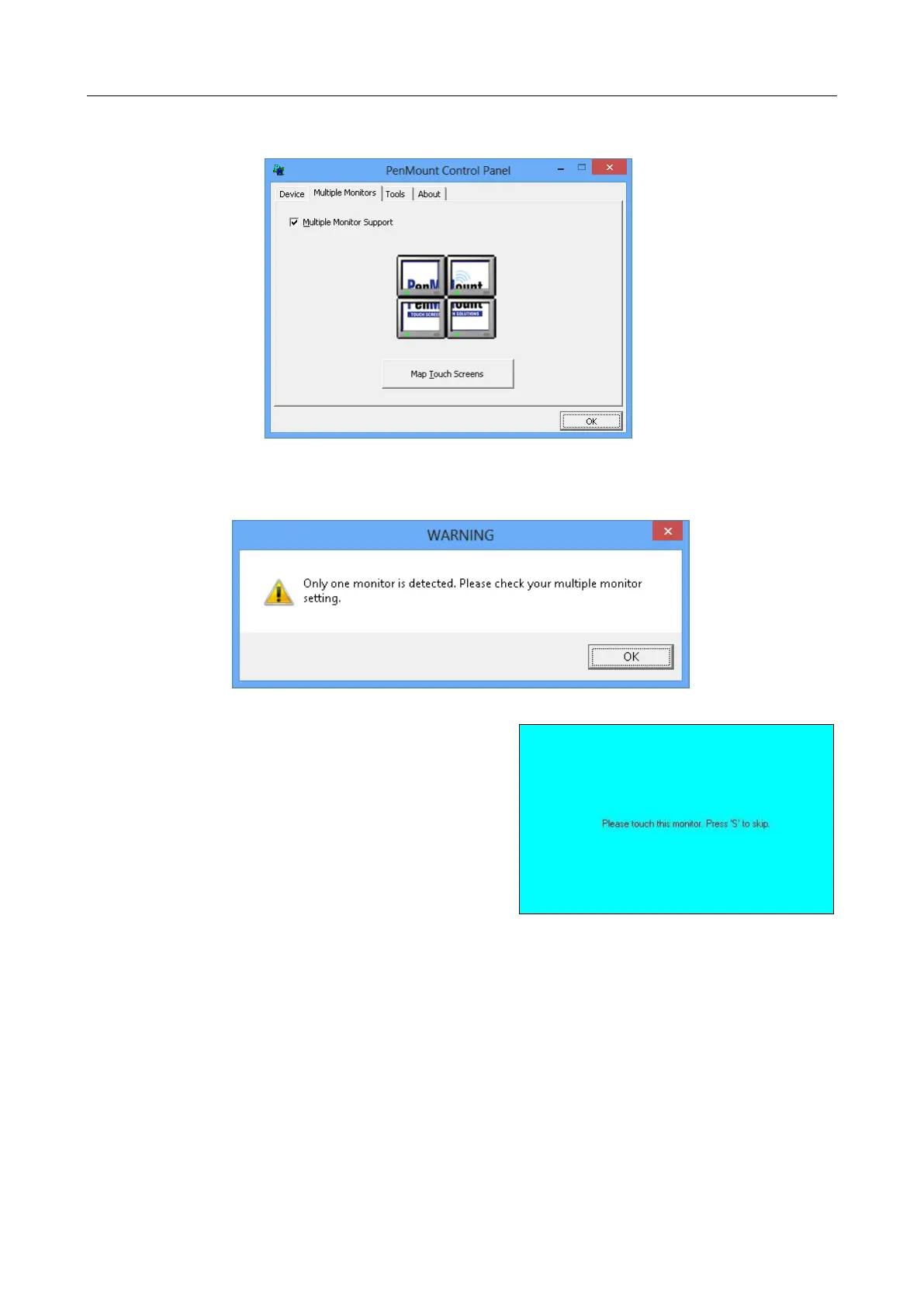
2. If there is only one monitor attached, a warning message box will show
up.
3. Touch each screen as it
displays “Please touch this
monitor. Press ‘S’ to skip”, or
wait for 10 second to skip
automatically.
4. Follow this sequence and
touch each screen to map
the touchscreens.
5. After the setting procedure is finished, maybe you need to calibrate for
each panel and controller.
NOTES:
1. If you use a single VGA output for multiple monitors, please do not
use the Multiple Monitors function. Just follow the regular
procedure for calibration on each of your desktop monitors.
2. The Rotating function is disabled if you use the Multiple Monitors
function.
3. If you change the resolution of display or screen address, you have
to redo Map Touchscreens so the system understands where the
displays are.



 To Next Page