Installing Drivers for 6000 Boards
PenMount Monitor in Windows 7 and Windows 8
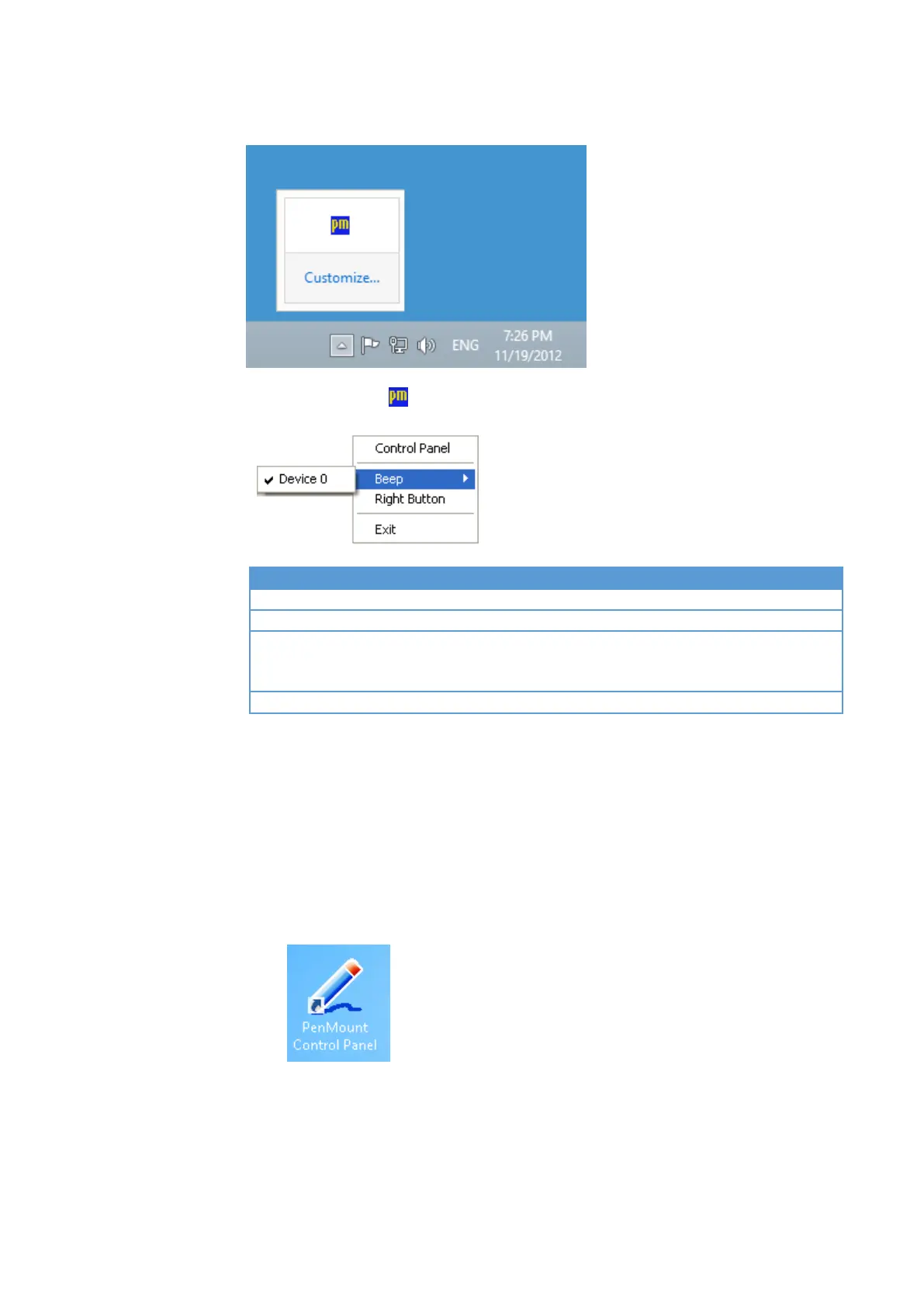
By clicking on the icon, a shortcut menu will appear as below:
Open PenMount Control Panel.
Setting Beep function for each device.
When you select this function, a mouse icon appears in
the right-bottom of the screen. Click this icon to switch
between Right and Left Button functions.
Exits the PenMount Monitor function.
3.2.4.3. PenMount Control Panel
The PenMount Control Panel is the utility for configuring touch settings.
Please refer to Chapter 4 for more detailed information on configuring
PenMount.
There are several difference between the mouse version and the digitizer
version PenMount Control Panel.
1. When installed as digitizer, a shortcut icon will be created on the
Windows Desktop.



 To Next Page