EasyManua.ls Logo

Pentax Optio RZ10 - User Manual

Pentax Optio RZ10
256 pages
Print Icon
To Next Page IconTo Next Page
Loading...
Digital Camera
Operating Manual
To ensure the best performance from your camera, please
read the Operating Manual before using the camera.
Specifications and external dimensions are subject to change without notice.
53261 Copyright © HOYA CORPORATION 2010
H01-201008 Printed in Indonesia
HOYA CORPORATION
PENTAX Imaging Systems Division
2-35-7, Maeno-cho, Itabashi-ku, Tokyo 174-8639, JAPAN
(http://www.pentax.jp)
PENTAX Europe Imaging
Systems S.A.S.
(European Headquarters)
112 Quai de Bezons, B.P. 204, 95106 Argenteuil
Cedex, FRANCE
(HQ - http://www.pentaxeurope.com)
(France - http://www.pentax.fr)
PENTAX Imaging Systems
GmbH
Julius-Vosseler-Strasse 104, 22527 Hamburg,
GERMANY
(http://www.pentax.de)
PENTAX Imaging Systems
Limited
PENTAX House, Heron Drive, Langley, Slough, Berks
SL3 8PN, U.K.
(http://www.pentax.co.uk)
PENTAX Imaging Company
A Division of PENTAX of America, Inc.
(Headquarters)
600 12th Street, Suite 300 Golden, Colorado 80401, U.S.A.
(PENTAX Service Department)
250 North 54th Street Chandler, Arizona 85226, U.S.A.
(http://www.pentaximaging.com)
PENTAX Canada Inc. 1770 Argentia Road Mississauga, Ontario L5N 3S7,
CANADA (http://www.pentax.ca)
PENTAX Trading
(SHANGHAI) Limited
23D, Jun Yao International Plaza, 789 Zhaojiabang
Road, Xu Hui District, Shanghai, 200032 CHINA
(http://www.pentax.com.cn)
http://www.pentax.jp/english

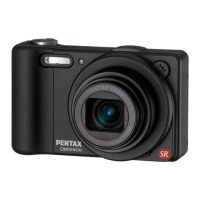
Table of Contents

Other manuals for Pentax Optio RZ10

Questions and Answers

Pentax Optio RZ10 Specifications

General IconGeneral
TypeCompact digital camera
Sensor TypeCCD
Sensor Size1/2.3 inch
Optical Zoom10x
Digital Zoom4x
Focal Length5-50mm
Aperture Rangef/3.2 - f/5.9
Minimum Aperturef/5.9
ISO Range80 - 6400
LCD ScreenTFT LCD
Effective Pixels14.0 MP
Megapixels14.0 MP
LensPentax zoom lens
Maximum Aperturef/3.2
ISO sensitivity80-6400
Shutter Speed1/2000 - 4 sec
Image StabilizationSensor-shift
LCD Screen Size2.7 inch
Screen Size2.7 inch
Video Resolution1280 x 720
StorageSD/SDHC
BatteryD-LI92
Battery Life200 shots
Weight178g (loaded)

Summary

Using Your Camera Safely

General Safety Precautions

Key safety warnings and symbols for camera operation, including warnings and cautions.

Camera Safety Information

Battery Charger and AC Adapter Safety

Warnings for using the correct battery charger and AC adapter to prevent hazards.

Battery and Accessory Safety

About the Battery

Precautions for handling, storing, and charging the camera battery safely.

Advanced Camera Functions

Portrait Photography Features

Getting Started: Initial Setup

Attaching the Camera Strap

Step-by-step instructions for securely attaching the camera strap.

Powering and Charging the Camera

Charging the Battery

Guide on how to charge the rechargeable lithium-ion battery using the provided charger.

Installing the Battery

Installing the Battery

Detailed steps for correctly inserting the battery into the camera.

Battery Management

Removing the Battery

Instructions on how to safely eject and remove the camera battery.

Using External Power

Using the AC Adapter

Instructions for connecting and using the optional AC adapter for continuous power.

Memory Card Installation

Installing the SD Memory Card

Guide on inserting the SD Memory Card into the camera's slot.

SD Memory Card Precautions

Precautions When Using an SD Memory Card

Important guidelines for safe and effective use of SD Memory Cards.

Camera Operation: On;Off and Memory Check

Turning the Camera On and Off

Steps to power the camera on and off using the power switch.

Initial Camera Setup

Setting the Display Language

Steps to select the preferred language for menus and messages.

Setting the Date and Time

Guide to setting the camera's internal date and time.

Date and Time Configuration

Setting the Date and Time Format

How to set the date format and choose between 12h/24h time display.

Changing the Date and Time Settings

Procedures to adjust the camera's date, time, and format.

Understanding Camera Controls

Button Functions Overview

Explains the functions of key buttons like Power, Shutter, Zoom, and Mode buttons.

Four-Way Controller Functions

Details the operations and navigation using the four-way controller.

Camera Modes and Memory

Switching Between Capture and Playback Modes

How to toggle between taking pictures (A mode) and viewing them (Q mode).

Menu System Guide

Taking Still Pictures

Basic Picture Taking Process

Step-by-step guide to taking still pictures using standard camera settings.

Advanced Shooting Features

Face Detection Functionality

Using the Face Detection Function

How the camera detects and focuses on faces for optimal shots.

Automatic Shooting Modes

Auto Picture Mode

Explains how the camera automatically selects the best shooting mode.

Scene-Specific Shooting Modes

Basic and Automatic Shooting

Green Mode

Easy shooting with automatic settings, overriding other mode settings.

Zooming and Framing

Portrait and Skin Tone Enhancement

Pet Photography Features

Timed Photography

Continuous and Burst Shooting

Shooting Function Settings

Selecting the Flash Mode

Options for controlling flash behavior, including Auto, On, Off, and Red-eye reduction.

Focus Control Options

Selecting the Focus Mode

Various focus modes like Standard, Macro, Infinity, and Manual Focus.

Autofocus Area Settings

Image Resolution Settings

Exposure Adjustment

Setting the Exposure (EV Compensation)

Adjusting overall picture brightness using EV compensation.

Dynamic Range Correction

Correcting Brightness (D-Range Setting)

Expanding dynamic range by adjusting bright and dark areas.

White Balance Adjustment

Adjusting the White Balance

Setting white balance for natural colors under different lighting conditions.

Exposure Metering Settings

Setting the AE Metering

Choosing the metering method to determine exposure based on screen area.

Sensitivity (ISO) Settings

Setting the Sensitivity (ISO)

Adjusting ISO sensitivity for different brightness levels and noise reduction.

Blink Detection Function

Camera Shake Reduction

Setting the Shake Reduction Function

Activating optical or electronic shake reduction to prevent blur.

Customizing the Green Button

Setting the Green Button Function

Assigning frequently used functions to the Green button for quick access.

Movie Recording

Recording a Movie

Step-by-step guide to recording video with sound.

Movie Recording Specifications

Movie Shake Reduction

Setting the Movie SR Function

Activating Movie Shake Reduction to reduce camera shake during recording.

Saving Camera Settings

Playing Back Images

Playing Back Still Pictures

Viewing still images one by one or navigating through them.

Playing Back Movies

Playing Back a Movie

How to play recorded movie files with sound.

Playback Functions and Modes

Face Close-up Playback

Deleting Images and Sound Files

Deleting a Single Image

How to delete individual image or sound files from the camera.

Batch Deletion of Media

Deleting All Media

Protecting Files from Deletion

Protecting Images and Sound Files

Preventing accidental deletion of important images and sound files.

Bulk File Protection

Connecting to External Devices

Editing Images

Changing Image Size (Resize)

Reducing image file size by changing recorded pixels to save space.

Image Cropping Function

Face Size Adjustment

Applying Digital Filters

Red-eye Correction

Editing Movie Files

Copying Media Files

Sound Recording

Setting the Voice Recording Function

Assigning voice recording to the Green button for easy access.

Recording Sound

Recording Sound (Voice Recording)

Steps to record audio using the camera's microphone.

Playing Back Sound Files

Playing Back Sound

How to play recorded sound files and navigate them.

Adding Audio to Images

Playing Back Voice Memos

Camera Settings Menu

Formatting an SD Memory Card

Deleting all data on an SD card to prepare it for camera use.

Sound Settings Customization

World Time and Location Settings

Language and Folder Settings

Video Output Configuration

Eye-Fi Card Communication

Display Brightness Adjustment

Power Saving Features

Automatic Power Off Setting

Resetting Camera Settings

Computer Connection Setup

Setting Up Your Computer

Preparing the computer by installing software and checking system requirements.

Software Installation Guide

USB Connection Configuration

Camera-to-Computer Connection

Connecting the Camera and the Computer

Steps for physically connecting the camera to the computer via USB cable.

Image Transfer Process

Transferring Images

Importing captured images from the camera to the computer.

Disconnecting the Camera Safely

Using the MediaImpression Software

Wireless Image Transfer

Error Messages and Solutions

Camera Error Messages

Explains common error messages and their corresponding remedies.

Troubleshooting Common Problems

Troubleshooting Guide

Lists problems, causes, and remedies for common camera issues.

Default Camera Settings

Camera Technical Specifications

PENTAX Product Warranty

Related product manuals