15-07-2002
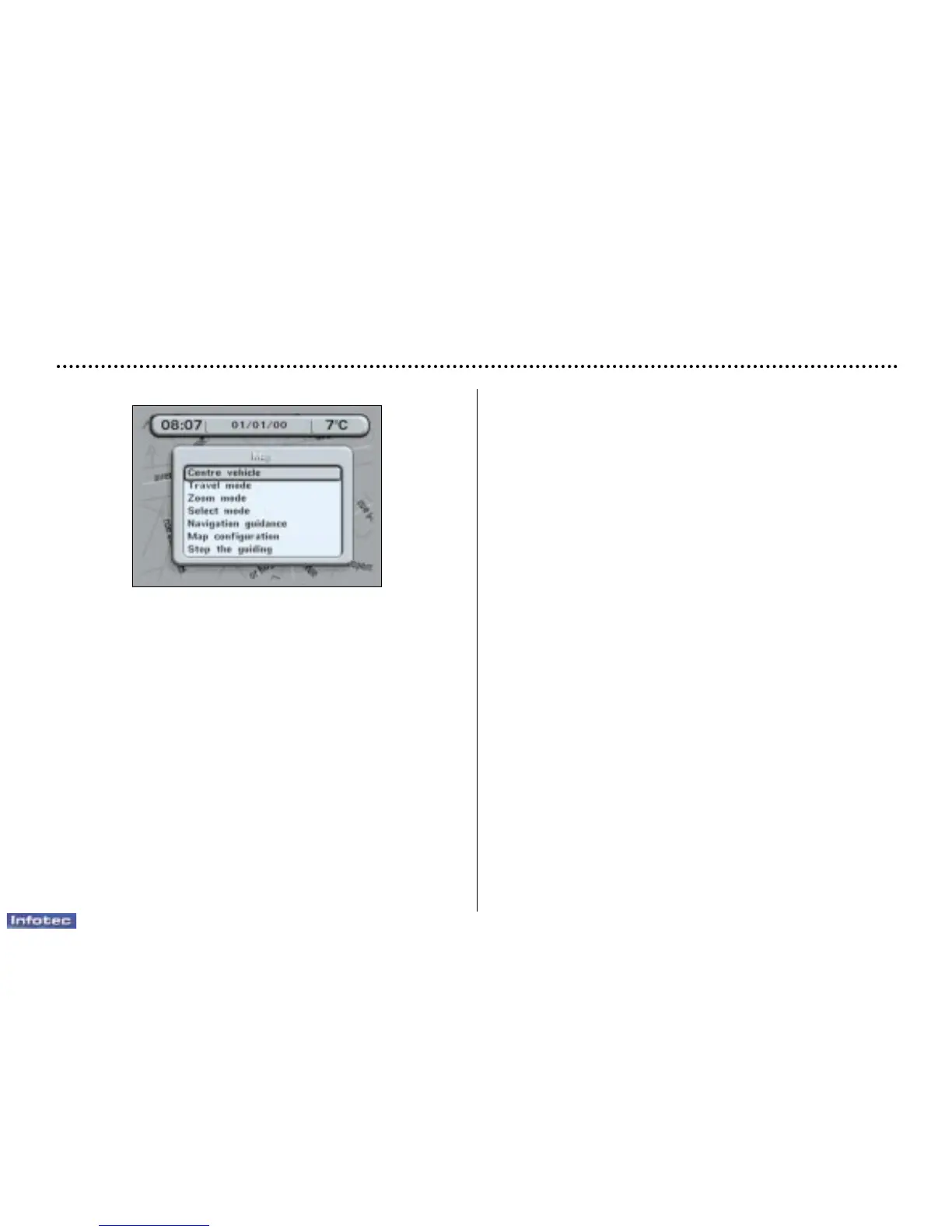
Map
The 'Map' context menu offers various possibilities for fol-
lowing the route defined by the navigation:
– centering the vehicle,
– journey mode,
– zoom,
– selecting,
– navigation / guidance,
– map configuration,
– stopping / resuming guidance.
The guidance function offers two journey modes:
– manual mode (see 'Movement mode'),
– automatic mode (see 'Centering the vehicle').
Centering the vehicle
This function permits activation of the automatic map
movement mode. The map moves over the screen, follow-
ing the direction of the vehicle. Depending on the pro-
gramming, the top of the screen represents either the
North or the direction followed by the vehicle.
The vehicle is shown as a symbol in the centre of the
screen.
Movement mode
Press the dial so that the map moves in the direction
shown by the pointer. The pointer is in the centre of the
screen and the map slides underneath it.
Rotating the dial lets you select one of 16 different direc-
tions (North, N/NE, NE, E/NE, East, E/SE, SE, S/SE,
South etc.).
When moving, it is possible to change the direction selected.
Zoom
This function allows the scale of the map displayed to be
enlarged or reduced.
Selecting
This function opens the screen which allows selection of
the destination on the map.
It enables guidance towards this destination to be activated.
Navigation / guidance
This function allows you to return to the 'Navigation/
Guidance' application off the map.
YOUR 607 IN DETAIL
84


 To Next Page