Operation
45
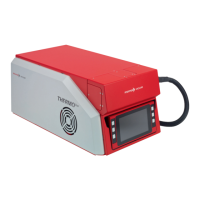
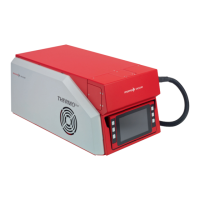
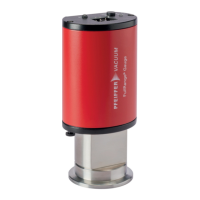
System setup To use the GSD 320 with QUADERA, the QMG 220 and GSD 320 Controller must be
configured. Both devices are Ethernet based, so they each require a unique IP Address
on the same network. The factory default IP Addresses are:
QMG 220 . . . . . . . . . . . . . . . . . . . . . . . 192.168.1.101
GSD 320 . . . . . . . . . . . . . . . . . . . . . . . . 192.168.1.102
Use the following steps to set up the system for connection to a network.
1 Connect the supplied crossover cable between the GSD 320 and the PC.
2 Set a fixed IP Address on the PC of 192.168.1.103 (with a required subnet mask of
255.255.0.0).
3 Run QUADERA.
4 Use the menu selection Device >> Device Setup to open the Device Setup dialog.
Press the Search button to open the Device Search dialog and search for the QMG
220. If no Device is shown, press the Search button multiple times until the Device is
shown.
5 Select the QMG 220 found and use the Add button to add it to the system. The
Device Search dialog will close.
6 Highlight the QMG 220 in the Device Setup list and press Configure.
7 Enter an IP Address for the QMG 220 that is appropriate and available for your
network and press the Change button to apply the changes.
NOTE
These instructions assume that the GSD 320 IP Address has not been changed via the
Front Panel.
NOTE
Refer to Windows
®
Help on ’Configure TCP/IP Settings’ for assistance on setting an IP
Address.
NOTE
Do not run the GSD 320 Add-in.
NOTE
Do not press OK.
NOTE
For direct connect systems: If the GSD 320 will not be used on a network, and will
only be used with a direct connection to the PC, then changing this IP Address is not
necessary. In this case, the GSD 320, QMG 220 and PC can all use addresses in the
192.168.x.x range and steps 9 through 13 can be skipped. Go directly to step 14.



 To Next Page