iXH Camera Systems Installation Guide
Page 34
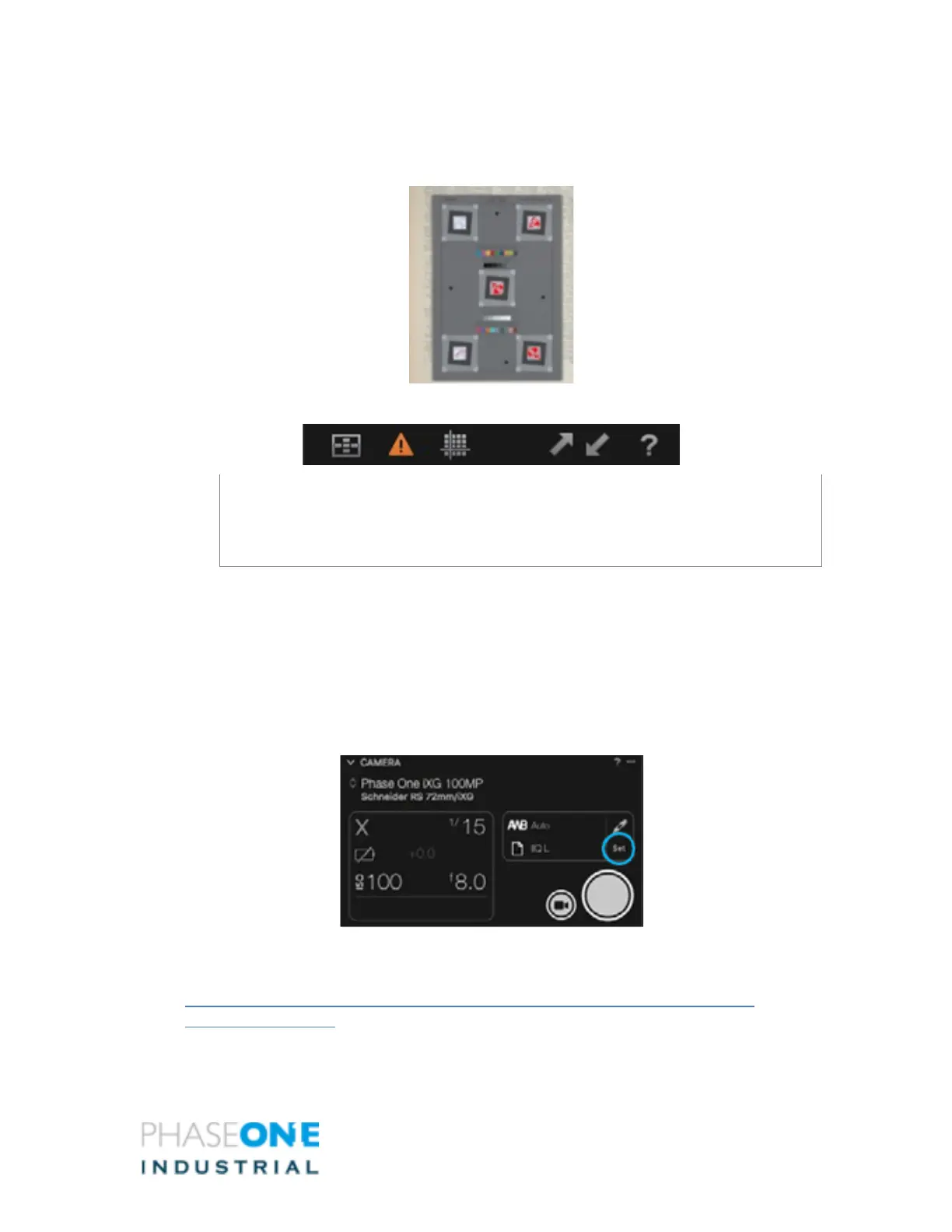
2. Check your exposure with the over-exposure and under- exposure warnings and
make any necessary corrections. The following figure is an image with a warning
of white areas that are over exposed.
The following figure displays the Warning On/Off toggling option at the upper tool bar.
Note:
At this stage it is recommended to use the zoom tool at 100% to check and confirm
sharpness of the image.
16.3 Setting White Balance
To set the white balance:
1. Take a first shot of the Tethered session.
2. Click the White Balance icon in the Camera Tool.
3. Use the White Balance picker to set White Balance from a neutral area of an
image file.
4. Click Set when the desired White Balance setting is achieved.
For additional help on Capture One CH please see
https://support.captureone.com/hc/en-us/sections/360000704038-Capture-One-
Cultural-Heritage-CH-


 To Next Page