10 EN
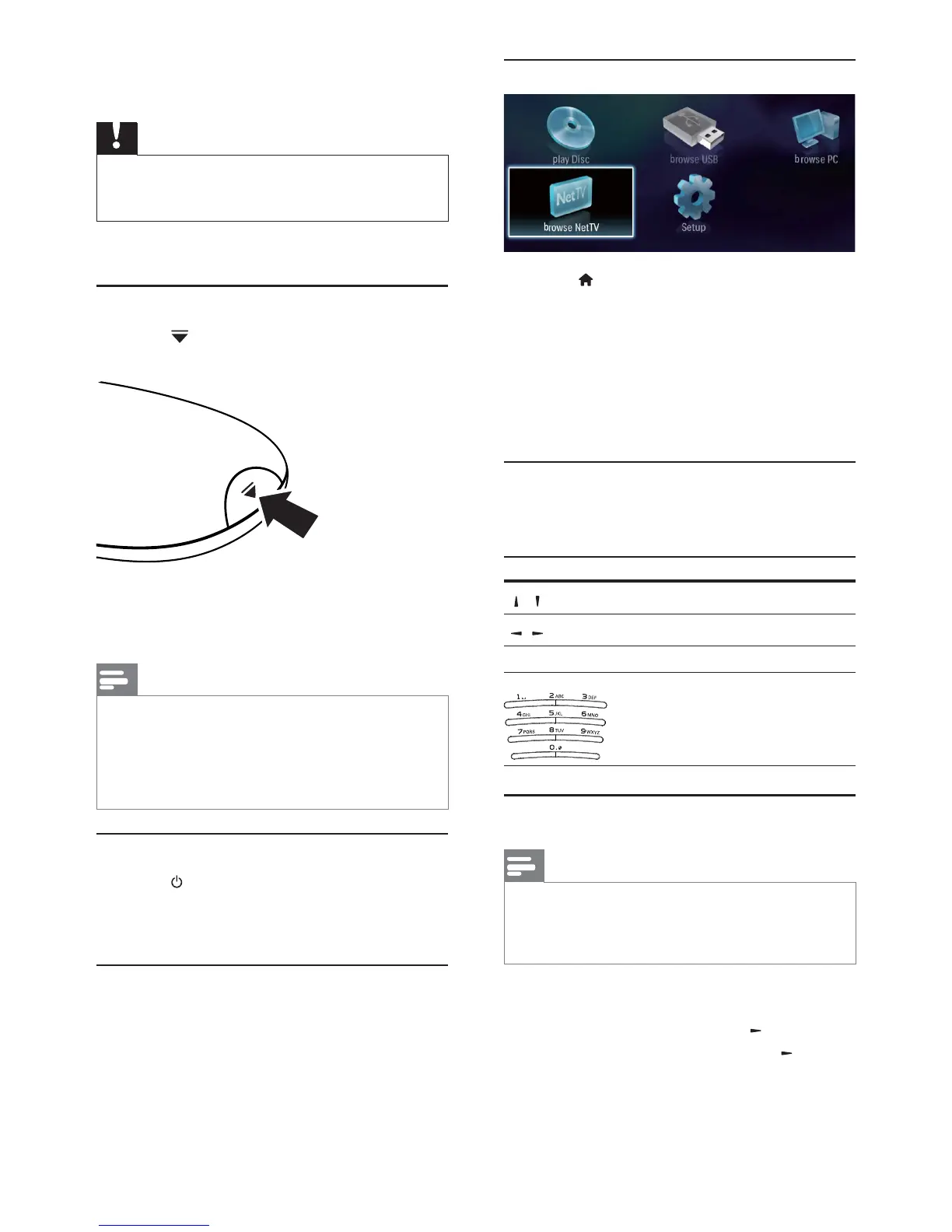
Use the Home menu
1 Press to display the home menu.
To start disc play, select [play Disc].
To play the USB contents, select
[browse USB].
To access the setup menus, select [Setup].
server (e.g. PC), select [browse PC].
To access the Net TV services on the
Internet, select [browse NetTV].
Navigate a menu
1 When a menu is displayed, press the buttons
on the remote control to navigate.
Button Action
/
Move up or down.
/
Move left or right.
OK
Enter numbers/letters/
text.
Select a menu display language
Note
If this player is connected to an HDMI CEC compliant TV,
and you select [Auto] for the [Menu Language], it switches
automatically to the same menu display language as per
your TV setting.
1 In the Home menu, select [Setup] and press
OK.
2 Select [Preference], and press .
3 Select [Menu Language], and press .
4 Get started
Caution
Use of controls or adjustments or performance of
procedures other than herein may result in hazardous
radiation exposure or other unsafe operation.
Always follow the instructions in this chapter in
sequence.
Prepare the remote control
1 Press at the back of the remote control to
open the back cover.
2 Insert two AAA batteries with correct
polarity (+/-) as indicated.
3 Replace the back cover.
Note
If you are not going to use the remote control for a long
time, remove the batteries.
Do not mix batteries (old and new or carbon and alkaline,
etc.).
Batteries contain chemical substances, so they should be
disposed of properly.
Find the TV input
1 Press to turn on this player.
2 Turn on the TV and switch to the video input
(refer to the TV user manual on how to select
the A/V input).
First time use
this player is reset to the default setting, you are
prompted to select a menu display language and
then a country.


 To Next Page