English
17EN
Note
To browse a PC, ensure that a DLNA media server
software (e.g. Windows Media Player 11) is installed on
the PC.
1 Set up a home network (see “Get started” >
“Set up a network”).
Make sure that you have completed the
network installation.
2 On your PC, in the DLNA media server
software, you need to set:
a Share my media to this player (see “Help”
information in the media server software).
b
“Help” information in the media server
software).
3 Press to display the home menu.
4 Select [browse PC], and press OK.
» This player automatically scans, and displays
a list for the available networked devices.
5 Select your DLNA media server (i.e. your PC)
from the list, and press OK.
6
server (i.e. your PC).
7 Press OK to start play.
You may control play with play features
(see “Play video”, “Play photo”, “Play
music” for details).
Browse Net TV
Connect this player to the Internet to access the Net
TV online service, such as movies, pictures, music
infotainment. You can enjoy Net TV on your TV which
is connected to this player.
Note
over time to better serve its purpose.
Some Net TV services can be added, changed or stopped
after some time.
plug-ins.
1 Set up a network (see “Get started” > “Set up
a network”).
Make sure that you have completed the
network installation.
2 Press to display the home menu.
3 Select [browse NetTV], and press OK.
» This player starts to connect to Net TV and
opens the start page.
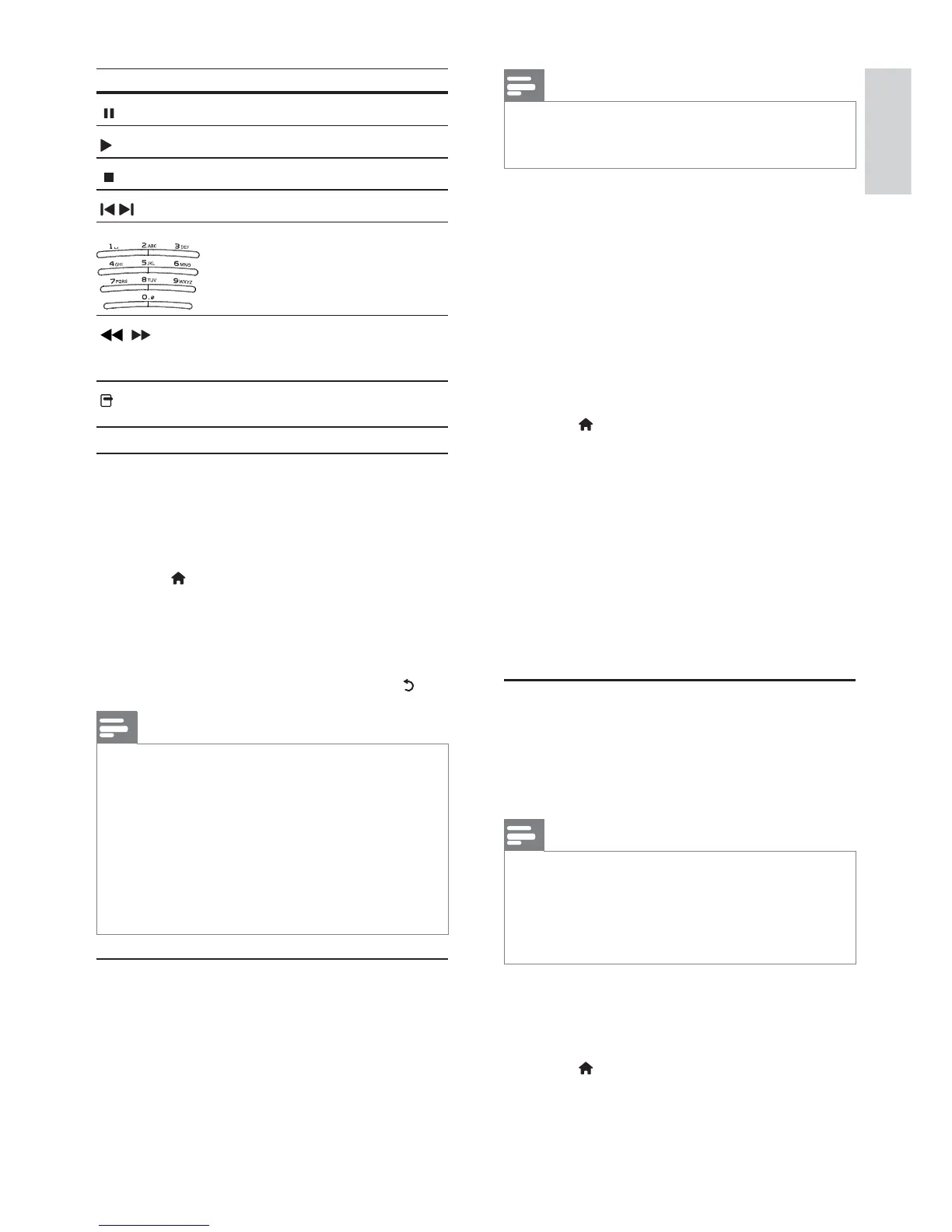
Button Action
Pause play.
Start or resume play.
Stop play.
/
Skip to a previous/next track.
Select an item to play.
/
Search fast-backward or fast-
forward. Press repeatedly to
change the search speed.
play mode.
Play MP3/WMA music
with .mp3, .wma extensions).
1 Insert a disc or USB device that contains the
MP3/WMA music.
2 Press , select [play Disc] or [browse USB],
and then press OK.
» A contents menu is displayed.
3 Select a music folder, and press OK.
4 OK.
To return to the main menu, press
.
Note
is played.
Management (DRM), it cannot be played on this player.
This player does not support MP3PRO audio format.
For any special character that is present in the MP3 track
name (ID3) or album name, it might not be displayed
correctly on the screen because these characters are not
supported.
cannot be displayed or played.
Browse PC
With a home network, you can play videos /music /
photos which are streamed from a DLNA media
server (e.g. PC) to your TV through this DLNA


 To Next Page