12 EN
One-touch play
1 Press (standby) to turn on this player.
» The TV (if the TV supports one-touch play)
automatically turns on and switches to the
correct video-in channel.
» If a disc is loaded, disc play automatically
starts.
One-touch standby
1 Press and hold (standby) for more than
3 seconds.
» All the connected devices (if the device
supports one-touch standby) automatically
switch to standby.
Note
Philips does not guarantee interoperability with other
HDMI CEC devices.
Install the network connection
the network connection.
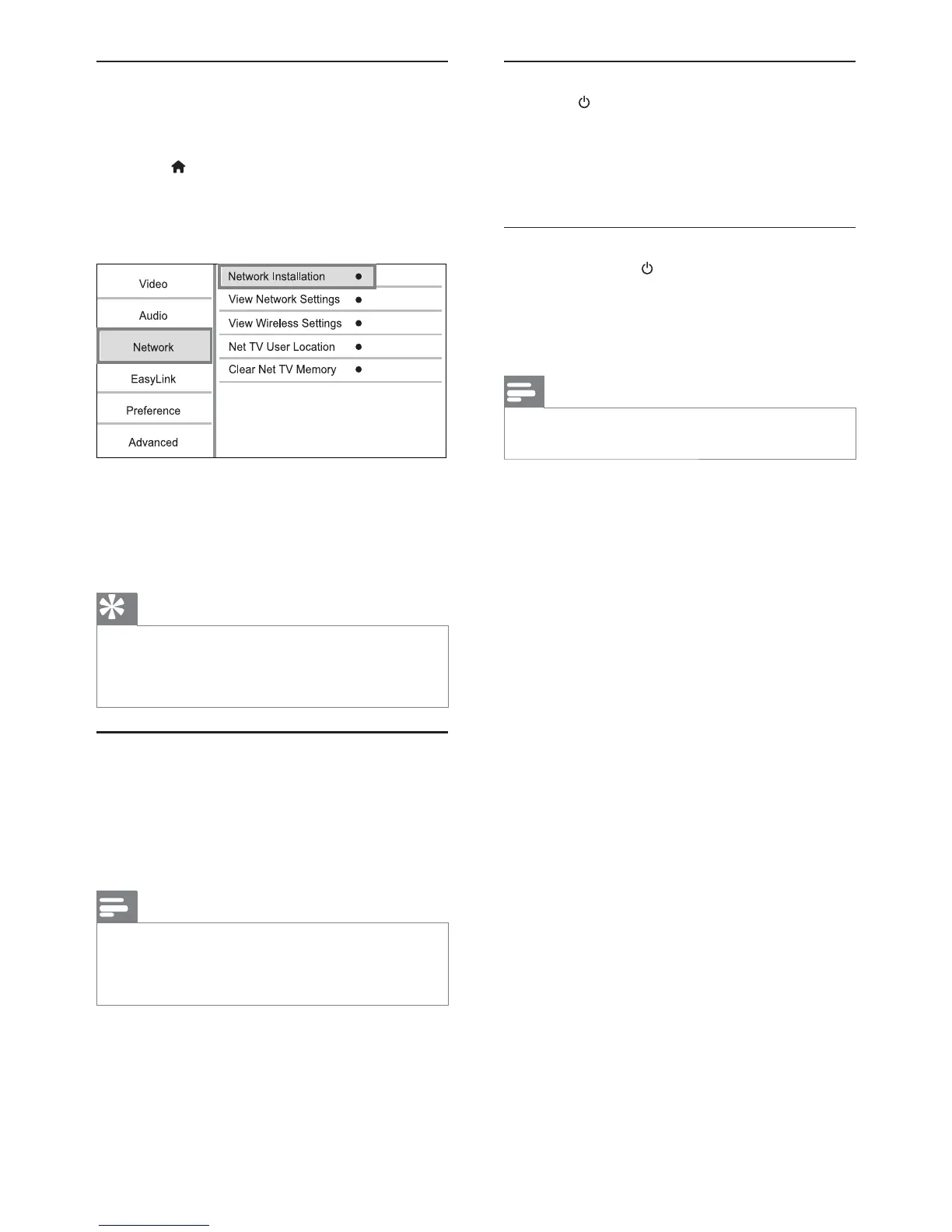
1 Set up a wired or wireless network.
2 Press to display the home menu.
3 Select [Setup] and press OK.
4 Select [Network], and press OK.
5 Select [Network Installation], and press OK.
6 Follow the on-screen instructions to complete
the network installation.
» After the network installation completes,
you can access the services: browse Net TV,
browse PC, BD-Live, software updates.
Tip
You can check the status of the wired or wireless
connection of this player (see “Adjust settings” >
“Network Setup” > [View Network Settings] or [View
Wireless Settings]).
Use Philips EasyLink
This player supports Philips EasyLink which uses the
HDMI CEC (Consumer Electronics Control) protocol.
You can use one single remote control to control
EasyLink-compliant devices that are connected
through HDMI connectors.
Note
To enable the EasyLink feature, you must turn on the
HDMI CEC operations on the TV and on other devices
connected to TV. Refer to the TVs/devices manual for
details.


 To Next Page