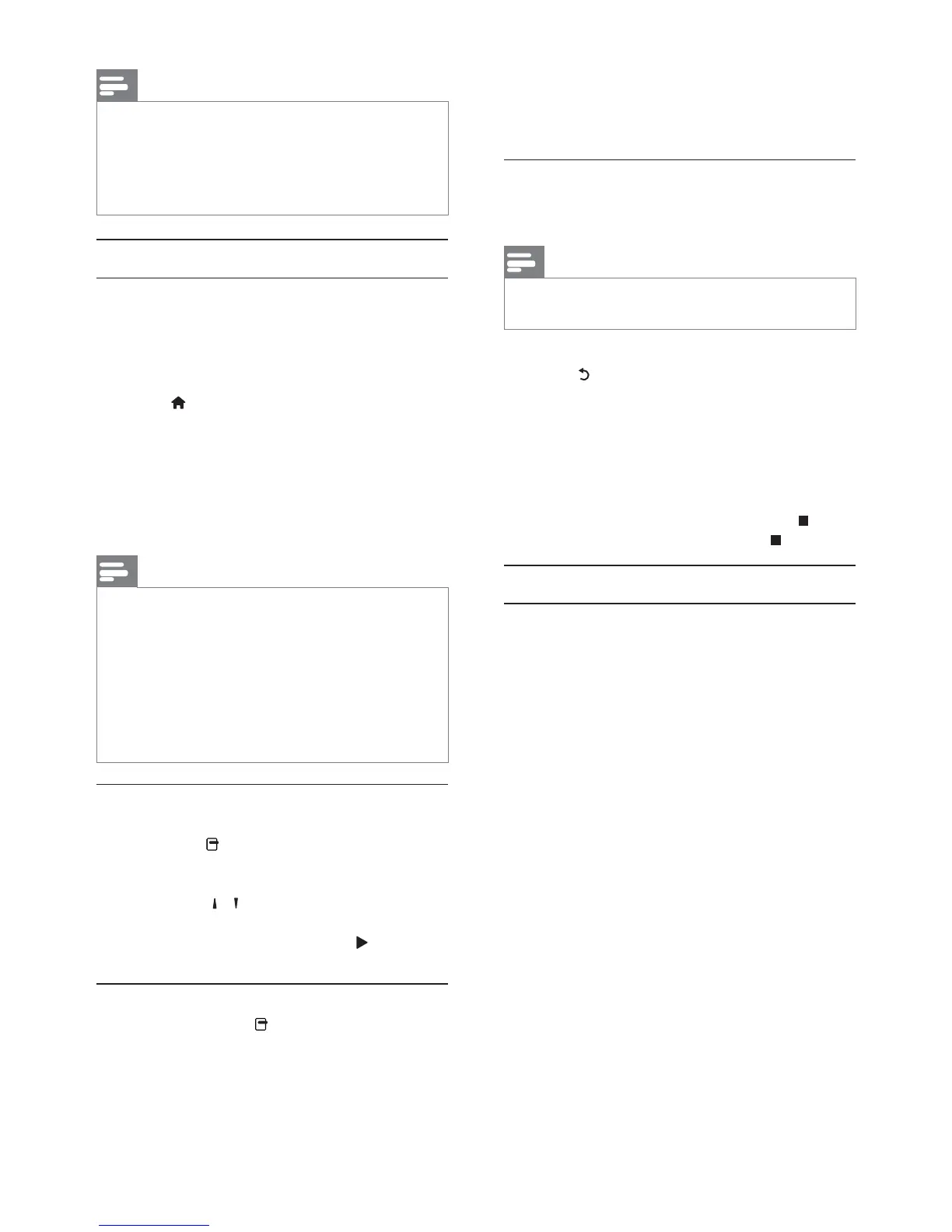
16 EN
4 Select [Slide Animation] in the menu, and
press OK.
5 Select a type of animation effect, and press
OK.
Play a musical slideshow
Create a musical slideshow to play simultaneously
Note
To create a musical slideshow, you must store the MP3/
1 Play MP3/WMA music.
2 Press to return to the main menu.
3 Navigate to enter a photo folder, and press
OK to start slideshow play.
» Slideshow begins and continues till the end
of the photo folder.
» Audio continues to play until the end of
the disc.
To stop the slideshow play, press
.
To stop the music play, press
again.
Play music
Control a track
1 Play a track.
2 Use the remote control to control the play.
Note
You can only play DivX videos that were rented or
purchased with the DivX registration code of this player
(see “Adjust Settings” > [Advanced] > [DivX
®
VOD
Code]).
This player can display up to 45 characters in the subtitle.
Play photo
Play photo as slideshow
extensions).
1 Insert a disc or USB device that contains the
JPEG photos.
2 Press , select [play Disc] or [browse USB],
and press OK.
» A contents menu is displayed.
3 Select a photo folder, and press OK to enter.
To select a photo, press the Navigation
buttons.
4 Press OK to start slideshow play.
Note
It may require longer time to display the disc content on
the TV if large number of songs/photos compiled onto
one disc.
This player can only display digital camera pictures
according to the JPEG-EXIF format, typically used by most
digital cameras. It cannot display Motion JPEG, or pictures
in formats other than JPEG, or sound clips associated with
pictures.
cannot be displayed or played.
Control photo play
1 Play a photo slideshow.
Press to access play options, select an
option, and press OK.
During slideshow play, you may also
press
/
vertically.
If the slideshow stops, press
to continue
play.
Set a slideshow interval and animation
1 During play, press .
» The play options menu is displayed.
2 Select [Duration per slide] in the menu, and
press OK.
3 Select a duration, and press OK.


 To Next Page