English
19EN
Note
If [4:3 Panscan] you have selected is not supported by the
disc, the screen displays in the [4:3 Letterbox] format.
[HDMI Video]
Select an HDMI video output resolution that is
compatible with your TV display capability.
[Auto] - Detect and select the best supported
video resolution automatically.
[Native] - Set to original video resolution.
[480i/576i], [480p/576p], [720p], [1080i],
[1080p], [1080p/24Hz] - Select a video
resolution setting that best is supported by the
TV. See the TV manual for details.
Note
If a selected video resolution is not supported with your
TV and a blank screen appears, to recover picture display,
wait for 10 seconds, or on the remote control press
and
then press “731” (numeric buttons).
[HDMI Deep Color]
This feature is available only when the display
device is connected by an HDMI cable, and when it
supports deep color feature.
[Auto] - Enjoy vivid images in over a billion
colors on Deep Color enabled TV.
[On] - Enjoy vivid images in over a billion colors
on Deep Color enabled TV. Output 12 bit
color that reduces the posterization effect.
[Off] - Output standard 8 bit color.
[Component Video]
Select a component video output resolution that is
compatible with the TV display capability.
[480i/576i], [480p/576p], [720p], [1080i] -
Select a video resolution setting that is best
supported by the TV. See the TV manual for
details.
Note
If the setting is not compatible with the TV, a blank screen
appears. Wait for 10 seconds for auto recovery.
Copy protected DVDs can only output 480p/576p or
480i/576i resolution.
[Picture Settings]
[Standard] - Original color setting.
[Vivid] - Vibrant color setting.
[Cool] - Soft color setting.
[Internet video] - Ideal for videos obtained
from the Internet.
6 Adjust settings
Note
If the setup option is grayed out, it means the setting
cannot be changed at the current state.
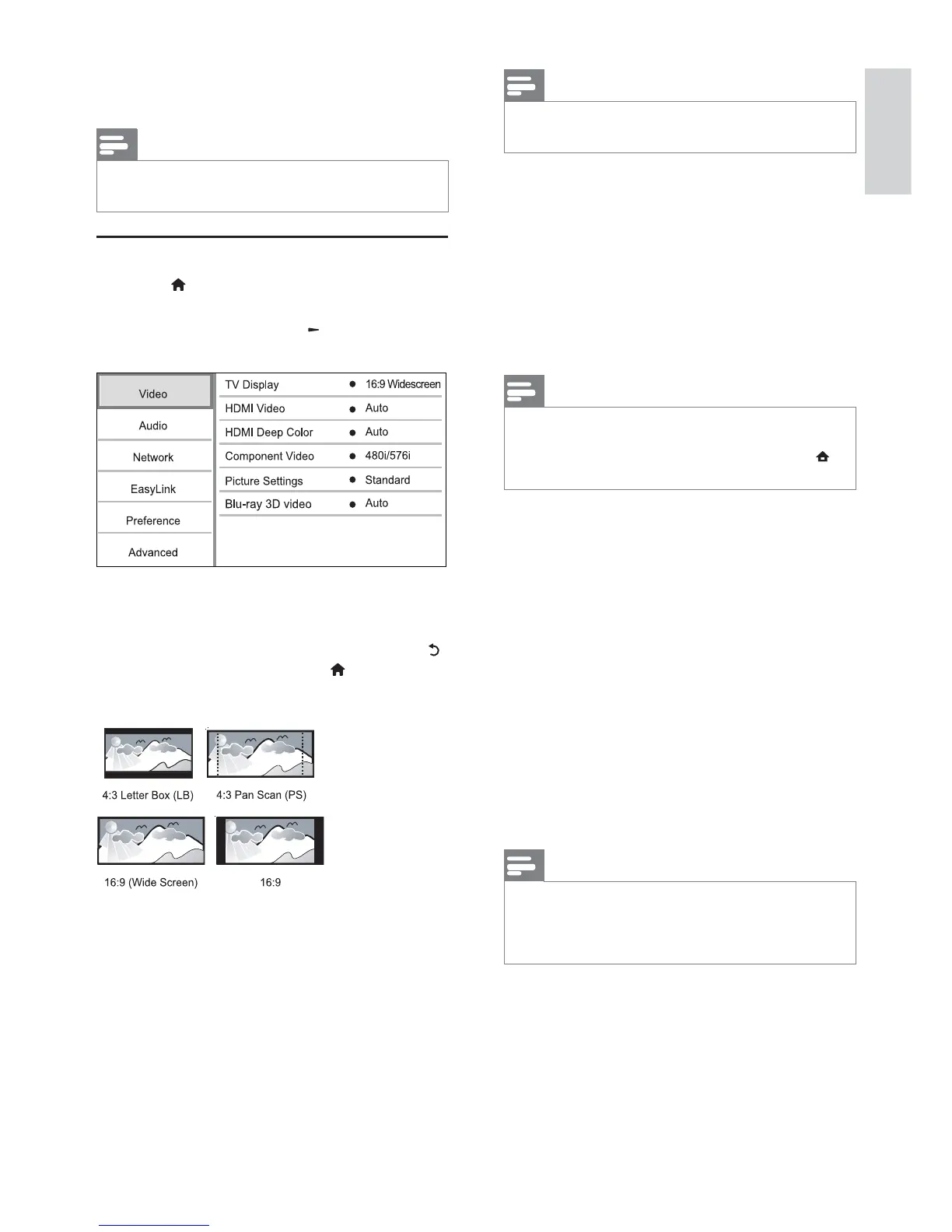
Video setup
1 Press .
2 Select [Setup], and press OK.
3 Select [Video], and press .
4 Select an option, then press OK.
5 Select a setting, then press OK.
To return to the previous menu, press .
To exit the menu, press .
[TV Display]
Select a display format:
[4:3 Letterbox] - For 4:3 screen TV: wide-
screen display with black bars on the top and
bottom of the screen.
[4:3 Panscan] - For 4:3 screen TV: full-height
display with the trimmed sides.
[16:9 Widescreen] - For wide-screen TV:
display picture at ratio 16:9.
[16:9] - The display picture is at the disc native
aspect ratio (e.g. ratio 4:3, with black bars on
the left and right side of the screen).


 To Next Page