Lern bout wireless technology
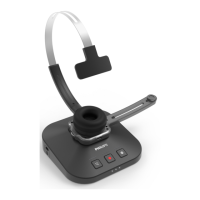
The SpeechOne uses wireless technology to estblish
connection between the dicttion hedset nd the
docking sttion.
A wireless connection doesn't require tht the
SpeechOne nd the docking sttion be in line of
sight. However, the mximum distnce between the
SpeechOne nd the docking sttion should not be
more thn 5 meters (16 feet). The closer the devices
re to ech other, the better is the performnce. The
connection is subject to interference from distnce nd
obstructions or other electronic devices.
Note
• Mke sure to keep minimum distnce of 50 cm
(18 inches) between the docking sttion nd other
wireless devices, such s smrtphones or lptops. If
the distnce is less thn 50 cm (18 inches), there might
be interferences between the docking sttion nd
other wireless devices.
Going out of rnge
When the wireless connection is lost, voice prompt
will notify you bout this. If you hve SpeechExec
ppliction running on your computer, the softwre will
be stopped.
In this cse, move closer to the docking sttion to re-
enter the reception re.
X The connection is reestblished.
X A voice prompt will notify you tht the connection
is estblished gin.
Idle mode nd Power down mode
Idle mode
After 4 minutes of inctivity, the SpeechOne
utomticlly enters Idle mode.
X The sttus LED on the hedset strts shing
green quickly.
To rectivte the device:
• Simply lift the hedset up until the sttus LED on the
hedset glows green.
Power down mode
If the SpeechOne is not used for more thn 6 hours, it
utomticlly turns o to sve bttery life. The bttery
LEDs on the docking sttion re turned o then.
To turn the device on gin:
• Plce the device onto the docking sttion for bout 4
seconds.
X If the connection with the docking sttion
succeeds, the bttery LEDs on the docking sttion
light up for one second nd disply the bttery
sttus fterwrds.
or
• Press the Hedset button until the sttus LED on the
hedset glows green.
Resetting the wireless connection
If you should encounter problems with your device, for
exmple, the SpeechOne doesn't respond or doesn't
connect to the docking sttion, you cn reset the
wireless connection.
1
Press the Hedset button on the hedset until the
sttus LED on the hedset turns o.
2
Relese the Hedset button on the hedset nd wit
until the sttus LED on the hedset turns on gin.
3
Disconnect the docking sttion from your computer
(nd optionlly from the power outlet).
4
Connect the docking sttion to your computer (or
optionlly to the power outlet) vi the supplied USB
cble. Mke sure you use the USB port for PC
connection mrked with on the docking sttion.
5
Plce the SpeechOne on the docking sttion nd
wit for bout 4 seconds.
X The SpeechOne should be detected nd be
utomticlly pired with the docking sttion.
12 Get started


 To Next Page