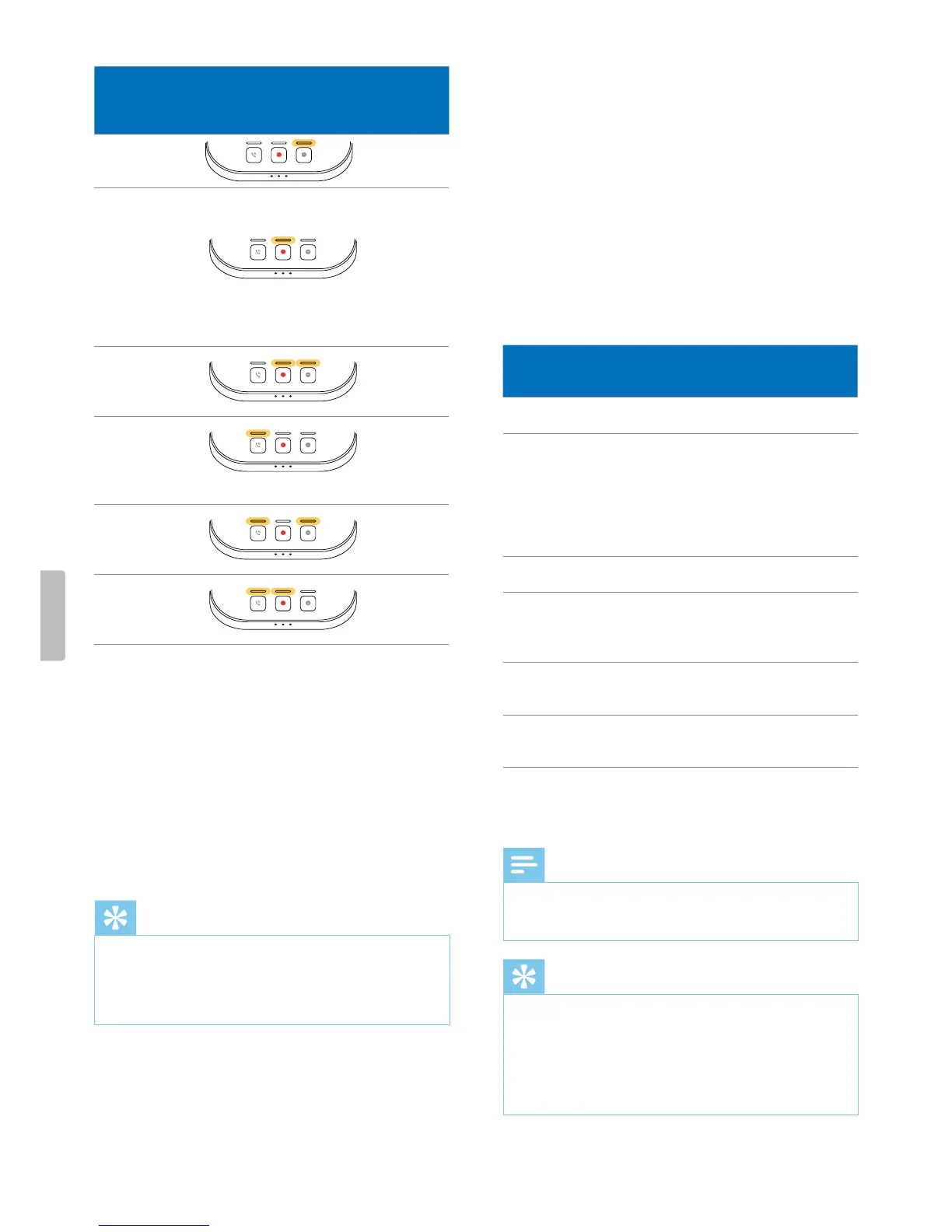
Mode Button LEDs
Function
of Record
button
Event mode Strt/end
recording
Keybord mode
Turn on/o
SpeechOne
microphone
when using
Drgon
speech
recognition
softwre
Browser mode
Strt/end
recording
Windows
speech
recognition
mode
Turn on/o
Windows
microphone
Drgon for Mc
mode
Turn on/
o Drgon
microphone
Drgon for
Windows mode
Turn on/
o Drgon
microphone
4
To switch to dierent mode, press the Record
button on the docking sttion repetedly until you
hve reched the desired mode. E.g. if you re in
Event mode nd wnt to switch to Keybord mode,
press the Record button once. If you re in Event
mode nd wnt to switch to Drgon for Windows
mode, press the Record button ve times.
5
To conrm your selection of the desired mode nd
exit mode selection, briey press the Phone nd
the Do-not-disturb button on the docking sttion
simultneously.
Tip
• You cn lwys check your current button mode by
briey pressing the Phone nd the Do-not-disturb
button on the docking sttion simultneously. Your
currently selected mode will be displyed immeditely
(s illustrted in the previous tble).
Switch between button modes on the remote
control (PSM6500, PSM6800)
To switch between the button modes:
1
Press the End-of-letter/priority (•EoL/••Prio)
button nd the Insert/overwrite (INS/OVR) button
simultneously for three seconds.
X All button LEDs on the remote control sh
simultneously.
2
Press the corresponding button for the desired mode.
The buttons re ssigned to the button modes s
follows:
Mode Button
Function of
Record button
Event mode F1 Strt/end recording
Keybord mode F2
Turn on/o
SpeechOne
microphone when
using Drgon
speech recognition
softwre
Browser mode F3 Strt/end recording
Windows speech
recognition mode F4
Turn on/
o Windows
microphone
Drgon for Mc
mode
•EoL/••Prio Turn on/o Drgon
microphone
Drgon for
Windows mode
INS/OVR Turn on/o Drgon
microphone
X The SpeechOne exits the mode selection nd
switches to the selected mode.
Note
• You hve 10 seconds to select mode. After 10
seconds, you will utomticlly exit mode selection
nd need to restrt the mode selection steps.
Tip
• You cn lwys check your current button mode by
briey pressing the End-of-letter/priority (•EoL/••Prio)
button nd the Insert/overwrite (INS/OVR) button
simultneously. The LED ogf the button ssigned to
the current mode (see previous tble) shortly lights
up ornge. E.g. if the currently ctivted mode is the
Event mode, the LED of the F1 button lights up ornge.
21Use your SpeechOne


 To Next Page