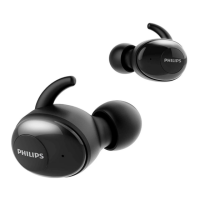
Sttus light
Use the sttus light in order to indicte to your
collegues if you re vilble or busy. This wy, you
cn work more productively due to less interruptions.
Mount the sttus light on your computer
1
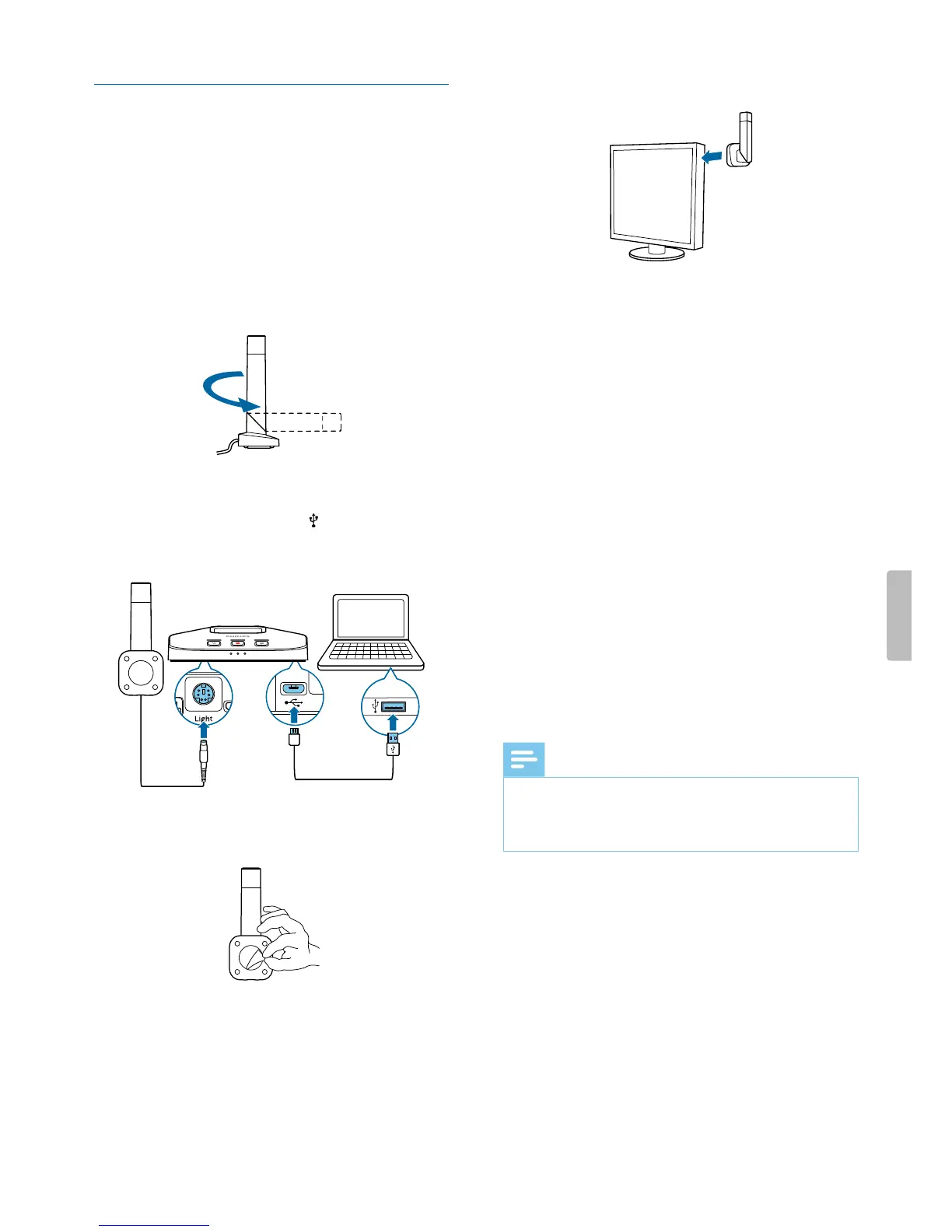
Turn the sttus light into the strting position s
displyed in the illustrtion below . Then hold it t the
bottom prt nd pull the upper prt in your direction
until it reches horizontl position.
2
Connect the docking sttion to your computer vi the
supplied USB cble. Mke sure you use the USB port
for PC connection mrked with on the docking
sttion. Then connect the sttus light to the sttus
light port on the docking sttion.
3
Remove the sticker from the mgnet on the bottom of
the sttus light.
4
Mount the sttus light either on the side or on the
bck of your screen.
Do-not-disturb mode
While you re recording with your SpeechOne, the LED
of the Do-not-disturb button on the docking sttion nd
the sttus light utomticlly glow red indicting tht
you re not vilble.
However, you cn lso ctivte the Do-not-disturb
mode whenever you would like to indicte tht you re
busy.
To turn the Do-not-disturb mode on:
• Press the Do-no-disturb button on the docking sttion
once.
X The LED of the Do-not-disturb button on the
docking sttion nd the sttus light glow red.
To turn the Do-not-disturb mode o:
• Press the Do-not-disturb button on the docking
sttion gin.
X The LED of the Do-not-disturb button on the
docking sttion turns o nd the sttus light glows
green.
Note
• If you receive Skype cll while you re in recording
session nd you ccept the cll, the sttus light nd
the LED of the Do-not-disturb button keep glowing
red.
16 Use your SpeechOne


 To Next Page