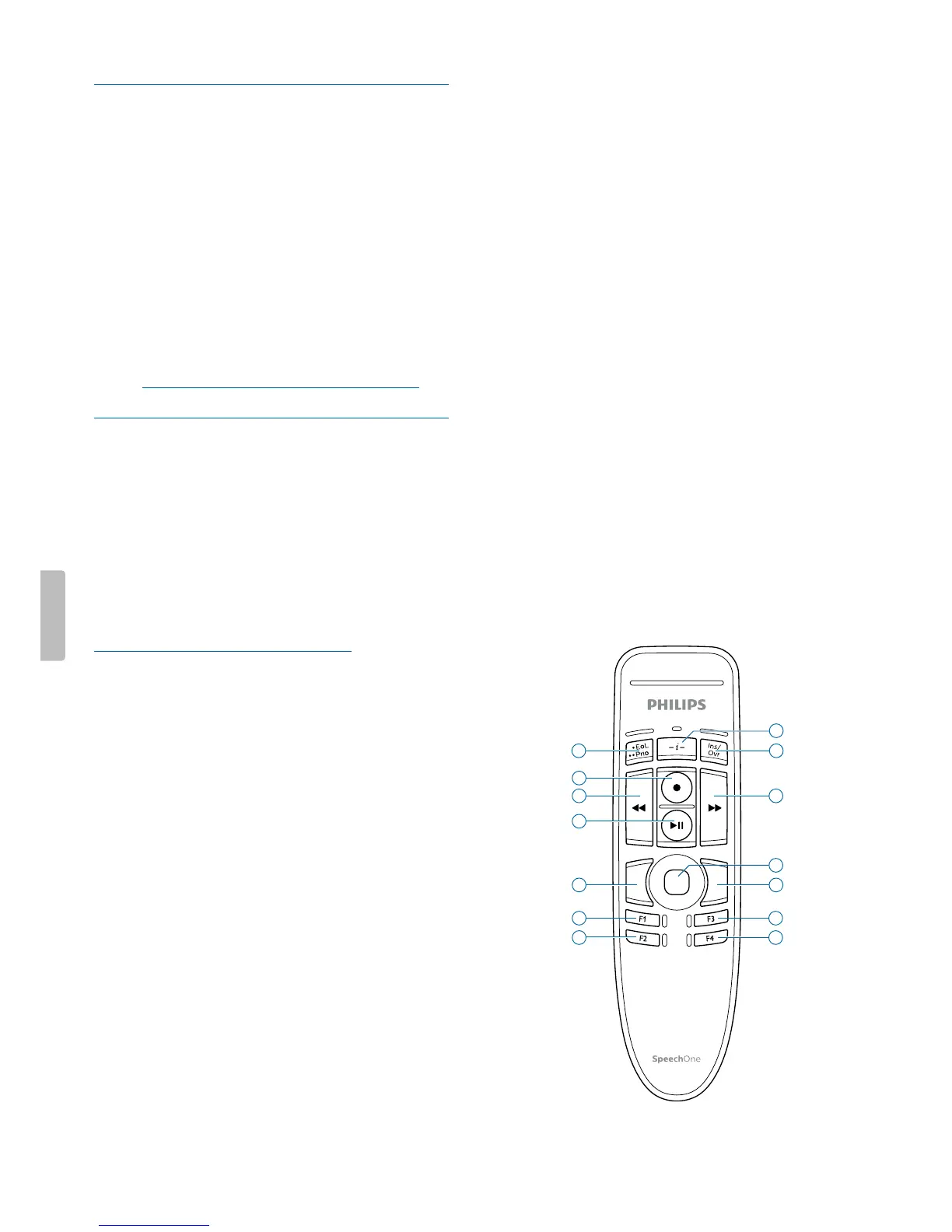
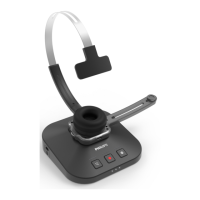
Use the remote control (PSM6500,
PSM6800)
If you re SpeechMike user:
• You cn use the remote control of the SpeechOne
hedset just like you use your SpeechMike. The
functions of the remote control re exctly the sme.
You only need to put the SpeechOne hedset on,
then strt nd control your recording with the remote
control.
If you re not SpeechMike user:
• Downlod the user mnul for SpeechMike Premium
Air t www.speechmike.com/premium-ir/support.
Button modes
With your SpeechOne or the SpeechOne remote
control (PSM6500, PSM6800), you cn control vrious
pplictions on your computer or in your browser.
You hve six dierent button modes vilble for this
purpose: the Event mode, the Keybord mode, the
Browser mode, the Windows speech recognition mode,
the Drgon for Mc mode, nd the Drgon for Windows
mode. You cn chnge the button ssignment for
ech mode in SpeechControl softwre. Downlod the
softwre for free t
www.dicttion.philips.com/speechcontrol.
Event mode
The Event mode is the defult mode of your SpeechOne.
In this mode, ech button on your SpeechOne is
ssigned to commnd. In SpeechControl softwre,
you cn dene which commnds should be executed
by pressing or relesing desired button on your
SpeechOne in order to control vrious computer
pplictions.
Keybord mode
Assign button on your SpeechOne to shortcut you
re using on your computer in order to control vrious
computer pplictions. In SpeechControl softwre, you
cn dene which commnds should be executed by
pressing desired button on your SpeechOne.
In this mode, you cn lso operte Drgon
NturllySpeking speech recognition softwre on
Windows computer by using the pre-congured Drgon
shortcuts.
Browser mode
Assign SpeechOne button to shortcut or commnd
in your browser in order to control vrious browser-
bsed dicttion pplictions. In SpeechControl softwre,
you cn dene which commnds should be executed by
pressing desired button on your SpeechOne.
Windows speech recognition mode
In this mode, you cn operte the pre-instlled Windows
speech recognition softwre on Windows computer by
using the pre-congured Windows shortcuts.
Drgon for Mc mode
In this mode, you cn operte Drgon NturllySpeking
speech recognition softwre on Mc computer by
using the pre-congured Drgon shortcuts.
Drgon for Windows mode
In this mode, you cn operte Drgon NturllySpeking
speech recognition softwre on Windows computer by
using the pre-congured Drgon shortcuts.
Button ssignment for ech mode
4
3
7
10


 To Next Page