EasyManua.ls Logo

Phonak ComPilot - User Manual

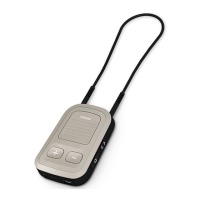
Phonak ComPilot
88 pages
Print Icon
To Next Page IconTo Next Page
Loading...
Phonak ComPilot
User Guide

Other manuals for Phonak ComPilot

Questions and Answers

  • R
    Ricky HamiltonAug 25, 2025
    What to do if the phone is ringing but there is no ringing signal through Phonak Hearing Aids?
    • I
      ikirkAug 26, 2025
      If your phone is ringing, but you're not hearing it through your hearing aids, ensure that Bluetooth is enabled on your phone. If it is, try disabling and then re-enabling Bluetooth on your phone. Also, restart your ComPilot by switching it off and then on again to reactivate the Bluetooth functionality. Make sure ComPilot is selected as the active device in your phone's Bluetooth menu and reduce the distance between your ComPilot and phone.
  • K
    Kevin CopelandAug 26, 2025
    What to do if the caller can hear me but I cannot hear the caller on my Phonak ComPilot?
    • R
      Robin KeyAug 26, 2025
      If a caller can hear you, but you cannot hear them, ensure the call is transferred back to ComPilot via the phone menu, as the call may have been transferred to your phone.
  • P
    Phillip DavidsonAug 27, 2025
    Why is my Phonak Hearing Aid ComPilot unresponsive when switching ON?
    • M
      Margaret SharpAug 27, 2025
      If your ComPilot is unresponsive, it may be completely discharged; charge it for at least 1 hour. If charging doesn't help, it could be a software problem; unplug any connectors from the ComPilot. You can also try switching the ComPilot OFF and then ON again, or consider resetting it.
  • J
    Jason BarrAug 27, 2025
    How to fix Phonak Hearing Aid ComPilot not recognizing a previously paired Bluetooth device?
    • S
      smithmariaAug 28, 2025
      If your Phonak Hearing Aid ComPilot no longer recognizes a previously paired Bluetooth device: * Switch the ComPilot off and then on again. * Ensure the devices are within 1 meter of each other. * If the ComPilot's memory is full (maximum 8 paired devices), repeat the pairing process for the overwritten device.
  • K
    Kristina NashAug 28, 2025
    How to adjust the volume of music and calls on my Phonak Hearing Aid ComPilot?
    • I
      ingramsarahAug 28, 2025
      To adjust the volume of music or phone calls on your Phonak Hearing Aid ComPilot, use the volume control on the external device (phone, music player, etc.). Different audio sources have different outputs, so adjusting the source volume is necessary.
  • R
    rachelevansAug 29, 2025
    How to understand phone calls better in noisy places using Phonak ComPilot Hearing Aid?
    • M
      Maria MunozAug 29, 2025
      If you have difficulty understanding phone conversations in noisy environments using your Phonak Hearing Aid, reduce the hearing aid volume by pressing the button. If the sound volume over the phone (or music) is too low after this reduction, use the phone volume button to increase the volume.
  • A
    Alyssa LeeAug 30, 2025
    What to do if I have difficulties understanding phone conversations with Phonak ComPilot in noisy environments?
    • D
      Dana HarrisAug 30, 2025
      If you're struggling to understand phone conversations in noisy environments, try reducing the hearing aid volume by pressing the button. If the sound volume over the phone is then too low, use the phone volume button to increase it.
  • J
    josephkellyAug 23, 2025
    What is the Bluetooth pairing code for Phonak Hearing Aid ComPilot?
    • S
      Samantha HarveyAug 23, 2025
      If your device asks for a code during Bluetooth pairing with your Phonak Hearing Aid ComPilot, enter "0000" (four zeros).
  • D
    Derek SullivanSep 1, 2025
    What to do if my Phonak Hearing Aid keeps switching between Bluetooth and normal program?
    • W
      William LesterSep 1, 2025
      If your hearing aids are switching between Bluetooth and the normal program, your phone may be sending sounds to ComPilot due to incoming reminders, alarms or SMS. To stop this, disable the system sounds for SMS or mails via your phone menu. Also, check if phone key tones are switched on and, if so, switch them off via your phone menu.
  • C
    Christine NunezSep 2, 2025
    Why is the volume of music too loud on my Phonak ComPilot?
    • V
      villatimothySep 2, 2025
      If the music volume is too loud or quiet, use the volume control of the external device (phone, music player, etc.) to adjust the volume to a comfortable level.

Summary

Welcome

Getting to Know Your ComPilot

Legend

Explains the physical components and indicators of the Phonak ComPilot, including buttons and ports.

Accessories

Lists the included and optional accessories for the Phonak ComPilot, such as power adapters and microphones.

Getting Started

Setting Up the Power Supply

Instructions for selecting and attaching the correct power adapter for your region.

Charging the ComPilot Battery

Steps to charge the ComPilot battery and understand the power indicator lights.

Turning the ComPilot ON and OFF

Procedure for powering the ComPilot device on and off using the power switch.

ComPilot Bluetooth Pairing Introduction

Guide to initiating the Bluetooth pairing process between the ComPilot and other devices.

Wearing the ComPilot Correctly

Correct methods for wearing the ComPilot for optimal functionality and performance.

Testing Sound via the ComPilot

Procedure to test the audio output and hearing aid connection with the ComPilot.

Using the ComPilot as an Audio Streamer

Streaming Music via Cable

Instructions for streaming audio using a wired connection to the ComPilot.

Streaming Music via Bluetooth

Steps for wirelessly streaming audio from Bluetooth-enabled devices to the ComPilot.

Watching TV

Guidance on using the ComPilot for TV audio streaming, recommending specific accessories.

Adjusting the Volume

How to adjust the audio volume using the ComPilot's volume control buttons.

Using the ComPilot for Phone Calls

Introduction to Phone Calls

Basic information and requirements for using the ComPilot for phone call functionality.

Incoming Calls

How to handle incoming calls, including ringtones and caller identification features.

Making Phone Calls

Steps to initiate and make phone calls using the ComPilot and connected phone.

Ending a Call

Procedure for terminating phone calls using the ComPilot's main button.

Advanced Phone Options

Details on advanced call management features like redialing, voice dial, and call holding.

Using the External Microphone

Instructions for connecting and using an optional external microphone with the ComPilot.

Locking the Main Button

How to lock the main button to prevent accidental activation of functions.

Using the ComPilot as a Remote Control

Using ComPilot with Roger;FM

More Detailed Information

Wearing the ComPilot in Different Ways

Describes different methods for wearing the ComPilot for various uses, including standard and handheld.

Managing Multiple Inputs

How to handle and switch between multiple audio sources connected to the ComPilot.

Resetting Your ComPilot

Procedure for resetting the ComPilot device to its default settings if it becomes unresponsive.

Summary of Indicator Lights

Explanation of the meaning of different indicator light states on the ComPilot for status feedback.

Introduction to Bluetooth

Basic explanation of Bluetooth technology and its role in wireless communication with the ComPilot.

Setting Up Bluetooth

Step-by-step guide for pairing and connecting Bluetooth-enabled devices to the ComPilot.

Caller Identification: Spoken Caller Names

Details on how the ComPilot announces the names of incoming callers via speech.

VoiceAlerts: Spoken ComPilot Status

Explanation of spoken status messages provided by the ComPilot for alerts and operational feedback.

Troubleshooting ComPilot

Important Safety Information

Hazard Warnings

Specific warnings related to potential hazards and risks associated with the ComPilot device.

Information on Product Safety

Information regarding safe handling, usage, and precautions for the ComPilot product.

Other Important Information

Additional important information related to product usage, operating range, and environmental factors.

Service and Warranty

Local Warranty

Details about the local warranty terms obtained at the point of purchase.

International Warranty

Information on the one-year limited international warranty provided by Phonak.

Warranty Limitation

Specifies conditions and limitations that are not covered by the product warranty.

Compliance Information

Information and Explanation of Symbols

Phonak ComPilot Specifications

General IconGeneral
BluetoothYes
Battery TypeRechargeable
Streaming TimeUp to 8 hours
Remote ControlYes
MicrophoneYes
NeckloopYes
Operating RangeUp to 10 meters
Audio Input3.5mm audio jack
CompatibilityPhonak hearing aids
Bluetooth VersionBluetooth 2.1 + EDR
Supported Audio SourcesBluetooth enabled devices, FM
Charging TimeApproximately 3 hours

Related product manuals