© PSI (Photon Systems Instruments), spol. s r. o.
40
11 FLUORPEN SOFTWARE
11.1 SOFTWA R E I N STAL L AT IO N
1. Copy the FluorPen software provided on the USB flash disk to your computer and launches the FluorPen program.
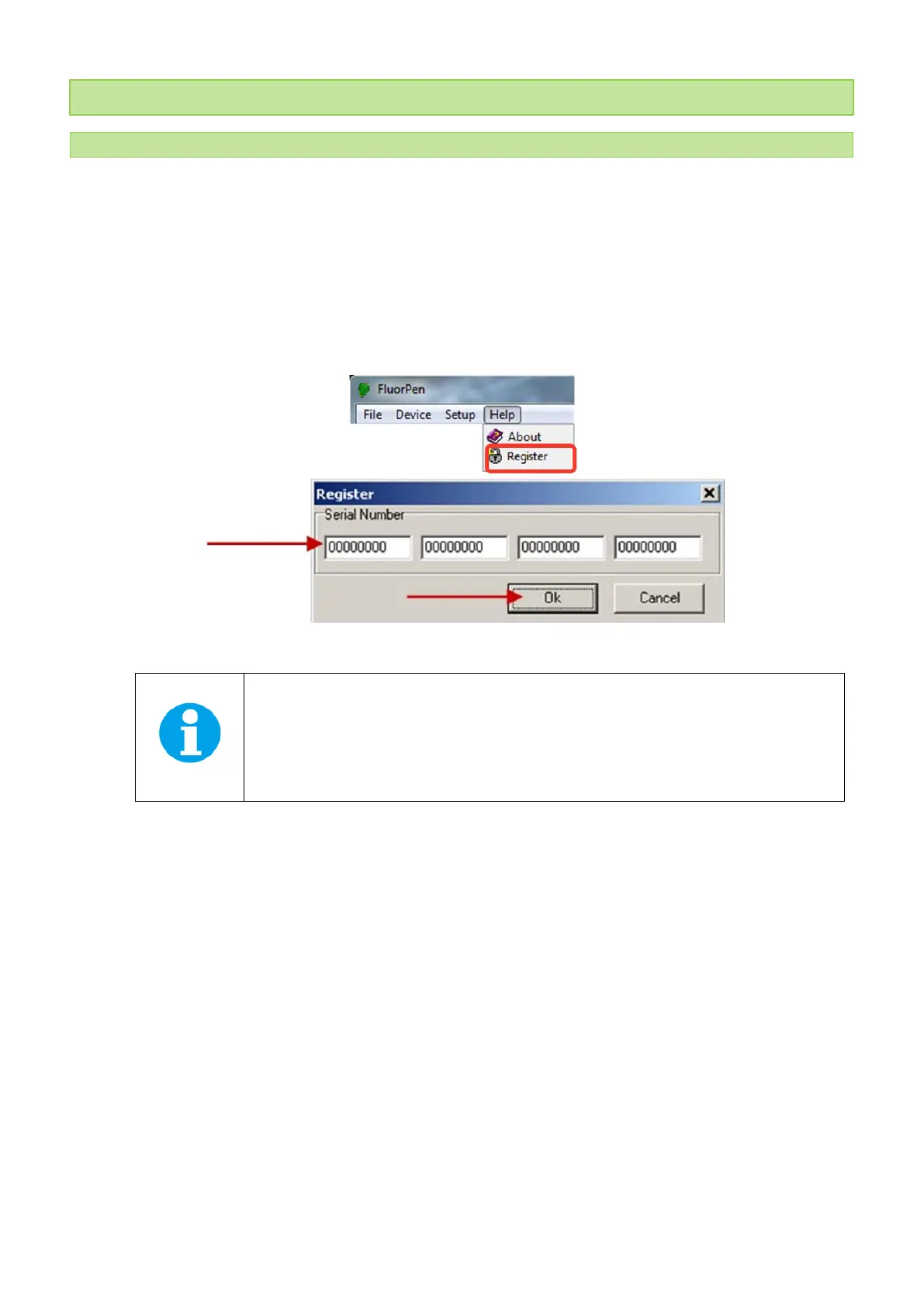
2. To connect and recognize your FluorPen device in the FluorPen software, proceed first with the registration of
your FluorPen software (Fig. 19).
• Select: Help > Register
• Enter: your serial registration number (found in a text file SN.txt on the USB flash disk drive included with the
device).
• Select: OK
Fig. 19 Software registration.
Please note that the serial registration number for the FluorPen may be found in the file
SN.txt, which is included on the enclosed USB flash disk.
Please note: it is not possible to download data from the FluorPen device without software
registration.
3. Switch on the FluorPen and enable Bluetooth or connect USB cable to the PC.
4. Ensure that the PC and the FluorPen are properly paired (see chapter 9 and 10 for complete information on USB
connection and Bluetooth pairing).
5. In the software select: Setup > Device ID (Ctrl+I). If properly connected, the message “Device: FluorPen” appears
in the bottom left portion of the screen (Fig. 20). If the connection is not successful the message “Device not
found” will appear. In the latter case check all the physical connections for USB cable and for Bluetooth repeat
steps in chapter 10 on Bluetooth pairing.


 To Next Page