19
Spotify Connect
Your radio has Spotify Connect built in. Spotify Connect lets you control the music playing on your
device, using the Spotify app on your mobile, tablet or PC. Listening is seamless. You can take
calls, play games, even switch your phone off – all without interrupting the music.
Learn more at spotify.com/connect
Spotify Premium
You’ll need a Spotify Premium account to use Spotify Connect.
Spotify Premium lets you listen to millions of songs ad-free – the artists you love, the latest hits and
discoveries just for you. Simply hit play to hear any song you like, at the highest sound quality.
Check out our current Premium offers at spotify.com/premium
Play Music via Spotify Connect
1. Download Spotify app for your smartphone or tablet (iOS or Android).
2. Add your speakers to your wifi network, and then press MODE button on your radio
repeatedly to select Spotify Connect mode.
3. Fire up the Spotify app on your smartphone or tablet using the same wifi network as above.
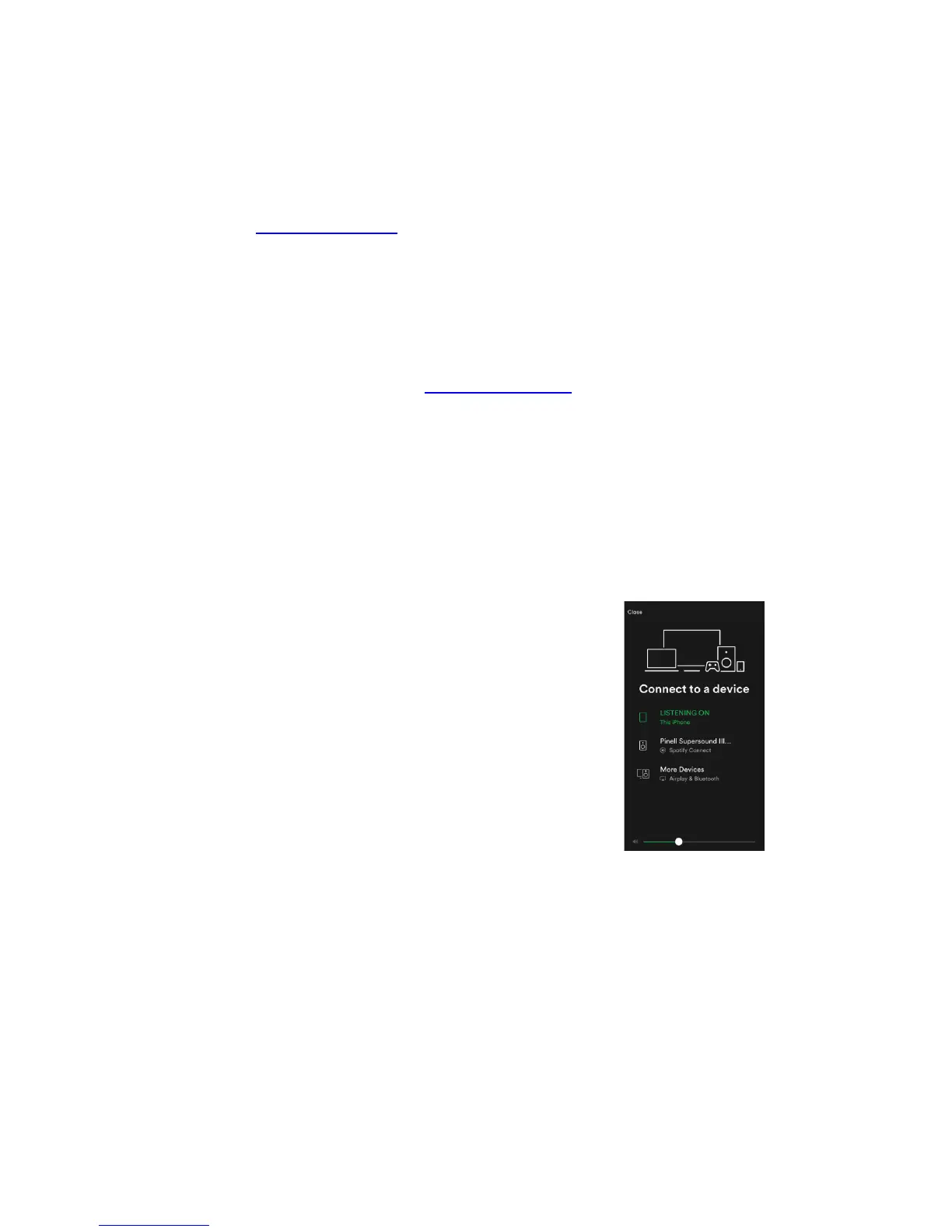
4. Play a song on Spotify and hit “DEVICES AVAILABLE”.
5. Tap “Pinell Supersound 301” from the list and your music
will start playing out loud.
If you can’t see it, just check it’s connected to the same
network as your phone of tablet.
You will notice that your radio is currently listed as “Pinell
Supersound 301 xxxxxxxxxxxx” (the 12 digit
alphanumeric code is the MAC address of your radio) in
the Spotify App.
6. Your Spotify app will only recognize your radio when the radio is connected to the internet (i.e.
in Internet Radio, Spotify Connect or Music player mode). To use Spotify when your radio is
in non-internet modes (i.e. in DAB, FM, Bluetooth or Aux in mode) you need to select Main
menu - System settings - Network - Keep network connected - YES. This also allows you
to wake the radio from standby using your Spotify app.
Note: If unattended to use radio for long periods of time, e.g. overnight, while on
holiday or while out of the house, select “NO” to avoid unnecessary energy
consumption.



 To Next Page