33
Wireless Control App - UNDOK
UNDOK App enables you use your smartphone (or tablet) to wirelessly control your radio when
both devices connecting to same network.
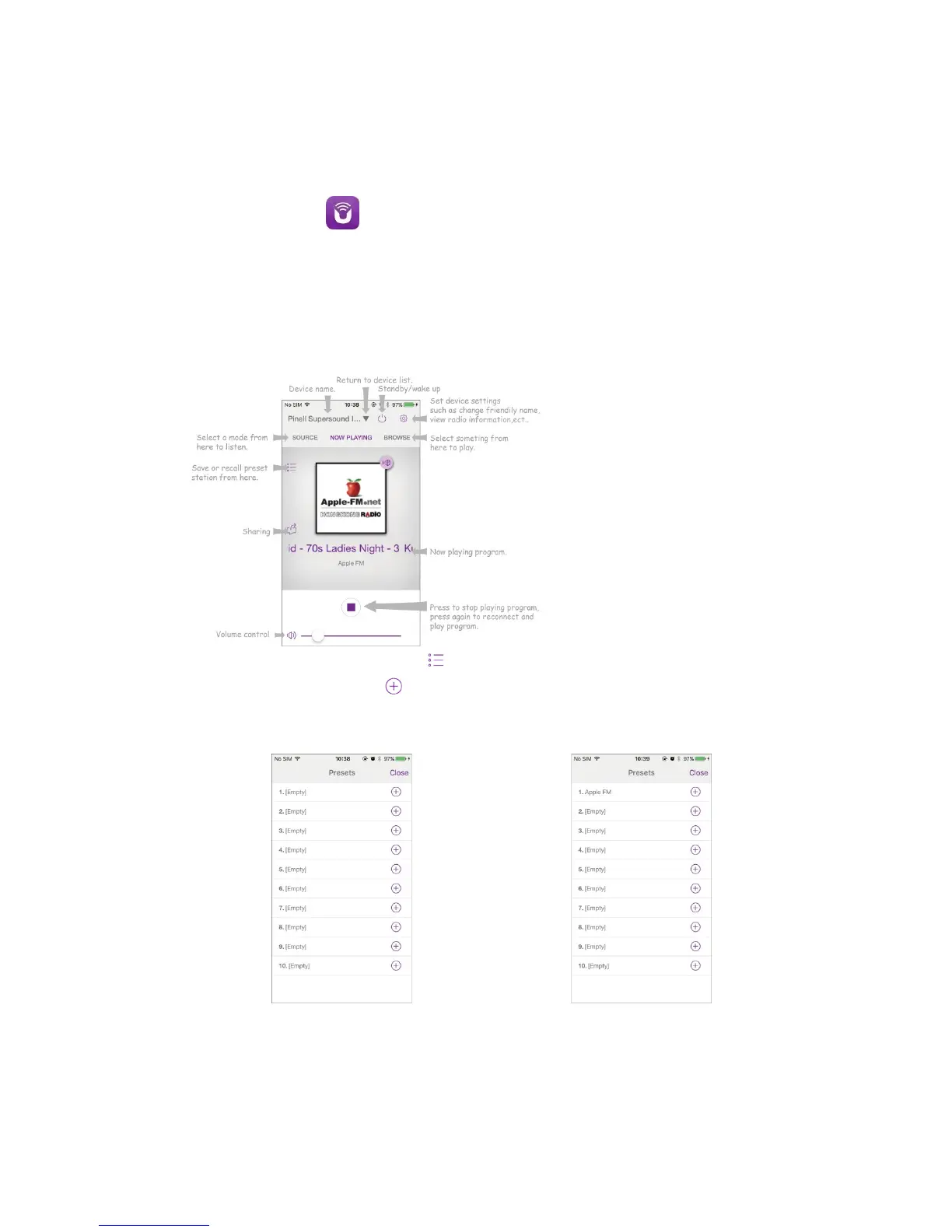
1. Download UNDOK app from App Store (iOS) or Google Play (Android) on your
smartphone or tablet.
2. Start UNDOK app, making sure your radio and smartphone are connected to same WiFi
network.
3. All available devices will be listed. Tap your radio “Pinell Supersound 301 xxxxxxxxxxxx” (the
12 digit alphanumeric code is the MAC address of your radio) to connect to.
4. Now playing screen is shown. (Play Internet radio mode for example.)
5. To save a preset station, tap Preset icon on now playing screen and then Presets screen
will pop up. Tap the plus sign after number 1-10 to save preset station. (Fig. 1)
6. To recall a preset station, tap the station name on the Presets screen to play the station.
(Fig. 2)
Fig. 1
Fig. 2
7. To ensure your radio only can be controlled by definite smartphone, you can set a PIN code
which you should input on UNDOK app to get authority to connect to your radio. The default
code is 1234, you also can give a user-defined code from Main menu - System settings -
Network – NetRemote PIN setup.



 To Next Page