9
@ Note: If a password (WEP/WPA) isn’t required by your network, radio will connect to the
network automatically.
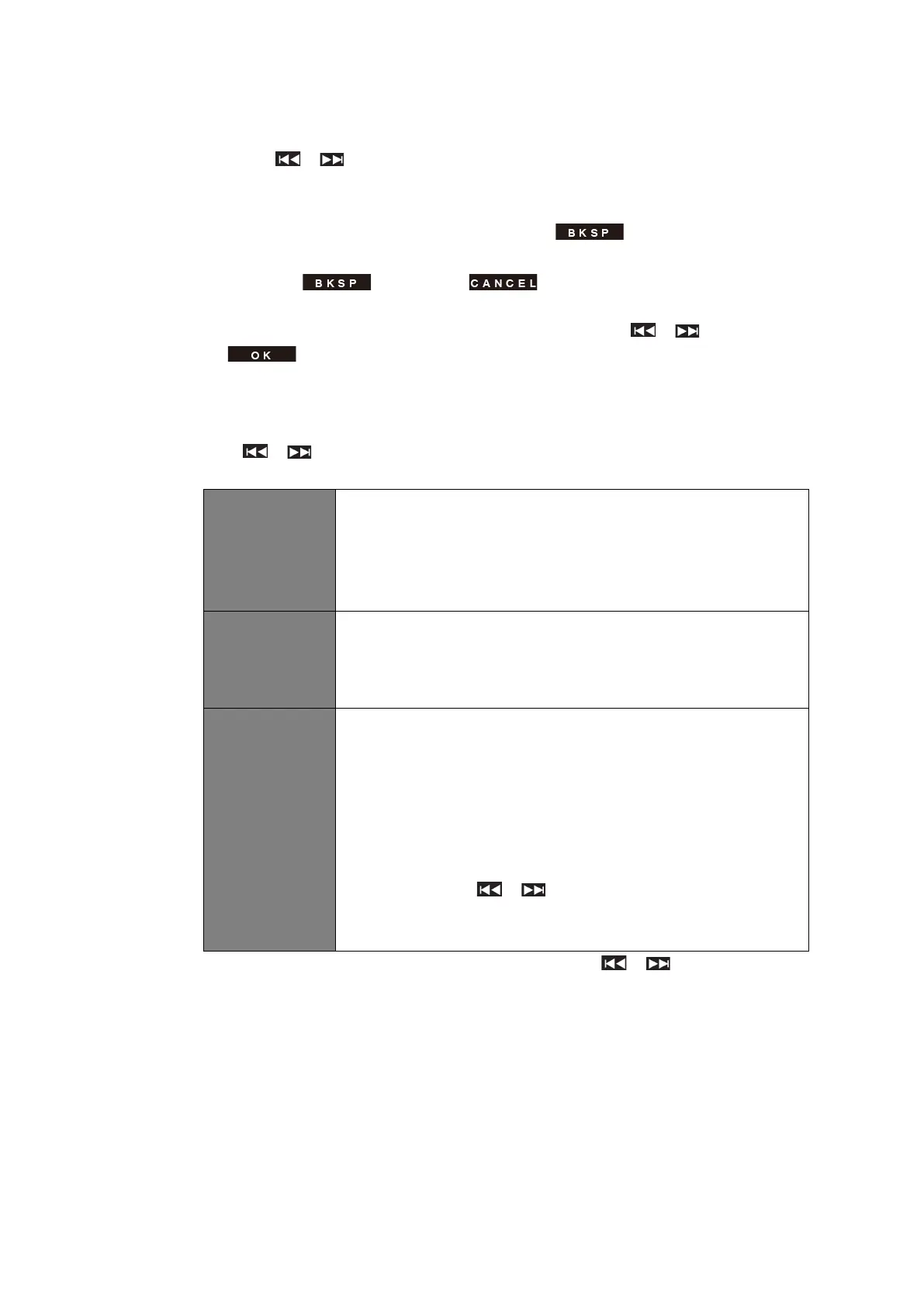
a. Press / to cycle through the alphanumeric character list, press SELECT
to select an appointed character.
@ Note: WEP/WPA pass codes are case-sensitive.
b. If a wrong operation is being conducted, select to delete designated
character.
@ Note: = Backspace; means return to previous track; radio will
automatically save the WEP/WPA you’ve input, so no bother to re-enter these codes.
c. After selecting the final character of your password, press / to
, and then press SELECT to confirm. The radio is connected to your
wireless network.
2) If you wish to establish a connection via WPS, press SELECT after you have selected
desired network. The radio then offers the option to initiate WPS.
Press / to select between Push Button, Pin and Skip WPS, press SELECT to
confirm.
You must start the WPS scan on the remote station (e.g. router).
Consult the manual for your router or Access Points (AP) to learn
how to do this.
After you have done this, press SELECT on the radio and then
both devices will establish a connection.
The radio creates an 8-digit number, which you then have to enter
into the remote station.
After entering the PIN, press SELECT to establish the connection
between both devices.
In addition to a WPS connection, you can also establish a
connection using a Pre-Shared-Key. The required key is often on
the rear of the router, or you may have defined it yourself.
This method is used automatically for networks without WPS. You
can call up the Pre-Shared-Key function on networks with WPS by
selecting menu item “Skip WPS”.
An input field should now appear. You can enter the required key
(PSK) by pressing / and then pressing SELECT.
Select “OK” and press SELECT to complete the entry. The radio
should now establish the connection to the network.
7. Press SELECT. The radio will now run a full DAB+ scan. Press / to select a
station and press SELECT. Setup is completed.


 To Next Page