E-17
Selecting the printing density
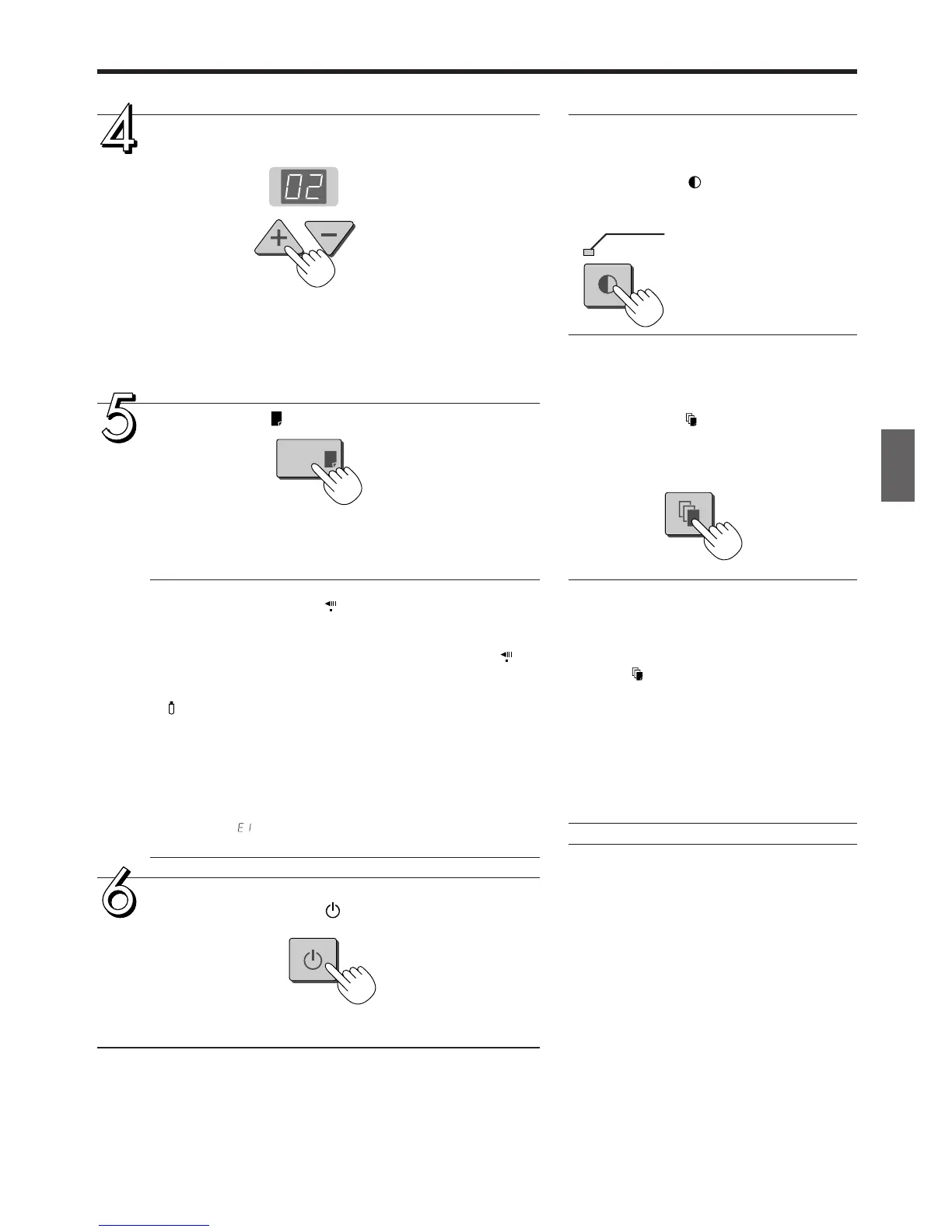
Select this when the density of the print is light.
Press the Density button and select dark-
er or standard.
Press the + button or the − button and select the
number of copies.
• When the power is switched on, one copy is selected.
• A maximum of 20 copies can be set and the number of copies
is displayed in the display window.
• Each press of the + button increases the number of copies (by
one) and each press of the − button decreases the number of
copies. Press and hold the button to switch continuously.
Press the Print button to print.
• The reading operation is performed for a one-sheet portion
(while the sheet is scrolled) and the printing operation is
performed.
Note
• A press of the Feed/Stop button during the reading opera-
tion will cause the printing to stop and will result in a partial
print.
To move the sheet surface, please press the Feed/Stop but-
ton after the scrolling has stopped.
• When a USB memory has been inserted, a press of the Save
button during printing will start the USB memory storage
operation after printing is completed. (See Page E-18.)
• The one-screen portion is reduced to A4 paper size and
printed. In the wide type (M-11W) copyboard, the screen will
be reduced to about 75% in the horizontal direction.
To print in the same ratio as the sheet surface, see "Printing in
the same ratio as the sheet surface" on Page E-18.
• A flashing “ ” in the display window indicates a print error.
See “Meaning of Error Messages” on Page E-30.
When the copyboard is not going to be used,
press the ON/Standby button and switch off the
power.
• Switch off the printer power.
Making additional copies
This will print the copy of the sheet that was
scrolled previously one more time.
Press the Reprint button.
This starts the printing of the image data that
has accumulated in internal memory.
Note
• The sheet is not scrolled when additional
copies are made.
• The number of copies can be changed. To
do so, make the change before pressing the
Reprint button.
• In repeat printing, the color/black & white and
density settings will be the same as those of
the prior printing.
• When printing or USB memory storage has
not been performed since switching on the
power, image data will not have accumulated
in the internal memory and this operation will
not be possible.


 To Next Page