E-16
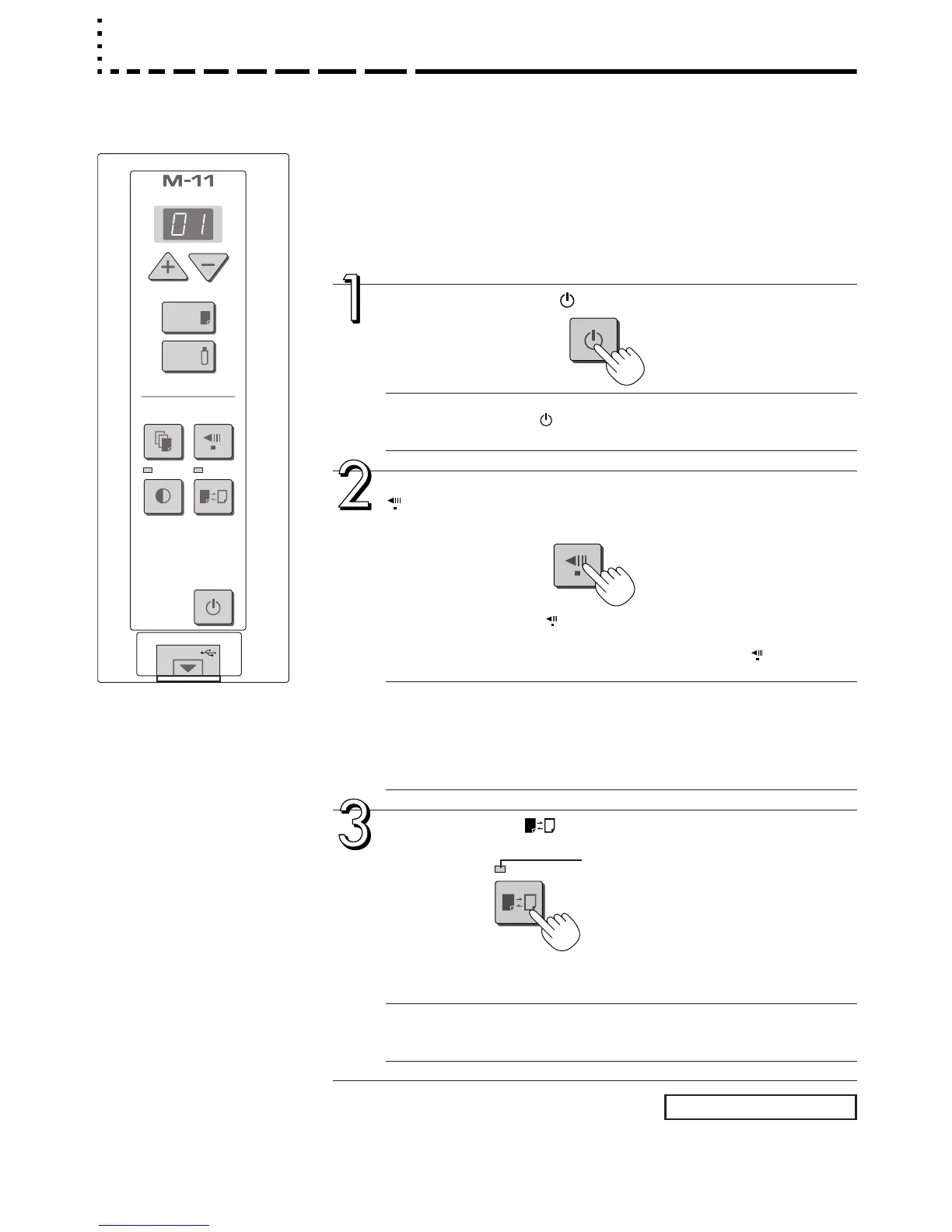
Press the ON/Standby button and switch on the power.
Note
• Press the ON/Standby button to switch on the power. The LED of the dis-
play window will light.
When the drawing is on the rear sheet, press the Feed/Stop
button to bring out the desired surface for printing.
A press of the Feed/Stop button scrolls the sheet surface one screen por-
tion left and automatically stops it.
To stop the operation part way through, press the Feed/Stop button again.
Note
• The one-screen that is visible is printable position.
• To make fine adjustments to the sheet surface, when the sheet is stopped,
move the sheet slowly by hand. The sheet can be moved either left or right.
• It might not be possible to print from the area that surrounds the sheet sur-
face. Please see “Effective reading size” on Page E-9.
Press the Color button and select Color or Black &
White.
* When the power is first switched on, Color/Black & White is selected
automatically.
Note
• When a black and white printer is connected and printing is performed with
color selected, the image quality may worsen.
Printing
Basic Printing Operation
Preparation:
1. Set A4 or letter size paper in the printer. See Page E-23.
2. Switch on the printer power. See Page E-23.
3. Connect the AC power adapter to the copyboard. See Page E-13.
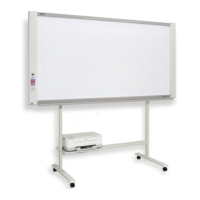
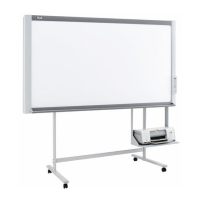
This function prints the sheet screen of the copyboard on the printer connected to the copyboard.


 To Next Page