E-19
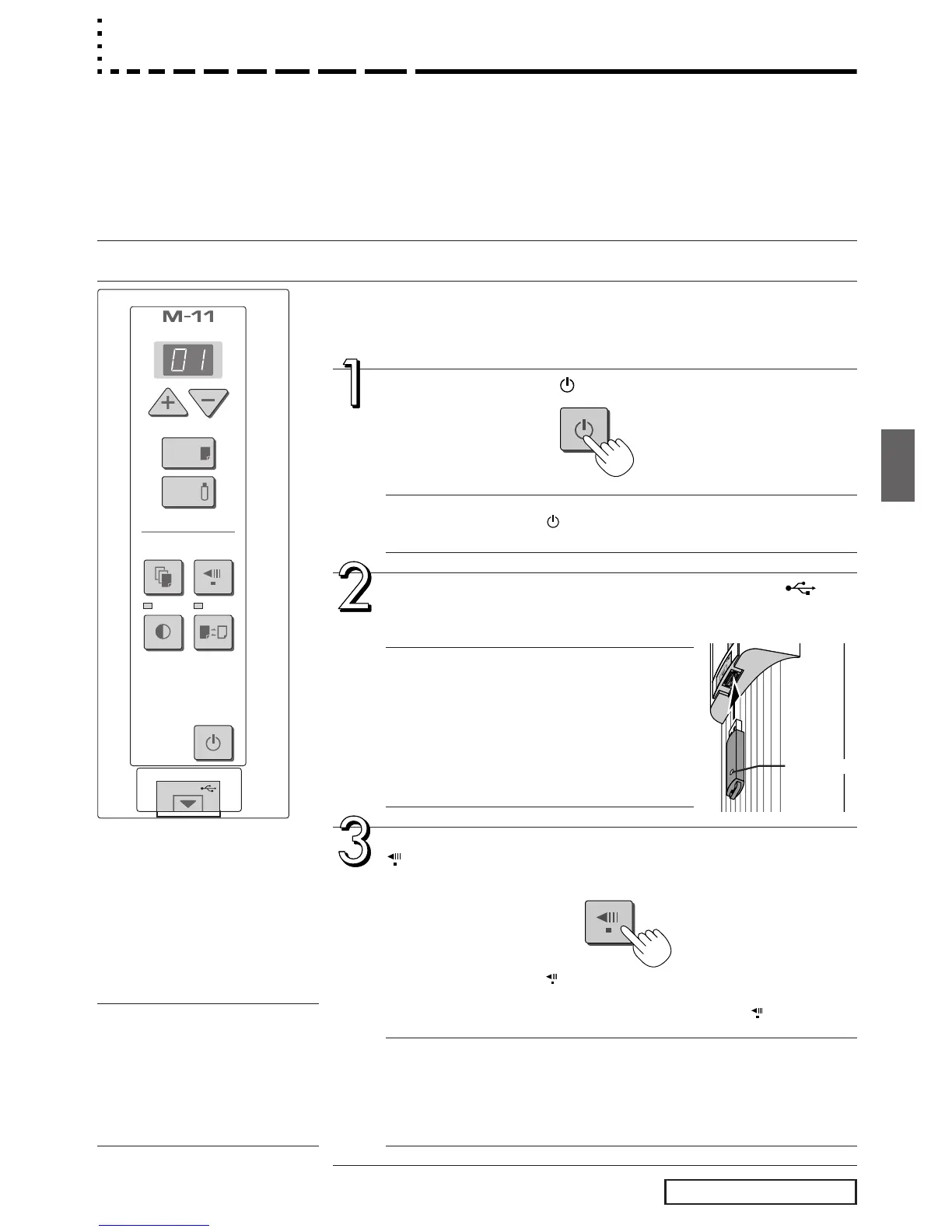
Press the ON/Standby button and switch on the power.
Note
• Press the ON/Standby button to switch on the power. The LED of the
display window will light.
Insert the USB memory device into the Memory port
(USB port) of the copyboard
• Insert the USB memory device with the access indicator facing toward you.
Using USB Memory
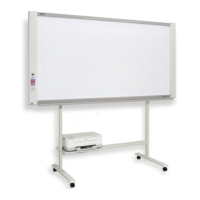
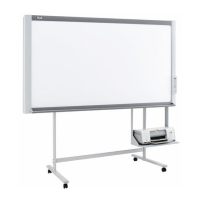
The content of what has been drawn on the sheet surface of the copyboard can be saved in USB memory. Later,
the saved image can be read into a personal computer and made into a document of the proceedings of the
meeting, or affixed to a document.
• What is needed to use the USB memory function
USB memory: Commercially-available product
Personal computer: The connector is a USB port (type A), and the interface supports USB 1.1
Note
• The copyboard supports the USB memory formats of FAT 12/16 and FAT 32.
USB Memory Storage Procedure
Preparation:
Connect the AC power adapter to the copyboard. See Page E-12.
Notice
• Check the orientation of the USB memory device
before inserting it. Forcing it in the reverse orien-
tation will damage the USB port or USB memory
device.
• Be careful not to bump into the USB memory
device with hand or body while it is mounted.
Doing so could damage the USB memory device
or USB port.
When the drawing is on the rear sheet, press the Feed/Stop
button to bring out the desired surface for USB memory
storage.
A press of the Feed/Stop button scrolls the sheet surface one screen por-
tion left and automatically stops it.
To stop the operation part way through, press the Feed/Stop button again.
Note
• The one screen portion that is viewable will be saved in USB memory.
• To make fine adjustments to the sheet surface, when the sheet is stopped,
move the sheet slowly by hand. The sheet can be moved either left or right.
• Saving of the portion located around the sheet surface might not be pos-
sible. Please see “Effective reading size” on Page E-9.


 To Next Page