E-18
Printing in the same ratio as the sheet surface (Model M-11)
Model M-11W is the wide type copyboard which will compress printing in
the horizontal direction resulting in crowded printing of the A4 size sheet; for
example, a circle will become an ellipse. To print in the same aspect ratio as a
drawn diagram, the compression mode will be changed (to suit the paper size
according to the sheet surface image). The factory default setting is the hori-
zontal compression mode.
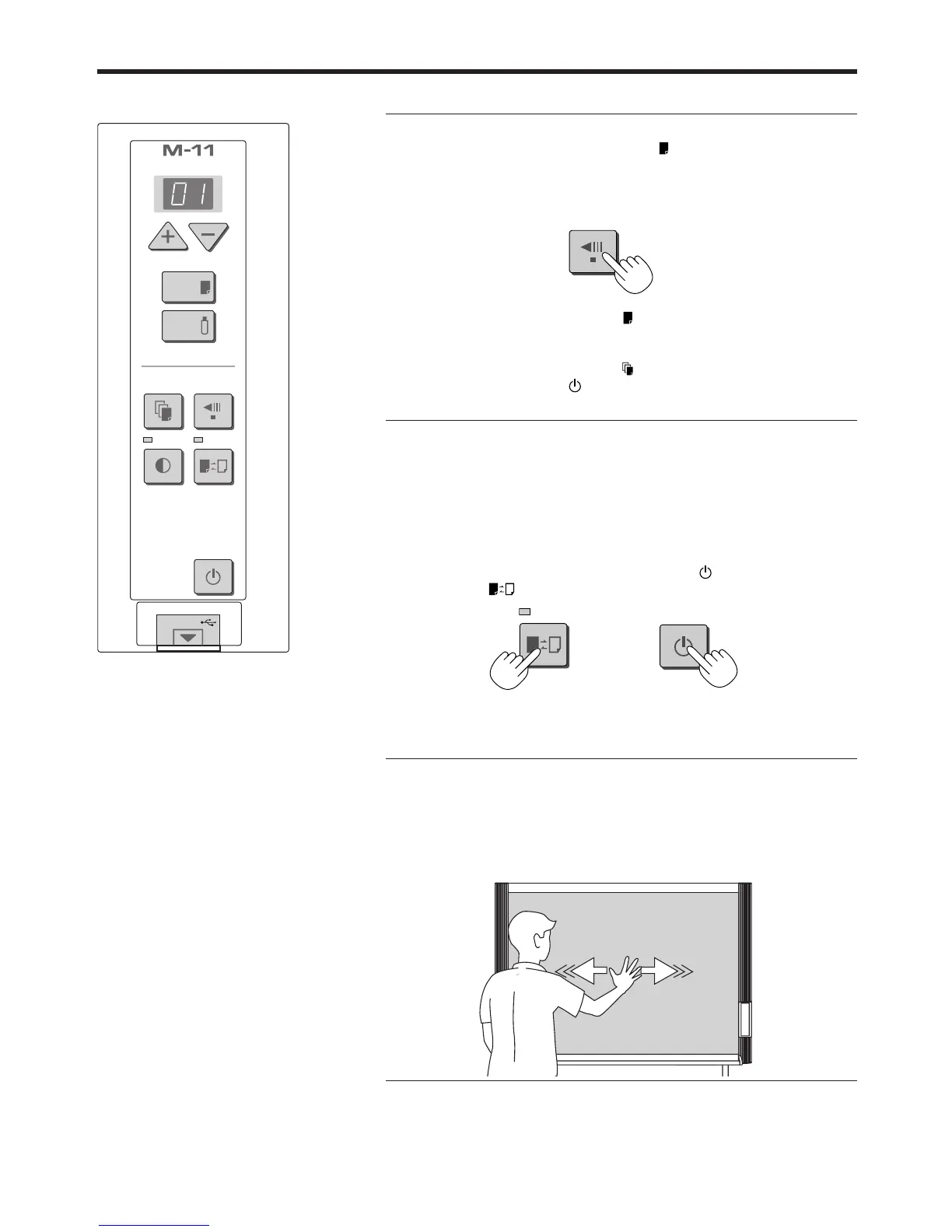
When the power is on, press the ON/Standby button while holding
down the Color button.
There will be a change to the “equivalent compression mode.” When the mode
changes, the Color mode indicator will flash for 5 seconds.
To return to the “horizontal compression mode,” perform the same operation.
Cancellation of the print operation in progress
During the read operation (when the Print button was pressed)
A press of the Feed/Stop button will stop the sheet during the reading opera-
tion and print the image data that has been read up to then. Please wait until
the paper has been ejected from the printer.
Stopping the printing after the Print button was pressed and the read-
ing completed
Stopping the process when multiple copies are being made when making
additional copies (When the Reprint button has been pressed)
Please press the ON/Standby button of the copyboard. Printing will be inter-
rupted in a little while and the paper will be ejected.
Moving the sheet surface manually
The sheet can be moved even when the power of the copyboard is
switched off.
The sheet can be moved with your hand either in left or right. Please place
your hand at the vertical center and move the sheet slowly.
Quick movement can cause damage to the drive mechanism of the copyboard.


 To Next Page