E-22
Deleting USB memory image files with the
computer
Before deleting important image files, be sure to save them
on the computer (as a data backup).
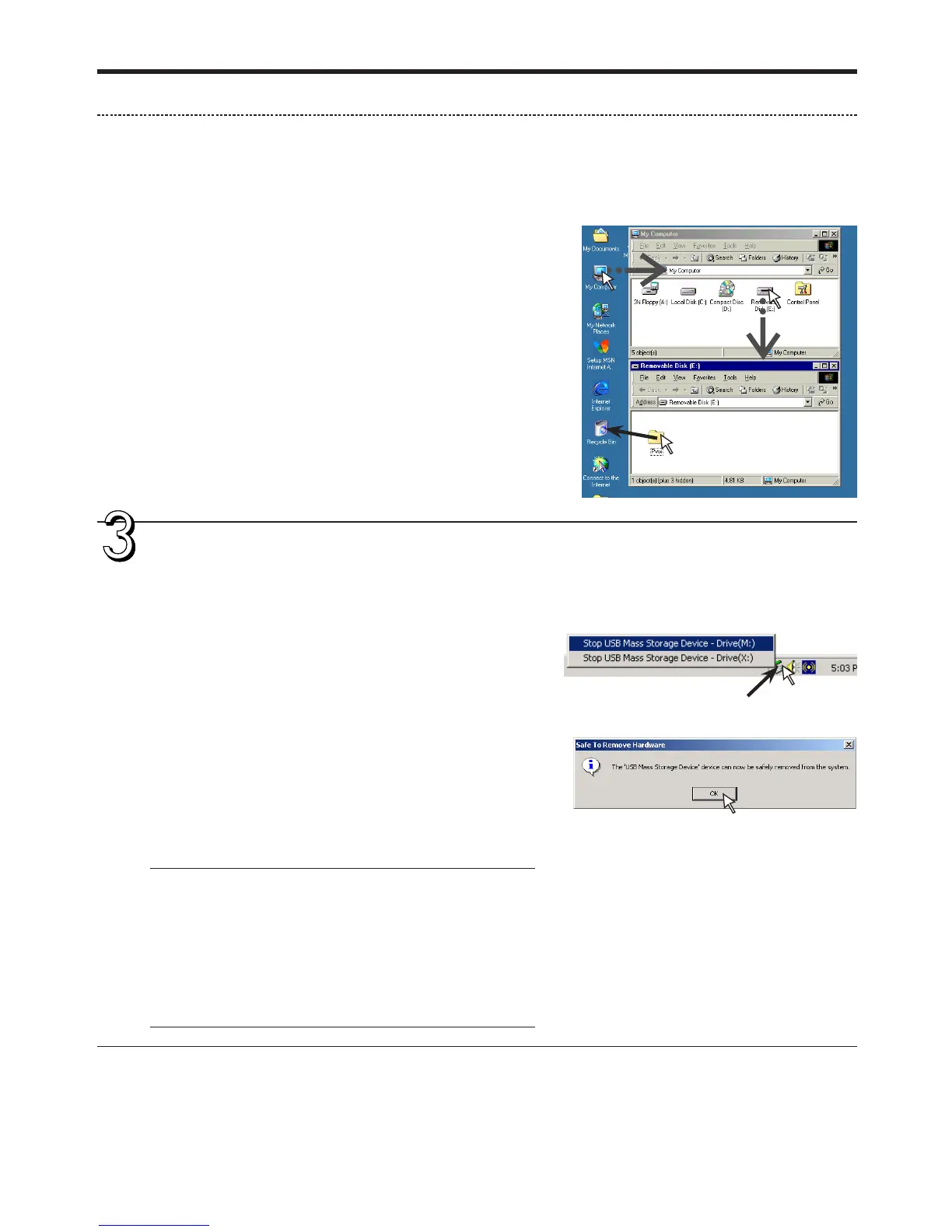
1. Open “My Computer” and then open the
drive icon which shows memory card.
The folder named “M-11” contains the memory storage
data of the copy-board.
2. Place the “M-11” folder in the “Recycle Bin”,
right click on the icon and select “Empty
Recycle Bin” from the pull-down menu.
All of the data contained in “M-11” will be deleted.
Even when the entire folder is deleted, a new M-11 folder
will be created automatically when USB memory is used
again with the copyboard.
Disconnect the USB memory
The disconnecting procedure depends on the computer’s oper-
ating system. For details, refer to the computer’s operating
instructions or help files.
1. Click the [Hardware Removal] icon that is
displayed in the task tray.
Click “Stop USB Mass storage Device - drive (E)”. (The E
drive character will differ depending on the personal com-
puter system.)
2. Click [OK] when “The ‘USB Mass storage
Device’ device can now safely removed from
the System” is displayed.
(When using Windows XP, [OK] does not appear on the
message screen. Simply disconnect. )
3. This allows the USB memory device to be
unplugged from the computer.
Note
• Do not unplug the USB memory device during the USB
memory storage operation (i.e., during the rotating, flashing
display in the display window), or while the access indicator
of the USB memory device is flashing because data will be
destroyed.
• The USB drive may not be disconnected properly, for exam-
ple if the computer is in the process of checking the status of
peripherals.
“Remove hardware” icon (example)
Drag to the Recycle Bin
Using USB Memory


 To Next Page