Need help?
Do you have a question about the Polaroid iZone iE877 and is the answer not in the manual?
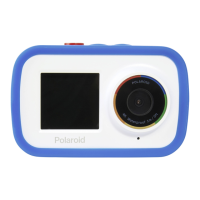
Identifies and labels the physical components of the camera.
Instructions on how to charge the camera's internal battery.
Guide for inserting the Micro SD memory card into the camera.
Steps to power on the camera using the power button.
Basic guidance on operating the camera after setup.
Details for turning the camera on/off and power saving features.
Explains how to use the camera for recording videos.
Details how to capture still images with the camera.
How to review and manage captured photos and videos.
Information about the waterproof casing accessory.
Controls for the camera's flash settings and usage.
Step-by-step guide to capturing photographs with the camera.
Instructions on how to record videos using the camera.
How to browse through recorded photos and videos.
Steps to play recorded video files on the camera.
Details of menu options available in Photo Capture Mode.
Options to select video resolution and quality settings.
Adjusting the quality of recorded video footage.
Feature for seamless video recording without gaps.
How to lock/unlock photos and videos to prevent deletion.
Instructions for deleting photos and videos from the camera.
Setting up and playing a slideshow of captured images.
Applying color effects to captured images.
Rotating captured photos by 90-degree increments.
Adding decorative frames to captured photos.
How to lock/unlock video files to prevent deletion.
Instructions for deleting video files from the camera.
Control camera sound effects like shutter click and beeps.
Setting power frequency to match local lighting conditions.
Selecting the desired format for recorded videos.
Choosing the media format for recorded videos.
Configure automatic power-off settings to conserve battery.
Setting the camera's date and time for image stamping.
Specifies the OS requirements for using the mobile app.
Step-by-step guide to install the mobile application.
Steps to enable Wi-Fi connection on the camera.
Steps to connect the mobile device to the camera's Wi-Fi.
Overview of the app's home screen and camera connection options.
How to add and connect a new camera to the Sakar iZone app.
Capturing photos remotely via the mobile app.
Displays remaining time for video capture during standby.
Adjusts frequency for lighting sources to prevent image waves.
Options to add date or date & time to captured images.
Controls for setting the camera's flash behavior.
Accessing media files saved on the camera's memory card.
Viewing captured photos in full screen mode on the app.
Deleting individual photos from the camera via the app.
Downloading or sharing single captured photos.
Viewing video thumbnails on the mobile device.
Viewing photos stored on the mobile device.
Viewing video thumbnails on the mobile device.
Minimum system requirements for the desktop software.
Button to initiate photo and video transfer from camera.
Manual photo/video transfer steps for Windows users.
Manual photo/video transfer steps for Mac users.
Importing photos/videos to an iPad.
 General
| Sensor Type | CCD |
|---|---|
| Image Resolution | 3264 x 2448 |
| Optical Zoom | 3x |
| Digital Zoom | 4x |
| Type | Compact Digital Camera |
| Image Sensor | 1/2.5 inch |
| Effective Pixels | 8.0 Megapixels |
| Image Sensor Size | 1/2.5-inch |
| Storage Media | SD/SDHC |
| Screen Size | 2.7-inch LCD |
| Battery Type | Rechargeable Li-ion battery |

 To Next Page