Customizing Your Phone
2 - 9
To update the background picture:
1. Tap > Settings > Basic > Preferences > Background.
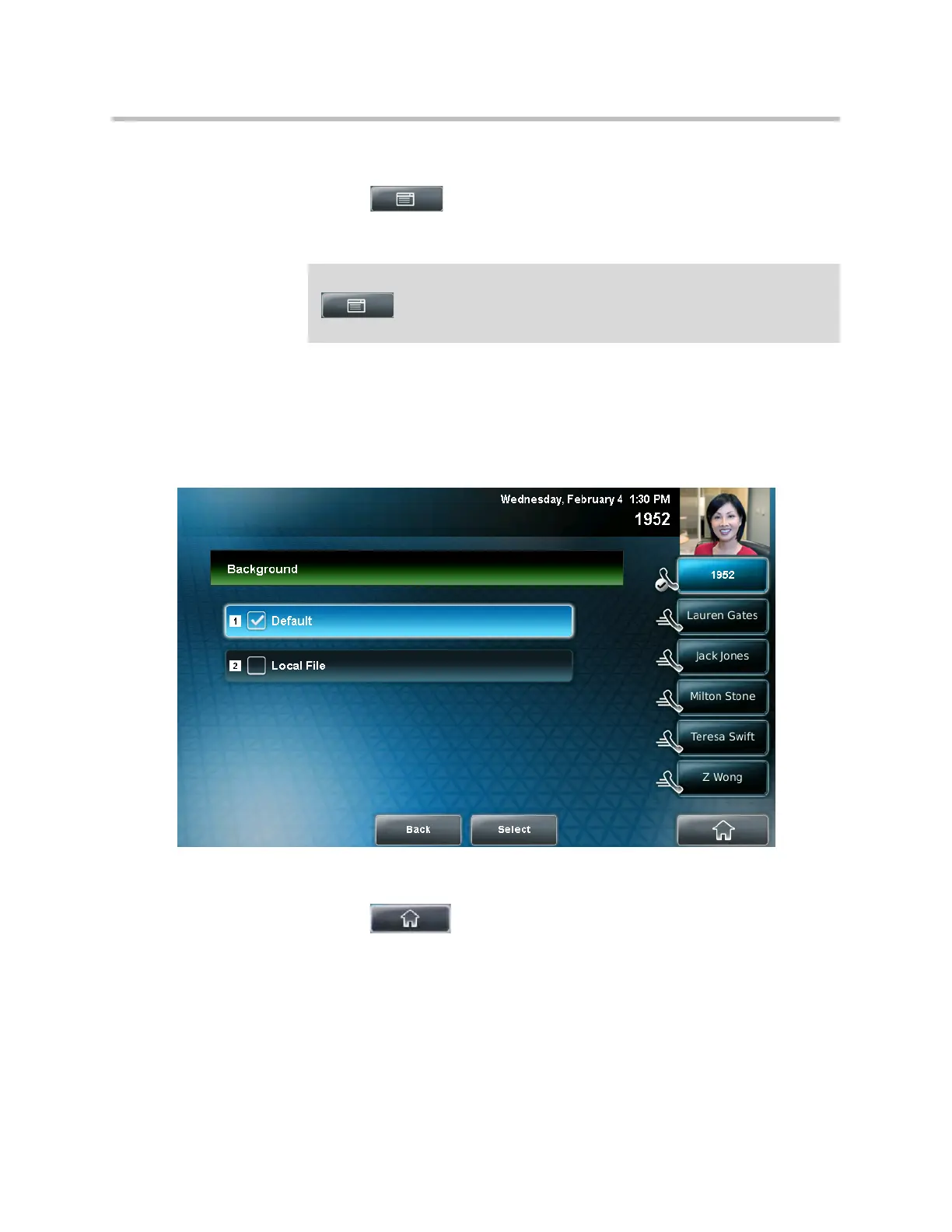
The Background screen displays.
The following figure shows a sample Background screen. (Your screen
will have the Default option, as well as other options that your system
administrator may have added to your phone. If you set an image on your
USB flash drive as your background image, the image will display in the
list as “Local File.”)
2. Tap the background image you want, and then tap the Select soft key.
3. Tap to return to the idle screen.
Note
Depending on how your system is set up, you may have to tap
> Settings > Basic > Preferences > Background >
Select Background. The Select Background screen displays instead.



 To Next Page