Polycom VVX 500 and VVX 600 Business Media Phones and Polycom VVX Camera User’s Guide
Polycom, Inc. 16
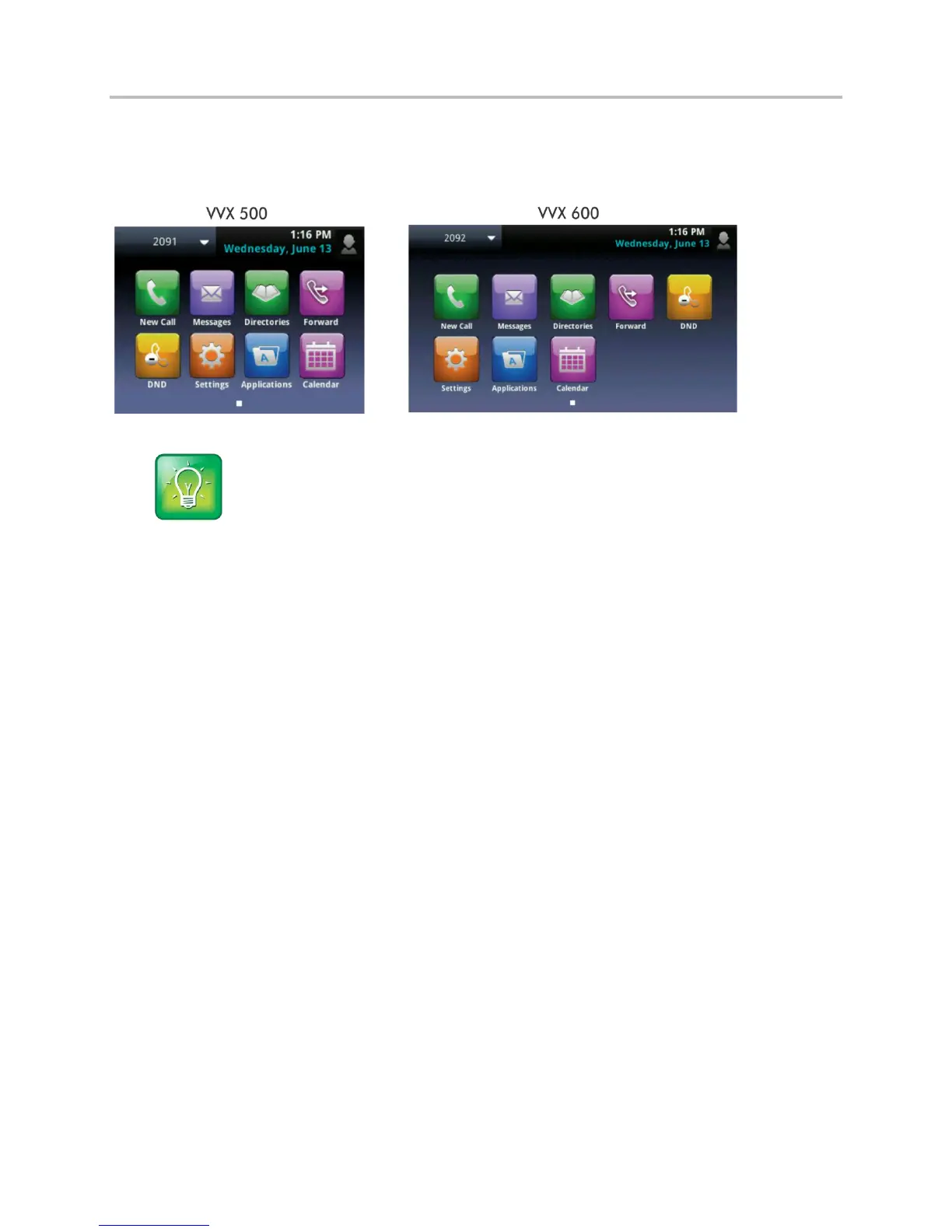
To display additional Home view icons, displayed next, press and hold the Page Indicator. Press and hold
the Page Indicator again to view fewer icons.
Figure 7: Additional Home View Icons
User Tip: Displaying Additional Home View Icons
Instead of pressing the Page Indicator to view additional Home view icons, swipe the screen right or
left.
Home view displays the following icons:
New Call Tap New Call to display the Dialer so you can place a call.
Messages Tap Messages to access your voicemail.
Directories Tap Directories to access your Contact Directory and Recent Calls list. You can also
tap Directories to access a Corporate Directory and a Buddy Status List if they are set up on your
phone.
Forward Tap Forward to set up forwarding options for incoming calls.
DND Tap DND to toggle DND (Do Not Disturb) on or off. When DND is enabled, your phone does
not ring and incoming calls go to voice mail.
Settings Tap Settings to access phone features and settings to customize your phone.
Additional icons may include:
Applications Tap Applications to access a menu of custom applications. Ask your system
administrator for information about any specific applications listed in this menu.
Calendar Tap Calendar to show a calendar with your meeting details. Using the Calendar feature,
you can join meetings directly from your phone.
From Home view, tap a phone line to display additional phone lines that you can set up for your phone
and favorites, displayed next. From this screen, tap a phone line to open the Dialer, or tap a favorite to
dial the favorite. To display the Home view icons again, tap Close.




 To Next Page