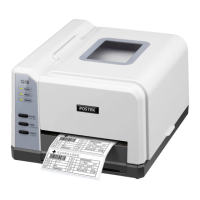
Chapter 3: Setup and Use Q8 Series User’s Manual
12
Loading the Media
Q8 printers can be operated in three different modes: Standard mode, Peel-off mode, and Cutting mode.
- In Standard mode, each printed label remains on the backing liner.
- In Peel-off mode, each printed label is peeled away from the backing liner automatically.
- In Cutting mode, the printer automatically cuts the label after it is printed.
Note: Pell-off requires an optional Peeler Kit to be installed. Cutting mode requires an optional Guillotine Cutter to
be installed.
Standard Mode
To load media into the Q8 while using Standard Mode:
1. Lift the top cover to expose the Media Compartment.
2. Take out the Media Spindle (see Figure 6-1).
3. Load a Media Roll, with labels facing up, onto the Media Spindle, using the scale on the Media Spindle to position
the Media Roll in the middle of the Spindle.
4. Next, insert the two Media Roll Guides, with their smooth sides facing inwards towards the Media Roll, on each
side of the Roll on the Media Spindle. Push the two Media Roll Guides close to Media Roll (see Figure 6- 2).
5. Insert the entire unit into the printer’s Media Compartment.
6. Turn the Handle to the “open” position to open the Printhead module.
7. Route the labels under and pass the Media Guide Rod, and over and pass the Platen Roller to the front of the printer.
8. Slide the Media Guides to the edge of the media; don’t squeeze the labels, make sure they remain flat (see Figure
6-3).
9. Turn the Handle to the “close” position.
10. Close the cover and press the “FEED” button to feed the Media and ensure proper tracking. If the printer does not
correctly sense the top of each label, it may be necessary to perform the Media Calibration (see Operations).


 To Next Page