48
K2 K3 | SERVICE MANUAL
INDEX
Updating the Smart Card:
By means of the PFF le and the Powersoft Firmware Updater Software it is possible to update the rmware stored into the Powersoft
Firmware Update Smart Card.
The PFF le is a package of rmwares for KFRONT, KCNTRL and KDSP boards of K Series or Duecanali amplier.
Starting from version 1.1.32, the Powersoft Firmware Updater Software is able to overwrite the content of the smart card using a
Powersoft K Series or Duecanali amplier as a smart card writer. Once updated, the Powersoft Firmware Update Smart Card can be
further used to update other Powersoft ampliers (update once, use many).
You can connect the PC to the amplier via the Ethernet plug in case the KAESOP board is installed.
Please consider that the smart card update process is pretty long: it takes about 40 minutes when performed via Ethernet connection
(through the KAESOP board).
Only Powersoft formatted smart card such as Preset cards and Firmware cards after version 3.26.4 are eligible to be updated.
In order to load the rmware into the Powersoft Firmware Update Smart Card follow these steps:
Download the rmware package from the Armonìa forum:
www.powersoft-audio.com/en/support/armonia-support-forum.html
Unpack all the les from the downloaded ZIP archive;
unpack and install the Powersoft Firmware Updater software
(FirmwareUpdater_[version]_Setup.zip) on your PC.
Be sure that the Powersoft Firmware Updater software
version is higher than 1.1.32.
Connect the PC and the K Series or Duecanali amplier
using an Ethernet CAT5 cable in case the KAESOP board
is installed.
Switch on the amplier.
On the amplier, press the MENU button and insert the
smart card into the slot. Be careful in this step since if
you don’t press the MENU button BEFORE inserting the
smart card, the amplier display shows “Remove smart card”
and the update procedure fails.
Launch the Firmware Updater Software on your PC.
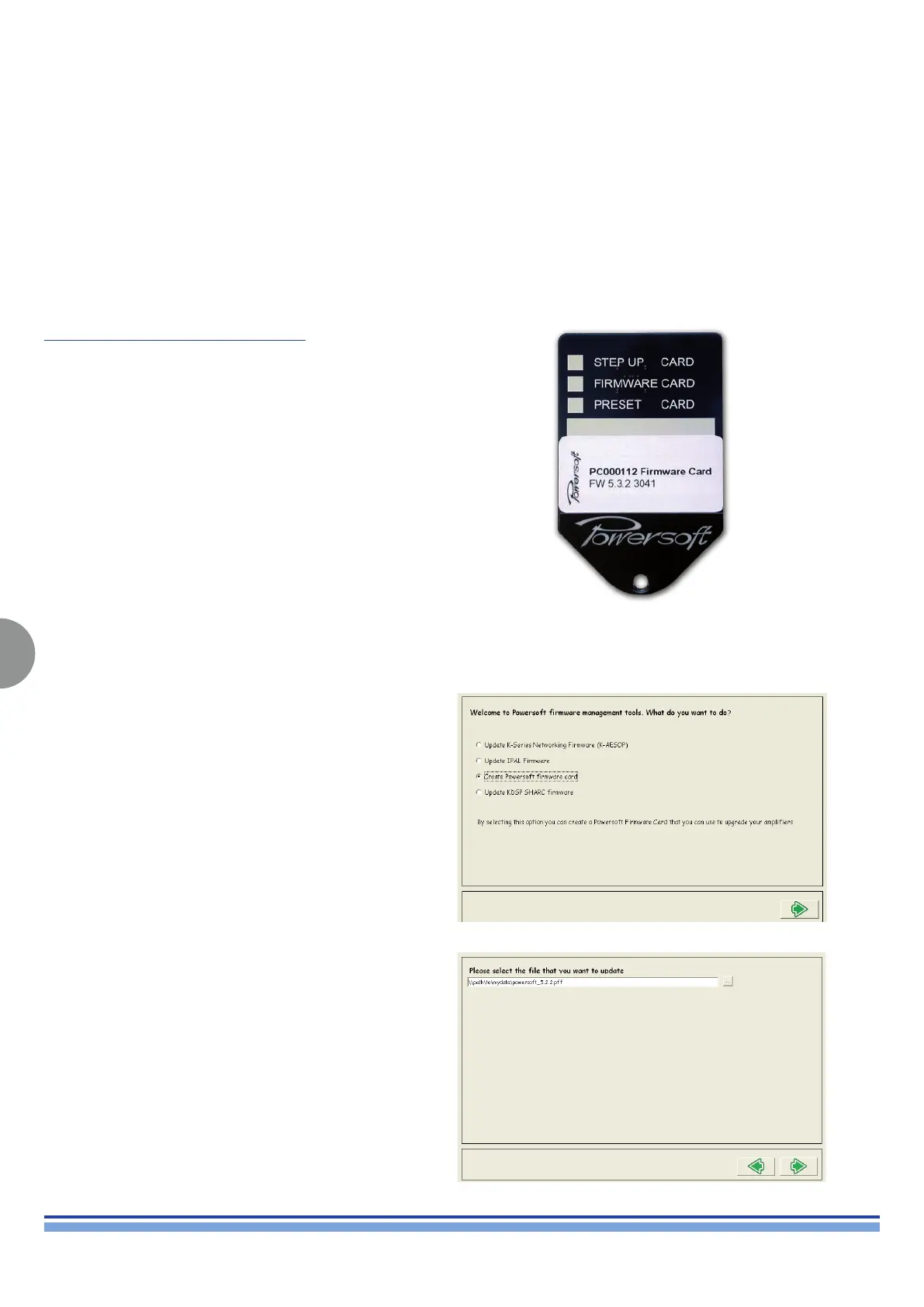
(Fig. 68)
Powersoft Firmware Update Smart Card
(Fig. 69)
Select Create Powersoft firmware card. (Fig. 68)
Insert path and lename of the .pff package le stored on
your local le system. (Fig. 69)



 To Next Page