Studio One Profesional Quick Start
Creating a New Song
Quantum 4848
Owner’sManual
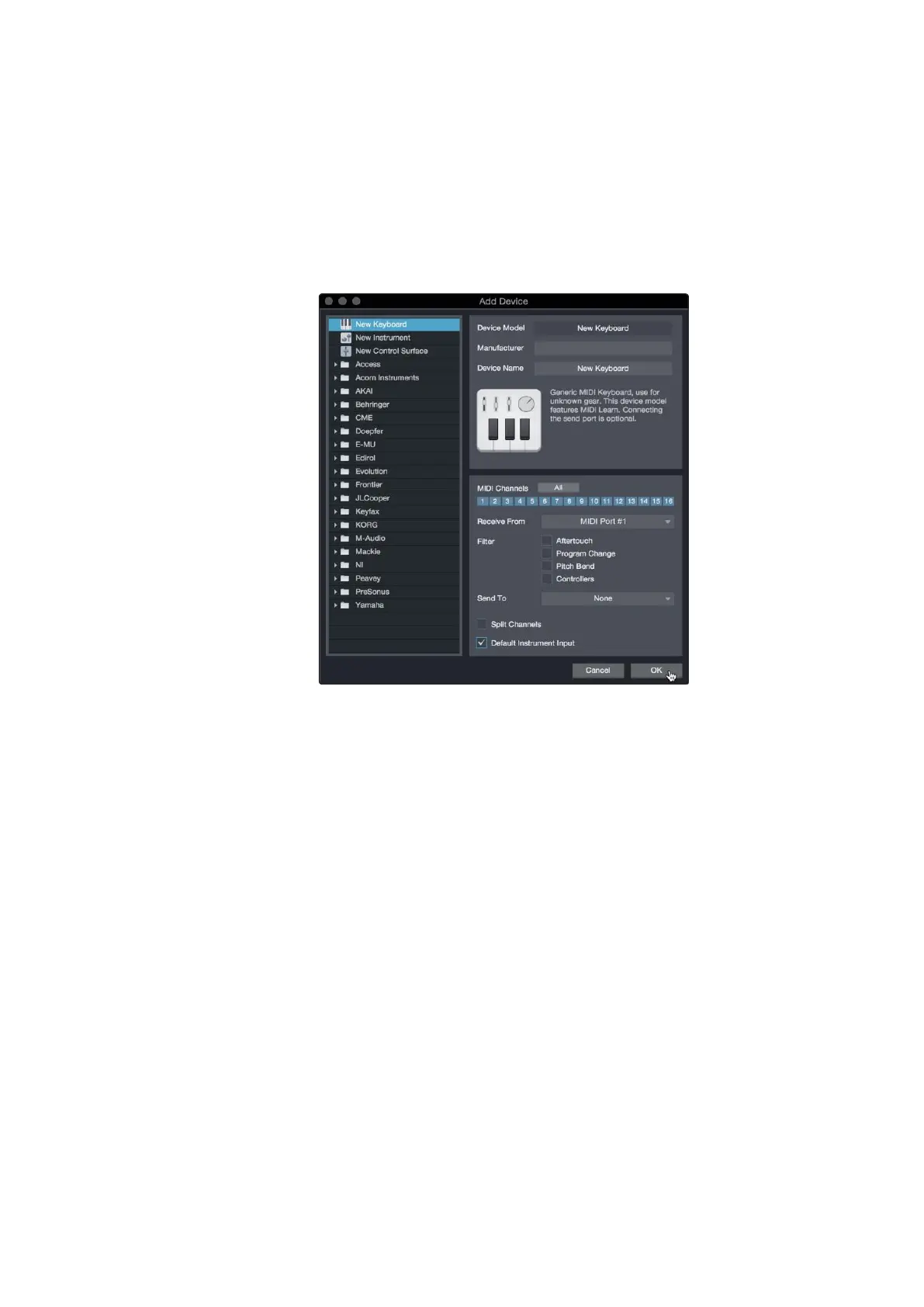
单击 "Add" 按钮。这将启动 "Add Device" 窗口。
3.
From the menu on the left, select your MIDI controller from the list
of manufacturers and models. If you do not see your MIDI controller
listed, select New Keyboard. At this point, you can customize the
name of your keyboard by entering the manufacturer and device
names.
在左边的菜单中,从制造商和型号的列表中,选择你的
MIDI
控制
器。如果你没有看到被列出,请选择
"New Keyboard"
。这时,你
可以通过输入制造商和设备名称来定制你的键盘名称。
4.
You must specify which MIDI channels will be used to communicate with
this keyboard. For most purposes, you should select all MIDI channels.
If you are unsure of which MIDI channels to choose, select all 16.
你必须指定哪些 MIDI 通道将被用来与该键盘通信。在大多数情况下,
你会选择所有的MIDI通道。
如果你不确定要选择哪些
MIDI
通道,请选择全部
16
个。
5.
Studio One allows you to filter out specific control functions. If you
would like Studio One to ignore Aftertouch, Pitch Bend, Program
Change, or All CC messages, enable filtering for any or all of these
messages.
Studio One
允许你过滤掉特定的控制功能。如果你想让
Studio One
忽略
Aftertouch
、
Pitch Bend
、
Program Change
或
All CC
信息,请为
这些信息中的任何一个或全部启用过滤功能。
6.
In the Receive From drop-down menu, select the MIDI interface input
from which Studio One will receive MIDI data (that is, the MIDI port to
which your keyboard is connected).
在”Receive From”(接收自)下拉菜单中,选择 Studio One 接收
MIDI 数据的MIDI接口输入(即你的键盘所连接的 MIDI 端口)。


 To Next Page