Studio One Profesional Quick Start
Creating a New Song
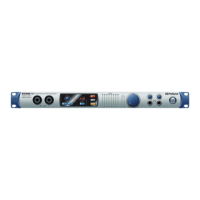
Quantum 4848
Owner’sManual
6.3 Creating a New Song 创建一首新的歌曲
12.
In the Send To menu, select the MIDI interface output from which Studio
One will send MIDI data to your sound module. Click OK and close the
External Devices window. You are now ready to start recording in Studio
One.
在”Send To”菜单中,选择MIDI接口输出,Studio One 将从该接口向你的
声音模块发送MIDI数据。点击确定,关闭 "External Devices"窗口。现在
准备好,你已经可以开始在Studio One中录音了。
The rest of this Quick Start Guide will go over how to set up a Song and will
discuss some general workflow tips for navigating through the Studio One
environment.
本 ” Quick Start Guide” 快速入门指南的其余部分,将介绍如何设置歌曲,并
将讨论在Studio One环境中,浏览的一些一般性的工作流程提示。
Now that you’ve configured your audio and MIDI devices, let’s create a new Song.
We’ll start by setting up your default audio I/O.
现在你已经配置了音频和
MIDI
设备,让我们来创建一首新的歌曲。我们将从
设置默认音频输入
/
输出开始。
1.
From the Start page, select Create a New Song.
从
"Start"
页面,选择
“Create a New Song"
。
Power User Tip: Studio One Professional is an integrated recording and mastering
solution. To create a new environment to record, create a New Song. To create a
mastering project, create a New Project. Complete information on using the
Project Page to master Studio One sessions and audio files can be found in the
Studio One Reference Manual.
用户提示
: Studio One Professional
(专业版)是一个集成的录音和母带制作解
决方案。要创建一个新的录音环境,创建一首新的歌曲。要创建一个母带项
目,请创建一个新项目。关于使用
”Project Page”
来掌握
Studio One
录音和音
频文件的完整信息
,
可以在
Studio One Reference Manual
参考手册中找到。
2.
In the New Song window, name your Song and choose the directory in
which you’d like it saved. You’ll notice a list of templates on the left.
These templates provide quick setups for a variety of devices and
recording situations. The section will describe creating a Song from
an empty session.
在
" New Song"
窗口中,为你的歌曲命名,并选择你想保存的目录。你
会注意到左边有一个模板列表, 这些模板为各种设备和录音,提供快
速设置。本节将描述从一个空的会话中创建一首歌曲。


 To Next Page