25
4 Basic Mix Functions Overview
4.3 Filter DCA Groups
StudioLive™ Series III
Owner’s Manual
To Edit the User layer, press and hold the Select button for the channel for which
you’d like to change the assignment. This will open the User Layer Assignment
screen. From here you can unassign the channel completely or change the channel
assigned to it.
Power User Tip: Every channel, mix master, and DCA group master is available to assign
to the User Layer. Use the encoder below the Touch Display to navigate through all the
available options.
4.3 Filter DCA Groups
Professional mixing consoles have addressed the problem of managing complex
mixes with population groups that reduce the channels you’re viewing at one time
and DCAs that control the overall level of a group of channels.
We’ve combined the best aspects of these solutions with Filter DCAs. A Filter DCA
can contain any combination of the available input channels and effects returns. You
can even include the same channel in multiple Filter DCAs so you can manage mixes
in multiple ways. Each group is given a master level control so you can control the
overall level of the group while maintaining each channel’s relative balance in the
mix. In this way, for example, you can create a single fader to control every drum in a
monitor mix and maintain the relative level of the drum mix that you created.
Once selected, a Filter DCA group stays active until exited regardless of which mix is
selected. This allows you to adjust the group independently across different mixes.
You can also flip between groups on the fly to change the view of a selected mix.
You can create up to 24 Filter DCA Groups.
When controlling the master level of a DCA Group, the faders for the channels
assigned to that group will move to more accurately provide a visual indication of the
actual level of each channel in the group.
This feature can be defeated by enabling “Traditional DCA” mode from the Filter DCA
Group edit screen.
4.3.1 Creating Filter DCAs
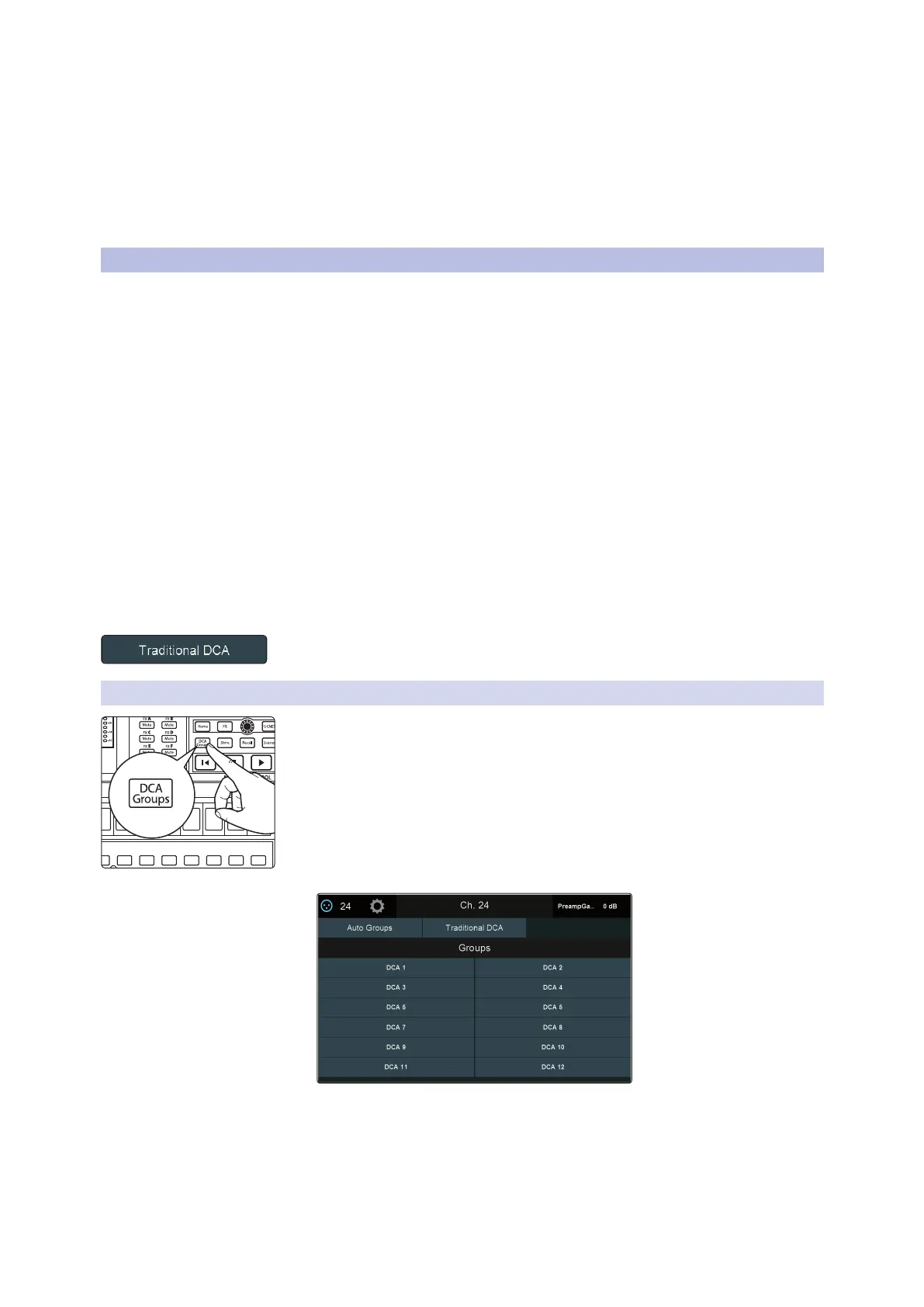
1. To create a new Filter DCA Group, press the DCA Groups button in the Master
Control section.
2. This will open the Filter DCA Group edit screen.
3. Select the DCA Group you’d like to use.
Select Select Select Select Select Select Select Select










 To Next Page