44
6 The Fat Channel
6.1 Overview
StudioLive™ Series III
Owner’s Manual
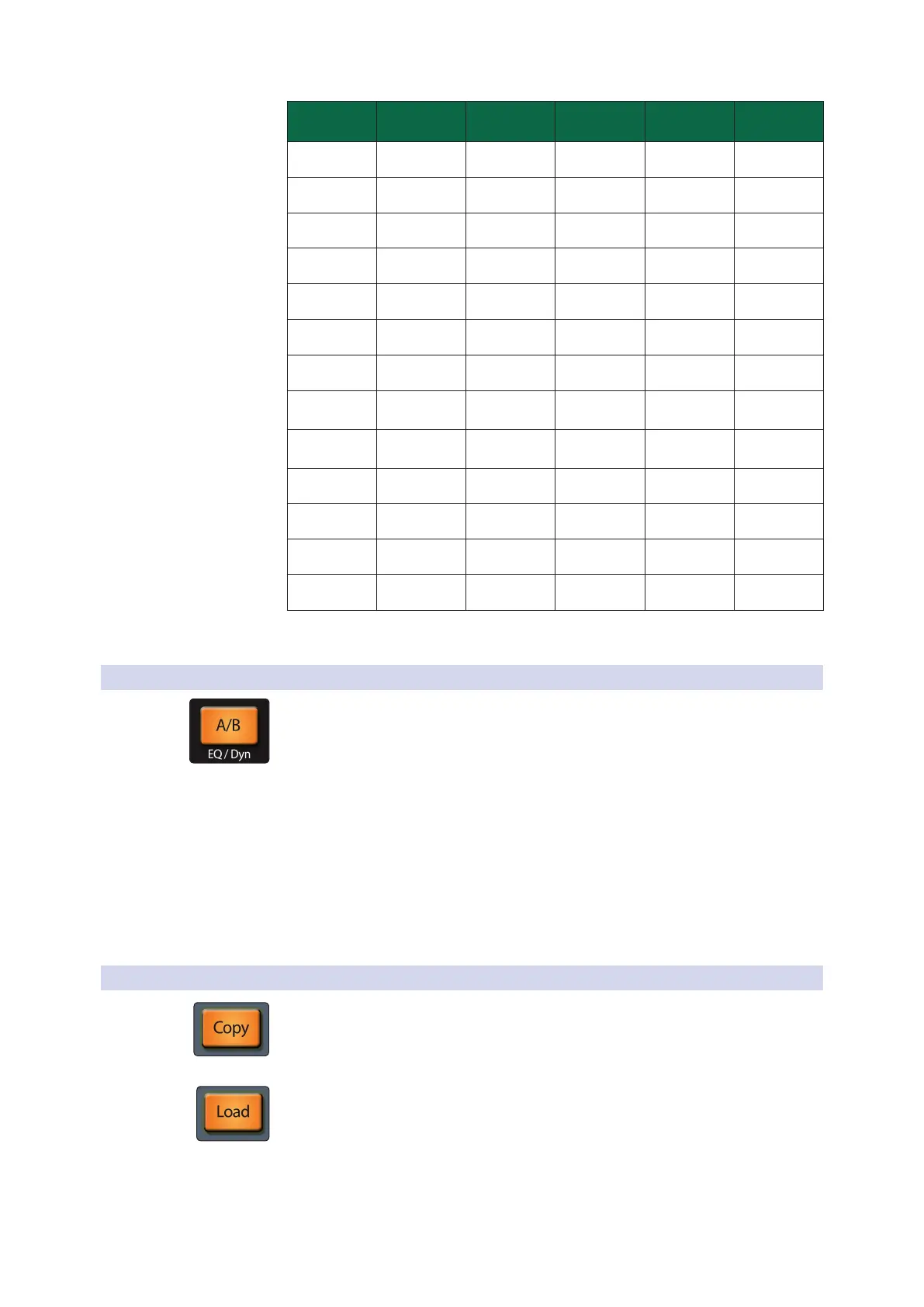
Input Channels Aux & Tape Inputs FX Returns FlexMixes Main Mix
Preamp Gain √ --- --- --- ---
Hi Pass Filter √ --- --- √ ---
Pan √ --- --- --- ---
Gate √ --- --- --- ---
Compressor √ √ √ √ √
EQ 4-Band 4-Band 4-Band 6-Band 6-Band
Limiter √ --- --- √ √
USB Send
All Channels and
Buses up to 64
All Channels and
Buses up to 64
All Channels and
Buses up to 64
All Channels and
Buses up to 64
All Channels and
Buses up to 64
SD Send* Channels 1-32 --- ---
Up to 1 stereo
bus
Up to 1 stereo
bus
Delay √ --- --- √ √
Aux Sends √ √ √ --- ---
Aux Mute √ √ √ --- ---
Aux Pan √ √ √ --- ---
*Note to StudioLive 64S users: The 34 SD Sends are freely routable between all channels
and buses.
6.1.1 A/B Comparison for EQ and Dynamics Settings
The A/B button lets you make A/B comparisons of EQ, compressor, and gate settings
for the selected channel or mix. This function lets you try various changes as you look
for the optimum setting, without the risk of losing your original settings. If this button
is dimmed, you’re looking at the “A” set of parameter settings. If this button is lit fully,
you’re looking at the “B” parameter set.
To A/B Fat Channel settings, press the A/B button. This saves the current EQ and
dynamics settings for the selected channel as the “A” snapshot, and copies its settings
to a second snapshot, we’ll call “B.” The A/B button lights, to tell you that you are now
working with the “B” snapshot.
Power User Tip: The A/B function can also be used to maintain two distinct Fat Channel
settings for a given channel or bus. So, the next time the guitar player tells you that they
plan to switch to a hollowbody mid-show, you can be ready with a more appropriate
alternate setting, saved as the “B” snapshot.
6.1.2 Copy/Paste & Preset Load/Save
Press Copy to copy Fat Channel settings from the currently selected channel to one
or more other channels. Once Copy is pressed, the Select buttons for all other
channels start blinking. Press the Select button on any channels to which you want
to copy Fat Channel settings from the currently selected channel.
Press Load to paste the settings to the selected channels.










 To Next Page