80
Tap Tempo
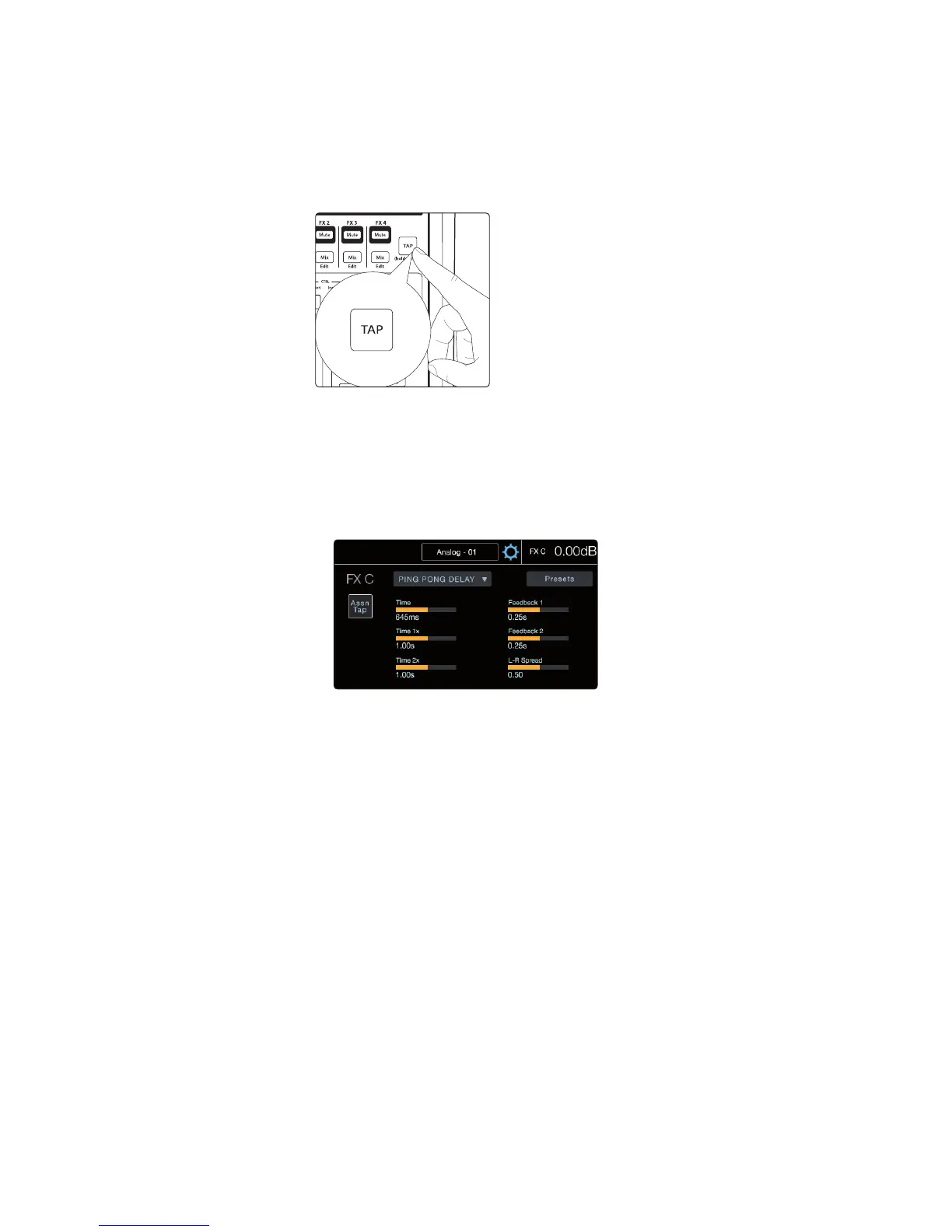
The Tap Tempo button lets you easily set the time of the delay effect to match
the tempo of the song being played. Tap can be assigned to either the FX C or
FX D delay processor. Once assigned, pressing the Tap button will set the time
parameter for the associated delay no matter what screen you’re viewing. This
way you don’t have to leave where you’re at to tap out the time of the next song.
To assign the Tap Tempo button to a delay:
1. Open the FX Edit screen for the delay you’d like to assign.
You can do this by going to the FX Edit menu from the Home
screen or by pressing the Mix button for FX D or FX C.
2. In the FX Edit screen for the delay is a button labeled “ASN Tap.” Press this
to assign the Tap button to the selected delay. Tap will always control the
time for that delay until it’s unassigned or assign it to the other delay.
Reverb and its Parameters
Reverberation—or reverb, as it is more commonly known—is perhaps the most
widely used effect. Natural reverb is created by sound waves reflecting off of a
surface or many surfaces. For example, when you walk across the wooden stage
in a large hall, thousands of reflections are generated almost instantaneously
as the sound waves bounce off the floor, walls, and ceilings. These are known as
early reflections, and their pattern provides psychoacoustic indications of the
nature of the space that you are in. As each reflection is reflected off of more
surfaces, the complexity of the sound increases, while the reverb slowly decays.
The reason for the widespread use of reverb in audio recording is fairly self-evident:
Humans don’t live in a vacuum. Because our brains receive cues about the nature
of the space around us based partially on audio reflections, a sense of space
makes an audio recording sound more natural and, therefore, more pleasing.
Note: Reverb types and presets can only be loaded on FX A and FX B.










 To Next Page