Hardware and Software Set-Up and Testing 19
7. Assuming that you pressed Yes, the next screen shows the
Destination Location. If you wish to install the program in
a different location, press Browse. If not, press Next.
8. The Show Program Folder screen is displayed. If you wish
to change the name of the folder in which the software will
be installed, do so now. If not, press Next.
9. The installation progress will be displayed. When the
program is completely installed, you will see Set Up
Complete. Press Finish.
10. Re-boot your computer before you proceed.
F. SELECTING YOUR PRINTER AND RECORDER DRIVES
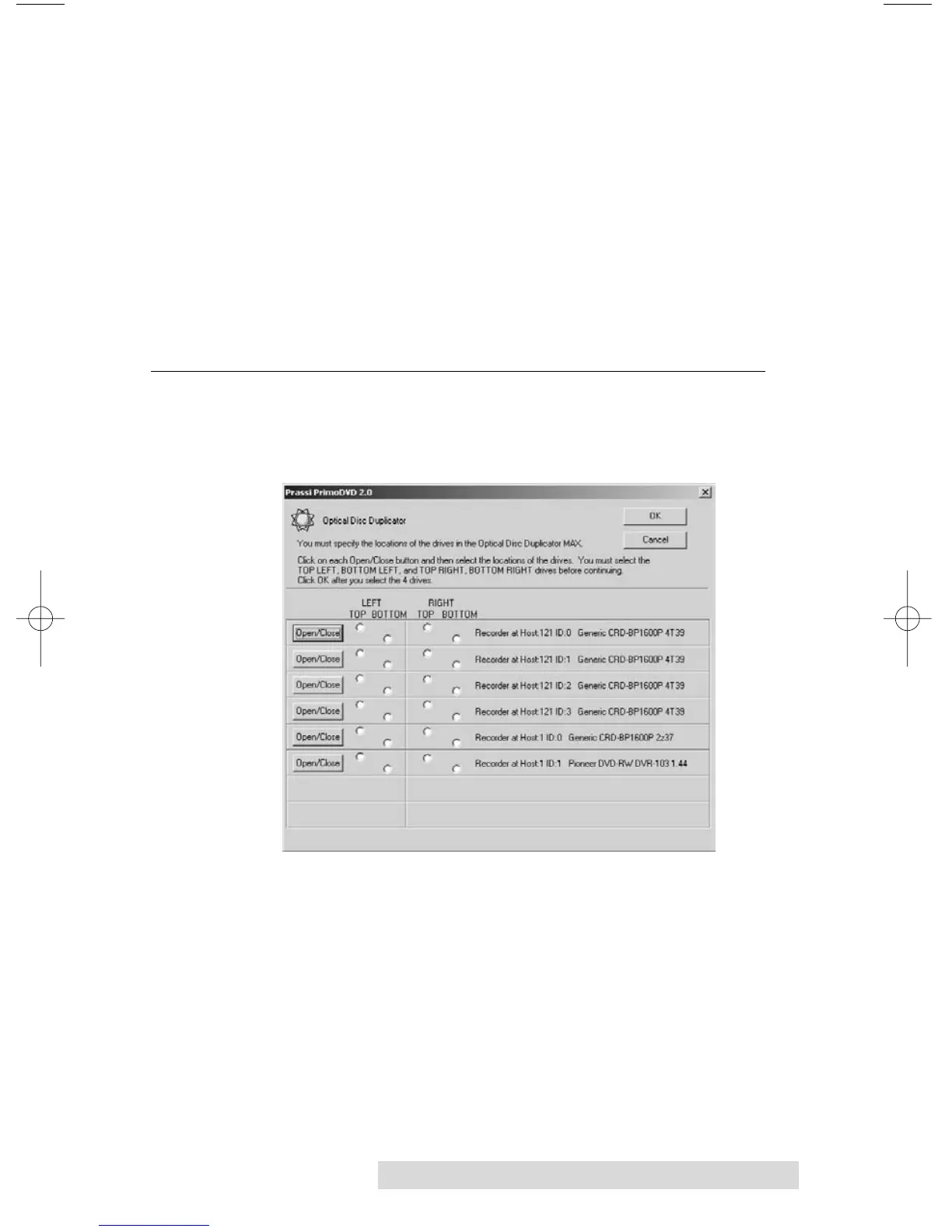
Each time PrimoDVD 2.0 is launched, the following dialog
will appear:
This is necessary for Primo to identify the drives. All recording
drives installed on your PC will be listed in this dialog box.
Click the Open/Close button to see which drive opens, then
click the corresponding radio button. Click OK to accept the
settings.


 To Next Page