53
PRIMERGY TX200 S3 User’s Guide
2
Checking before OS Installation
2 Check a only [Classic] and click [OK].
The Setup window appears.
3 Click [Next].
The [License Agreement] window appears.
4 Select [I accept the license agreement] and click [Next].
The [User Information] window appears.
5 Enter the user information of the software and click [Next].
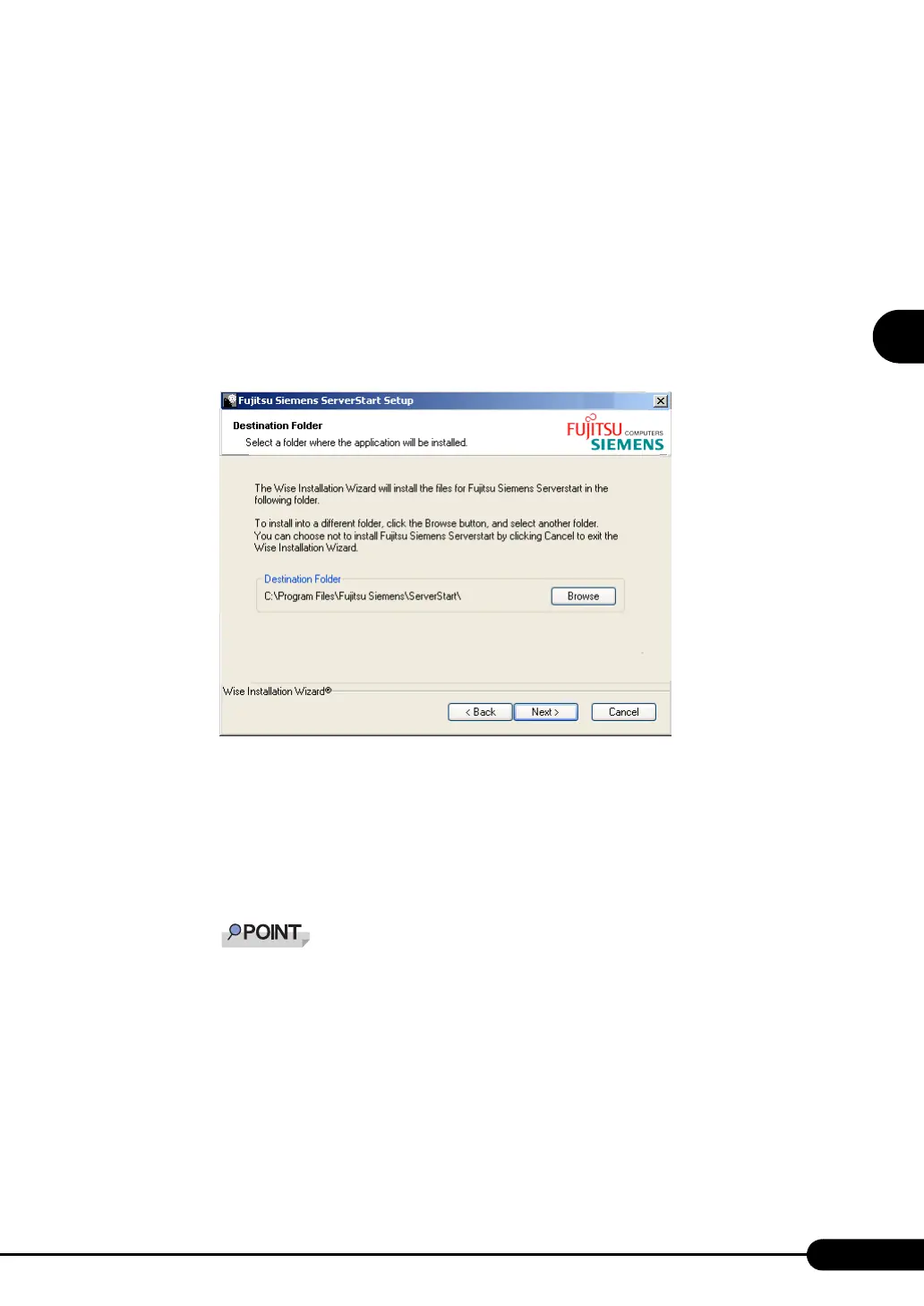
The [Destination Folder] window appears.
6 Specify the installation folder and click [Next]. To change the installation folder,
click [Browse] and select the folder.
The [Ready to Install the Application] window appears.
7 Click [Next].
Installation is executed.
` If a message prompts you to restart the system before or after installation, eject the CD-ROM
and restart the system according to the message. When the system restarts, insert the Server-
Start CD-ROM and start installation again.
If the "This program does not respond." message appears during restart operation, click [Exit]
to continue the restart operation.
When the installation is completed, the completion window appears.
8 Click [Exit].
ServerStart has been installed to the client computer.



 To Next Page