262
Chapter 9 Operation and Maintenance
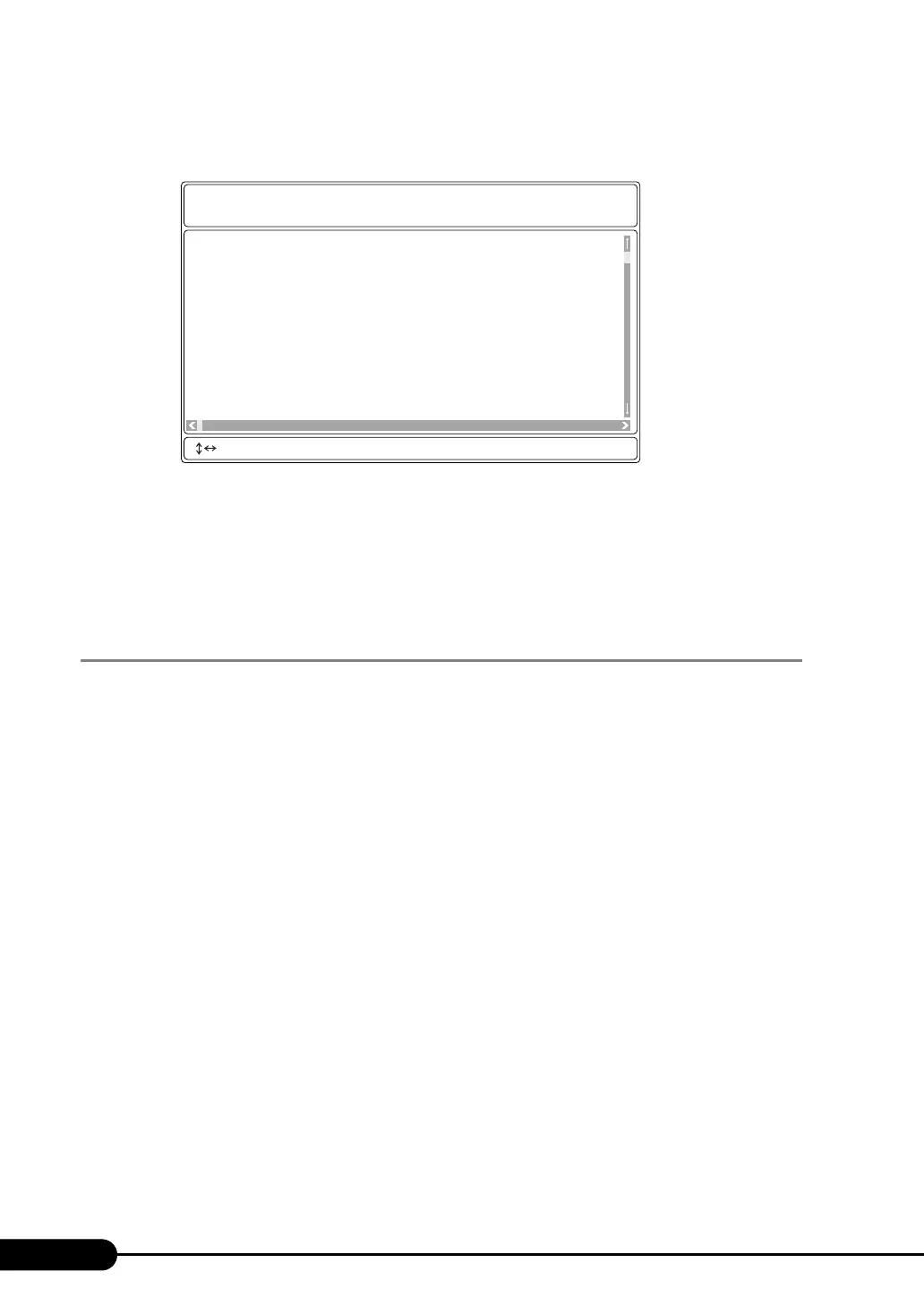
4 Select [System Event Log (SEL)] and press the [Enter] key.
The list of system event logs is appears.
Exiting Server Management Tools
1 Press the [Esc] key once in the menu window of Server Management Tools.
The power can be turned off when the DOS prompt is displayed.
9.3.2 Saving/Deleting the System Event Log
Saving the Log
1 Start Server Management Tools to display the SYSTEM EVENT LOG window.
2 Press the [F2] key.
3 Enter the name of the file to save the log to, and press the [Enter] key.
The log is saved to the floppy disk under the specified file name.
Deleting the Log
1 Start Server Management Tools to display the SYSTEM EVENT LOG window.
2 Press the [F3] key.
3 Press the [Enter] key.
This deletes the log.
004 MMM-DD-YYYY HH:MM:SS [*****] XXXXXXXXXXXXXXXXXXXXXXXXXXXXXXXXXXXXXXXX
003 MMM-DD-YYYY HH:MM:SS [*****] XXXXXXXXXXXXXXXXXXXXXXXXXXXXXXXXXXXXXXXX
002 MMM-DD-YYYY HH:MM:SS [*****] XXXXXXXXXXXXXXXXXXXXXXXXXXXXXXXXXXXXXXXX
001 MMM-DD-YYYY HH:MM:SS [*****] XXXXXXXXXXXXXXXXXXXXXXXXXXXXXXXXXXXXXXXX
000 MMM-DD-YYYY HH:MM:SS [*****] XXXXXXXXXXXXXXXXXXXXXXXXXXXXXXXXXXXXXXXX
FUJITSU
SIEMENS
COMPUTERS
SYSTEM EVENT LOG (SEL)
< ,PgUp/Dn,(Ctrl-)Home/End> Move <F2> SaveToFile <F3> Clear <ESC> Exit



 To Next Page