33
PRIMERGY TX200 S3 User’s Guide
1
Overview
1.4.3 Turning On the Server
1 Slide the drive cover.
J"1.4.1 Sliding the Drive Cover" (pg.30)
2 Make sure that the floppy disk drive and CD-ROM drives are empty.
3 Press the power switch of the monitor and peripheral devices.
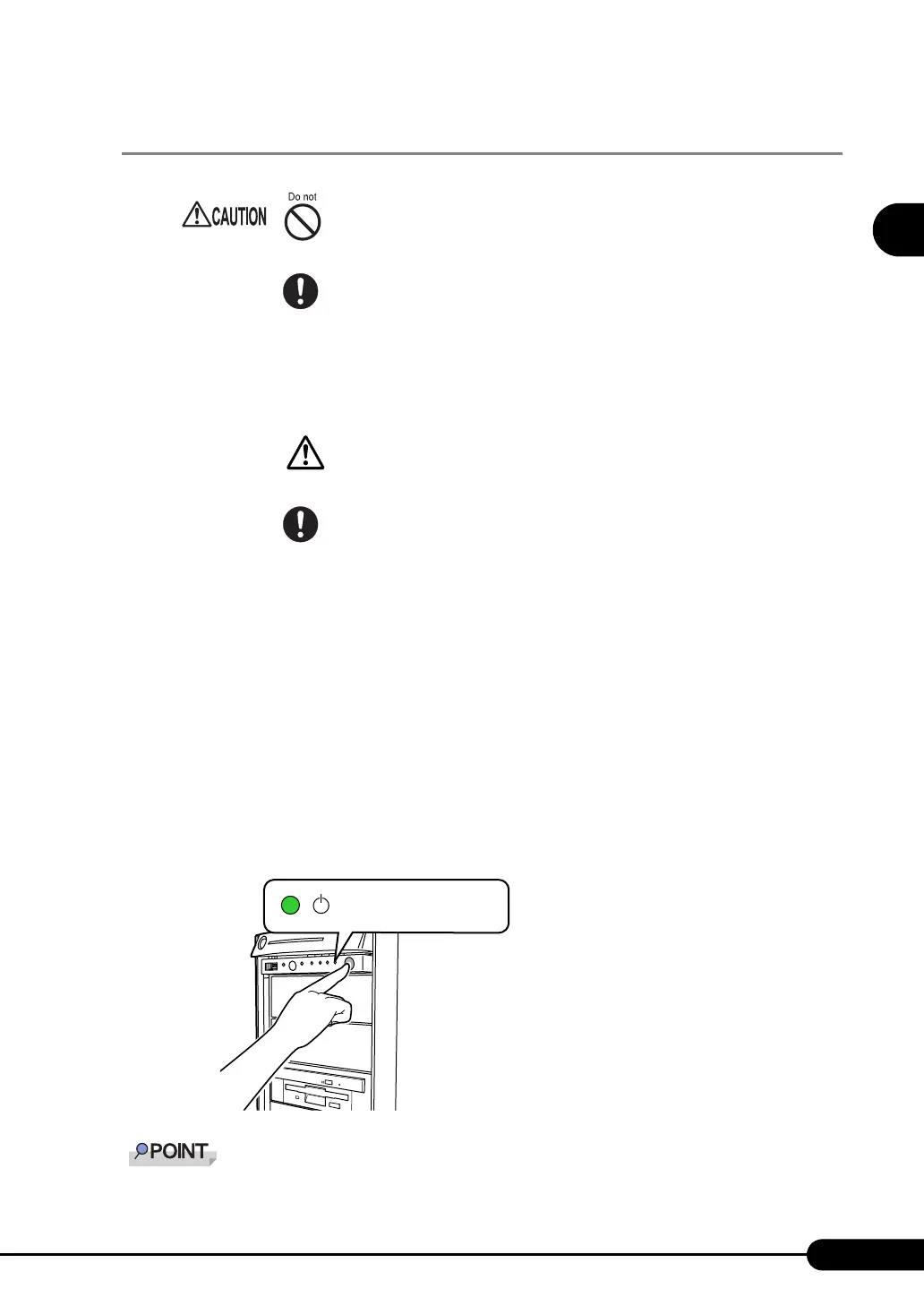
4 Press the power switch on the front of the server.
The server's power LED turns green.
When the power is turned on, the server performs "Power On Self Test (POST)" which checks
the device of the server. If any abnormalities are detected by POST, error messages appear ("9.2.2
Error Messages" (
Jpg.245)).
` The time to turn the server off can be set with the ASR setting (on the [Power On/Off] tab) using
ServerView. For details, refer to
"3.2 Serious Error Handling (ASR)" in "ServerView User’s Guide."
• Do not move, strike, or shake the server when it is turned on. This can damage
the hard disk in the server and cause data loss.
• Turn the server on when the temperature is in its operating environment range
(10-35°C). For details about the operating environment, refer to "Start Guide"
and "Safety Precautions".
When operating the device outside of this operating environment, the server
may operate improperly, damage data etc.
Furthermore, Fujitsu cannot be held responsible for any related damage, malfunction,
or loss of data, etc.
• The fans rotate at high speed immediately after the server is turned on, but this
is not defective. When the temperature is in the server's operating environment
range (10-35°C), they start to rotate at normal speed later.
• Be sure to wait for 10 seconds or more after shutdown before turning the
server on.
The server's power LED
is lit green.



 To Next Page