Configuring Secure Socket Layer (SSL)
Configuring the Switch for SSL Operation
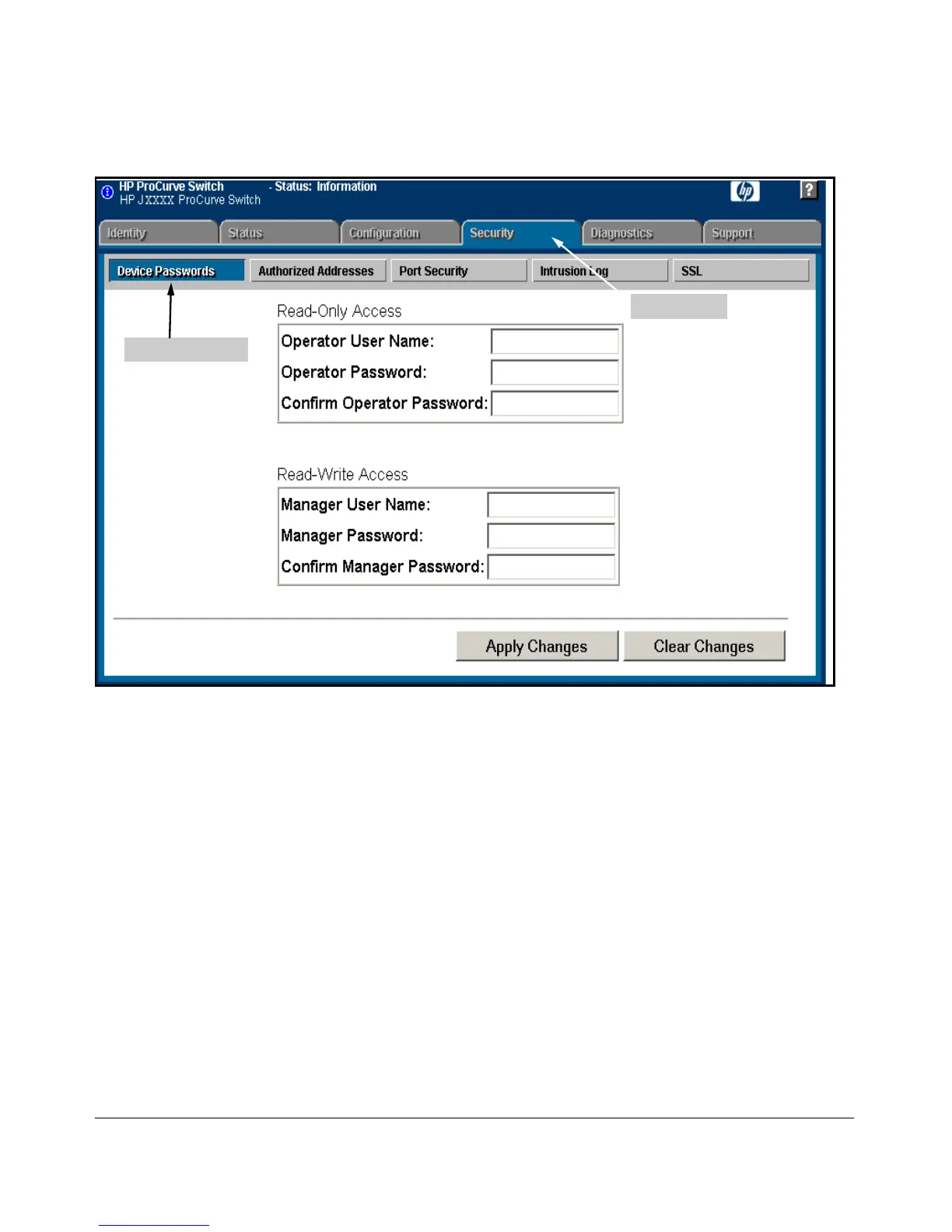
Password Button
Security Tab
Figure 7-2. Example of Configuring Local Passwords
1. Proceed to the security tab and select device passwords button.
2. Click in the appropriate box in the Device Passwords window and enter
user names and passwords. You will be required to repeat the password
strings in the confirmation boxes.
Both the user names and passwords can be up to 16 printable ASCII
characters.
3. Click on
[Apply Changes] button to activate the user names and passwords.
2. Generating the Switch’s Server Host Certificate
You must generate a server certificate on the switch before enabling SSL. The
switch uses this server certificate, along with a dynamically generated session
key pair to negotiate an encryption method and session with a browser trying
7-8



 To Next Page