2726
3.2 | Menu Navigation
The software user interface is shown on the PF2100 display. While the system is powered, the state of
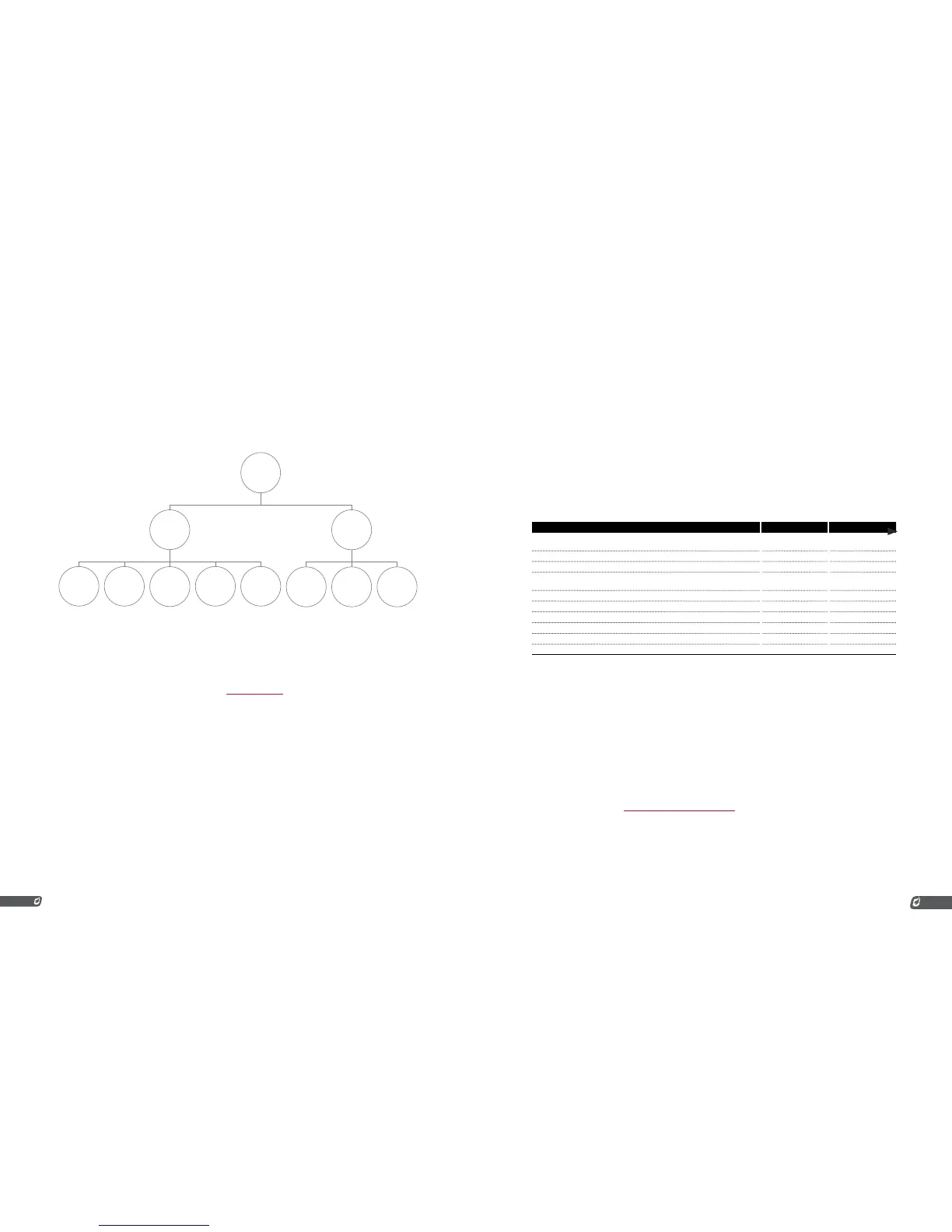
the system is displayed on the screen. The user can also change settings via this interface. Below is a
diagram showing the various types of information that can be accessed through the interface. The default
system screen at startup and when idling is the Home Screen. Most items are accessed through the
Home Screen but some can be accessed from anywhere in the interface.
PF2100
Menus
Warning
M essag es
Firmware
Versi o n
Scr een
Quick
Set p o i nt
A d just
Automatic
Mode
Warning
M essag es
Firmware
Versi o n
Scr een
Shut down
M enu
Sy st em
M enu
Rev i ew
M enu
M anu al
Mode
Certain settings can be viewed only in Manual Mode or only in Auto Mode.
MANUAL VS. AUTO MODE
When the system first powers on, it will normally be in Manual Mode. If the Auto Restart feature is
enabled and no alarm conditions are present, it may switch automatically to Auto Mode after power
up. Otherwise, the user must manually put the system into Auto Mode by using the Keypad, the Start
Contact, or the Modbus Expansion Card. See the System Start Up section for more details.
The main difference between these two modes is that all settings can be adjusted in Manual Mode and a
limited number of settings can be adjusted in Auto Mode. The following table illustrates the differences in
menu access.
ITEM MANUAL MODE AUTO MODE
User Can View and Adjust Menu Settings Yes* via Quick Setpoint
Adjust
User Can Access the Review Menu Ye s No
Process Control Can Be Running Ye s Ye s
System will try to Relight the Burner if the Pilot is Turned Off Due to Normal
Process Control
Ye s Ye s
System State Shown on the Home Screen Always During State Change
System will Attempt to Relight the Burner if the Flame Goes Out Unexpectedly No Ye s
Process Setpoint can be Easily Adjusted via the “Quick Setpoint Adjust” feature No Ye s
The System can be Controlled Manually via the Pilot, Ignite, and Main keys Ye s No
Manual Indicator Light On Ye s No
Auto Indicator Light On No Ye s
*Menus 1-3 only when process control is running, all menus when stopped.
HOME SCREEN
The Home Screen is shown on the display after power up, after waking the display from sleep, and after
the user acknowledges a shutdown message. It is the starting point for most user interaction with the
menu system. To return to the Home Screen from any point in the user interface, the user can press and
hold the “OK”key for three seconds.
On the Home Screen, the Process Temperature is always shown on the bottom line of the display. The
top line differs depending on mode. In Manual Mode, the top line shows the system state. In Auto Mode,
it shows the Process Setpoint instead.
The accessibility of other features from the Home Screen also differs depending on mode. For example,
the System Menus and Review Menu are only accessible in Manual Mode whereas the Quick Setpoint
Adjust feature is only available in Auto Mode. For more information on which features are available in
which modes, refer to the Adjust Settings & Review Status section.


 To Next Page