2928
AVAILABLE FEATURES WITHIN OPERATIONAL MODES
MODE DISPLAY MENUS REVIEW SETPOINT ADJUST
Manual System State
Process Temperature
Ye s Ye s No
Auto Process Setpoint
Process Temperature
No No Ye s
SYSTEM STATE
The System State is the Process Control State of the system. It is shown on the display for a few
seconds before and after a state change. In Manual Mode, the top line of the Home Screen always
shows the System State. Go to the Process Control Settings section for a complete list of the Process
Control States.
QUICK SETPOINT ADJUSTMENT
The Quick Setpoint Adjust feature is only available on the Home Screen while running in Auto Mode. It
allows the user to quickly adjust the Process Setpoint using the up and down keys. The change takes
effect immediately and does not need to be saved by pressing ok. If password protection is enabled,
a password will need to be entered before this feature can be used. If the Pilot Off and/or Low Fire
Setpoints are enabled, this feature will also adjust them. In this case, each press of the up or down key
will adjust all of these setpoints by 1 degree up or down. All other setpoints are not affected by this
feature.
SYSTEM MENUS
The System Menus store all of the system settings in an organized fashion. These menus are also used
to show historical and system status information as well as to provide access to calibration features.
These menus cannot be accessed while the system is running in Auto Mode. Some menus can only be
accessed while the system is stopped. Some menus require a Level 2 password and others require an
optional Level 1 password.
REVIEW MENU
The Review Menu provides a quick way for an operator to check key setpoints and system status
(accessible only in Manual Mode).
FIRMWARE VERSION SCREEN
The Firmware Version Screen shows the firmware version of all cards in the system including the Door
Card, Terminal Card, and any installed Expansion Cards.
WARNING MESSAGES
When the system detects a warning condition, it will flash a warning message across the bottom line of
the Home Screen. Some messages can be dismissed by pressing the OK key (eg, “Unit restarted from
LVL event”). Others persist until the warning condition is resolved (eg, “LO Volt Warning”).
SHUTDOWN SCREEN
When the system shuts down as a result of an alarm condition, it will flash the word “SHUTDOWN” in
large text on the display alternately with a more detailed message explaining the reason that the system
shut down. The Shutdown Screen can always be dismissed by pressing “OK,” toggling the Start Contact,
or sending the Start Command via Modbus.
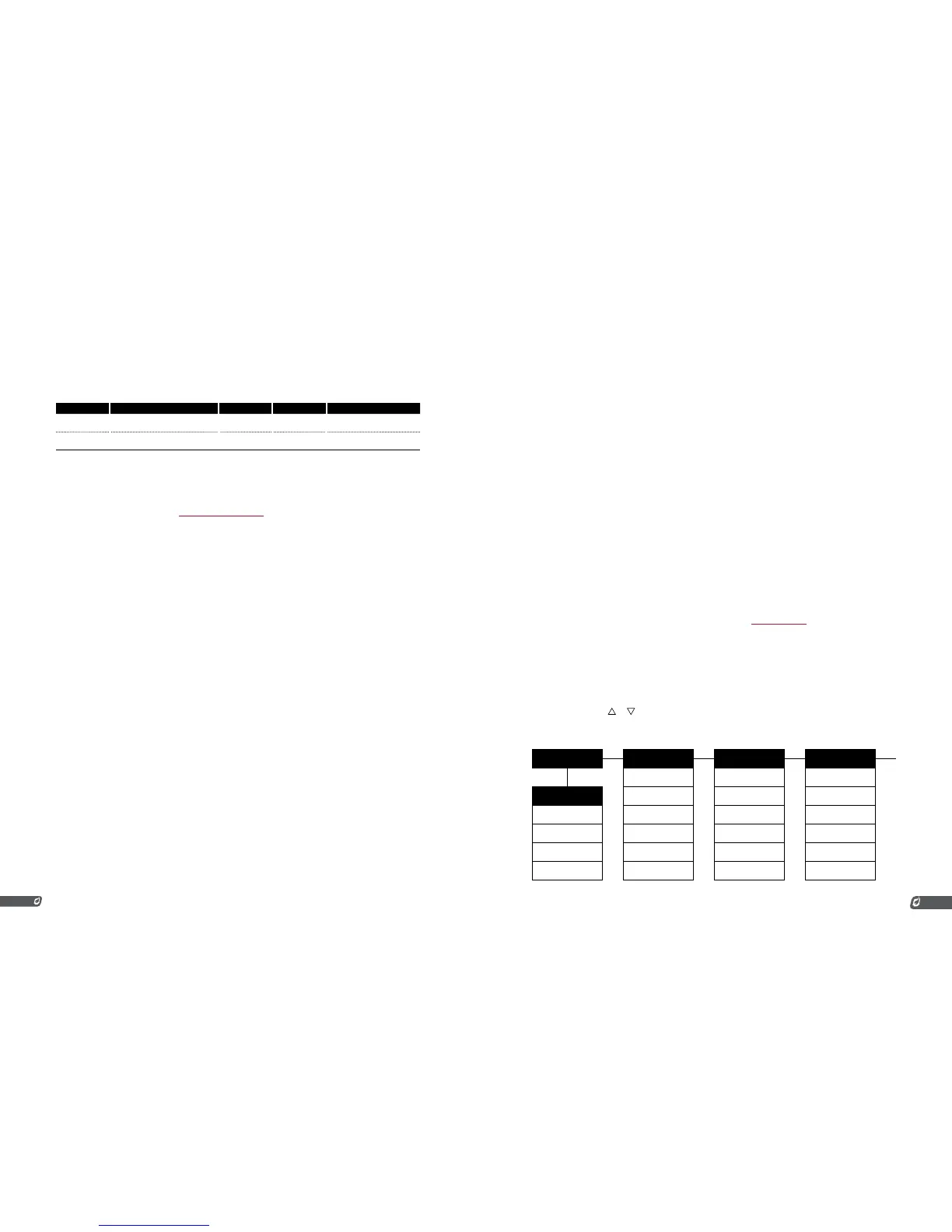
3.3 | Menu Map
For a complete description of each item, please refer to the menu definitions section. The debug
functions are not shown here; if needed they are located in the Field Calibration section of the manual.
NAVIGATION
1. Press MENU until you get to the desired menu.
(The Review menu is accessible by pushing the Down arrow.)
2. Press OK to select an option.
3. Press MENU until you get to the submenu option you want to
change/view.
4. Press or to adjust the selected setting.
5. Press OK to set the new value.
6. Press MENU to cancel changes.
7. Press OK to exit to the home screen.
Ready Proc Temp
Menu 1
Setpoints
Menu 2
History
Menu 3
System Info
Pilot Off Setpoint Relights High Temp TC Reading
Review Menu Low Fire Setpoint Flame Fails Process TC Reading
ESD Setpoint Process Setpoint Resets 4-20 mA Output%
Process Setpoint
Low Temp Alarm
Setpoint
ESDs Ambient Temp
Low Fire Setpoint Deadband High Pressure ESDs Voltage Reading
Pilot Off Setpoint AUX Setpoint Low Pressure ESDs Commission Date


 To Next Page